

WooCommerce Speed Optimization: The Complete 2026 Guide
A fast WooCommerce homepage can hide a slow checkout and a slow admin. This guide shows how to measure the pages that make money, and fix them in impact order.
Umair Khan •
WooCommerce speed optimization is not the same as WordPress speed optimization. A blog can be cached almost entirely. A store cannot.
Product pages can be cached. Cart, checkout, and account pages cannot be cached the same way, because they depend on who is shopping and what is in their cart. Admin pages, order searches, and reporting also hit the database directly. That is why a store can score 90+ on its homepage and still lose sales at checkout and waste hours in a slow admin.
This guide is the hub for the WooCommerce series on this site. It explains how WooCommerce speed differs, how to measure the right pages, and which fixes to do first. The detailed how-to posts linked below cover each fix in depth.
Why WooCommerce Speed Differs from WordPress Speed
Three differences change everything:
- Uncacheable pages: cart, checkout, and My Account must be dynamic. You cannot fix them with a cache plugin alone, and caching them incorrectly can break orders.
- Database-heavy work: orders, sessions, variations, coupons, and analytics create queries that a simple blog never runs. That is why HPOS, database cleanup, and Action Scheduler matter for WooCommerce in a way they do not for a brochure site.
- Interaction-heavy work: add to cart, variation selection, mini-cart updates, and checkout fields all run JavaScript and AJAX. That is why INP and cart fragments matter here, not just LCP.
If an optimization guide only talks about homepage images and a cache plugin, it is not a WooCommerce guide. It is a WordPress guide with “WooCommerce” in the title.

How to Measure Checkout and Admin
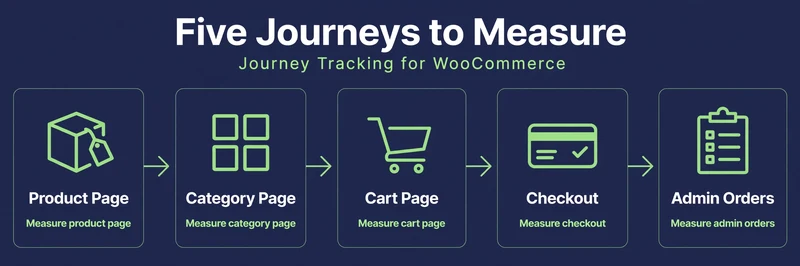
Measure five journeys, not one page:
- Product page: LCP, INP, and CLS for a real product, including gallery and variation selection.
- Category page: especially with filters, because filter plugins can add heavy queries and JavaScript.
- Cart page: quantity changes, coupon application, and shipping calculation.
- Checkout page and order placement: page load, plus time from clicking Place Order to confirmation, in test mode.
- Admin: orders list, order search, and product editing, timed on the same store before and after a fix.
For checkout, use a scripted test where possible, for example a WebPageTest script that adds to cart and goes to checkout, rather than a homepage-only test. For admin, time the same action three times and take the median, because a single admin load can be affected by cron, cache warming, or background sync.
Use both lab and field data where you can. Lab tools show what is slow in a controlled test. Field data, from real shoppers, shows what is slow in the real world, including slow networks and slow devices. If lab and field disagree, trust field data for the shopper experience, and use lab data to diagnose why. For the tools to run those checks, see the best WordPress speed test tools.
Measure one journey on your own staging store the same way before claiming a result: record the journey, the time before optimization, the time after the specific fix, and the tool and setup you used. No number in this guide is presented as a measured result until that test is run on your own store.

Fixes Ranked by Impact
Do these in order. Do not start with the tenth fix because it is easy, while the first fix is still broken.
1. Hosting, PHP workers, and database first
If the server cannot handle concurrent checkouts, no plugin will save you. Check PHP workers, memory, database performance, and whether your host can handle your sale traffic. See the Black Friday load-test guide in this series for how to test this.
2. Fix checkout with diagnosis, not guesses
Profile checkout with Query Monitor on staging. Find whether the cause is a slow query, a plugin hook, a payment gateway call, or cart fragments, then fix that cause. See: Slow WooCommerce Checkout with Query Monitor, and the Query Monitor Tutorial.
3. Protect cart and checkout from bad caching
Exclude cart, checkout, and account pages from page cache, and check cache plugin rules for WooCommerce cookies. See: WooCommerce Cache Exclusions. If you are choosing the plugin for that job, compare options in the best WordPress cache plugins review.
4. Fix cart fragments selectively
Keep fragments where the mini-cart matters, remove them only where it does not, and test add to cart after. See: WooCommerce Cart Fragments.
5. Migrate to HPOS, if compatible
HPOS can speed up order queries, especially on stores with many orders, but only after plugin compatibility checks, staging sync, and verification. See: WooCommerce HPOS Migration.
6. Clean up admin bottlenecks
Slow admin is usually HPOS, Action Scheduler, Heartbeat, analytics, or a heavy plugin, not “WooCommerce is slow.” See: Slow WooCommerce Admin and Orders Page, WooCommerce Database Cleanup: Sessions, Transients, Autoload and Action Scheduler, and Action Scheduler Slow or Stuck: Pending Actions, High CPU and Cleanup.
7. Optimize product and category pages
Product gallery LCP, image sizes, and filter plugins are the usual culprits here. Fix the LCP image first: do not lazy-load the hero/product image, set fetchpriority where appropriate, and preload it if needed. See: WooCommerce Product and Category Page Speed.
8. Fix INP for add to cart and variations
Slow add to cart, variation swatches, and mini-cart updates are INP problems, not just LCP problems. See: WooCommerce INP, and the INP pillar guide.
9. Images, CSS, and JavaScript, in that order of evidence
Only after the above, optimize images, remove unused CSS/JS on WooCommerce pages, and delay non-essential scripts with careful exclusions for cart, checkout, payment, and consent. Delaying a payment or consent script to “improve speed” can break checkout.
What Not to Do
- Do not cache cart or checkout.
- Do not disable cart fragments site-wide without testing mini-cart.
- Do not delay payment, Stripe, PayPal, or consent scripts without exclusions and testing.
- Do not migrate HPOS on live without staging, compatibility checks, and a rollback plan.
- Do not judge a store by its homepage score alone.
- Do not install five optimization plugins and hope they stack. They often conflict, duplicate caching, and add their own JavaScript.
WooCommerce Speed Posts in This Series
- How to Prepare WooCommerce for Black Friday Traffic (Load Test + Checklist)
- Slow WooCommerce Checkout: Find the Real Cause with Query Monitor
- WooCommerce Cart Fragments: What wc-ajax=get_refreshed_fragments Does and When to Disable It
- WooCommerce HPOS Migration: Step-by-Step with WP-CLI and Rollback Plan
- Query Monitor Tutorial: Find Slow Queries, Hooks and Plugins in WordPress
- Slow WooCommerce Admin and Orders Page: 9 Fixes That Work
- WooCommerce Cache Exclusions: Cart, Checkout, Cookies and Plugin Rules
- WooCommerce Speed Test: How to Test Cart, Checkout and Logged-In Pages
- WooCommerce Database Cleanup: Sessions, Transients, Autoload and Action Scheduler
- Action Scheduler Slow or Stuck: Pending Actions, High CPU and Cleanup
- WooCommerce Product and Category Page Speed: Images, Filters and LCP
- Which WooCommerce Plugins Slow Down Your Store? How to Find Them
If you want this done for your store, rather than as a DIY guide, see our WooCommerce speed optimization service.
Common Questions
Frequently Asked Questions
Straight answers about why WooCommerce is different, what to measure, and which fix to do first.
Keep reading
-
Best Hosting for WooCommerce: What to Check Before You Choose
What does WooCommerce hosting need to handle? A store is not a…October 27, 2026 -
Which WooCommerce Plugins Slow Down Your Store? How to Test, Not Guess
Why do plugins slow a WooCommerce store? To answer which WooCommerce plugins…October 27, 2026 -

WooCommerce Product and Category Page Speed: Fast Pages That Still Sell
Why are product and category pages slow? A slow WooCommerce product page…October 27, 2026
2 responses to “WooCommerce Speed Optimization: The Complete 2026 Guide”
-
[…] in this series: WooCommerce Speed Optimization – the complete 2026 guide, and the Query Monitor […]
-
[…] Related in this series: Slow WooCommerce Admin, WooCommerce Cart Fragments, and the complete WooCommerce Speed Optimization guide. […]
Leave a Reply