

WooCommerce Checkout Slow? Fix the Dynamic Page That Loses Orders
Checkout is not like a product page. It is built fresh for every shopper, so caching cannot hide its problems. This guide shows what actually slows checkout, and what to…
Umair Khan •
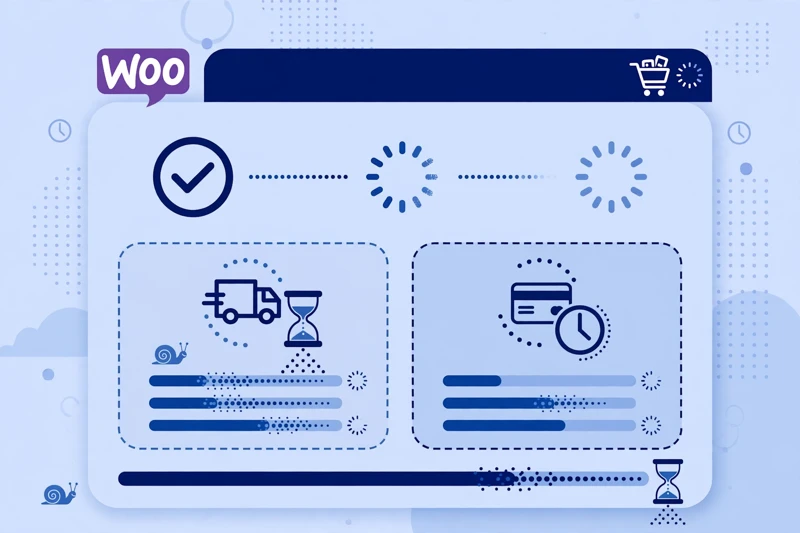
A shopper who reaches checkout has already decided to buy. That is why a slow checkout hurts more than a slow product page. A shopper who gives up at checkout usually does not come back, and the order is lost. Checkout deserves its own diagnosis, because it behaves differently from the rest of a store. A product page can be cached and served quickly to many visitors. Checkout cannot. It is built fresh for every shopper, with their cart, their address, their shipping options, and their payment choice. This guide stays on that checkout-specific problem only, and explains why checkout is slow in its own way, and what to check first.
Why is checkout slow when the rest of my store feels fast?
Checkout is slow for a different reason from most store pages. A product page, a category page, and the homepage can often be cached, which means the server can serve a ready-made copy instead of building the page again for every visitor. Checkout cannot be served that way, because every checkout is personal. The cart contents, the shipping address, the available shipping methods, the taxes, and the payment options all depend on the individual shopper. That means every checkout request must be built from scratch, on the server, at the moment the shopper asks for it. If the server is slow, if a shipping or tax lookup is slow, or if a payment script is heavy, the shopper feels it directly. There is no cached copy to hide behind. Judge checkout on its own: how long does it take for a real shopper, on a real phone, to see the checkout form, fill it in, and reach the payment step without delay or confusion? For a broader way to test store pages the way shoppers actually use them, the WooCommerce speed test guide explains how to test product, cart, and checkout pages separately, rather than testing only the homepage.
What makes checkout uncacheable, and why does that matter?
Checkout is uncacheable because it must never show one shopper’s details to another shopper. A cached page is a shared copy. If checkout were cached, one shopper could see another shopper’s cart, address, or order total, which would be a serious privacy and safety problem. That is why checkout, cart, and account pages are excluded from page caching by design. This matters because it changes what a fix can do. On a product page, caching can turn a slow page into a fast one for most visitors. On checkout, caching cannot do that work. The server must do the work every time, so the server, the database, and every external lookup involved in checkout must be fast enough on their own. It also means a caching mistake at checkout is dangerous. Caching checkout when it should not be cached can leak private data, or cause strange behaviour, such as a shopper seeing an old total, a wrong shipping option, or a form that does not update when the cart changes. If checkout behaves strangely after a caching change, check the cache exclusions first. The guide to WooCommerce cache exclusions explains which store pages must stay out of the cache, and why that exclusion is a safety rule, not just a speed setting.
Are payment, shipping, and tax calls slowing checkout?
Yes, these calls are often the hidden cost of checkout, because they happen while the shopper waits. When a shopper enters an address, checkout may ask a shipping service for rates, ask a tax service for a calculation, and prepare payment options. Each of those calls takes time, and the shopper cannot move forward until the answers come back. Watch what happens when the address changes. Does the shipping section freeze, spin, or take a long time to update? Does the order total update slowly after a postcode is entered? Does the payment section appear late? Each delay points to a different lookup, and each one needs to be checked on its own. Start by simplifying what checkout asks for. Remove shipping methods and payment options that are not actually offered, and remove address fields that are not needed. Every extra option is another lookup, another script, and another chance for delay. Then test checkout with a real address, a real shipping choice, and a real payment method in test mode, on a phone and on a desktop, as a logged-out shopper. Do not assume a particular gateway or shipping service is at fault without testing it. Swap one option at a time on staging, test again, and keep a record of what changed.
Is the checkout form itself too heavy?
The checkout form itself can slow the experience, even when the server and the lookups are fine. A form with many fields, many optional sections, extra upsells, extra trust badges, extra scripts, and extra validation rules asks more of the shopper and more of their phone. On a slower phone, a heavy form can feel sluggish to type in, slow to validate, and slow to submit. Count the fields a shopper must complete. Every field that is not needed for the order is friction. Fields for company details, order notes, extra phone numbers, and marketing choices may all have a purpose, but each one adds time and a chance for an error message that stops the shopper. Ask whether each field is needed before payment, or whether it could be collected after the order. Also check what loads with the form. A checkout page that loads chat widgets, review widgets, social feeds, and marketing scripts alongside the payment form is asking a phone to do extra work at the exact moment the shopper needs it to be fast. Delay or remove anything that is not needed to complete the order, and test the form after each change.
Are gateway scripts and checkout plugins competing on the page?
Checkout often loads more scripts than any other store page, because each payment option can bring its own script, its own styling, and its own checks. Those scripts compete for the shopper’s phone processor, and they can delay typing, validation, and the final submit button. A shopper may see the form, but still feel that the page is not responding. List what loads on checkout, and ask whether each script is needed at checkout, or whether it belongs on another page. A script that helps on a product page does not automatically belong on checkout. Test checkout after delaying or removing one script at a time, on staging first, and check that payment, shipping, and order submission still work after each change. This is different from a general script problem, because a mistake here can break payment. Never remove a payment script on a live store without testing a full test order first, in test mode, from cart to order confirmation. Keep a backup before changing a live checkout, so a change can be reversed quickly if a payment method stops working. For the interaction side of this problem, the WooCommerce INP guide for slow add to cart explains how slow responses to taps and clicks feel to shoppers, which is closely related to how a heavy checkout form feels, even though add to cart and checkout are different steps.
What checkout caching mistakes should I check first?
The most important checkout caching mistake is caching checkout at all. Check that cart, checkout, and account pages are excluded from page caching, from any cache plugin, and from any server-level or CDN cache rule. If any of those layers caches checkout, a shopper can see stale totals, wrong shipping options, or another shopper’s session details, and the fix is to exclude those pages, not to tune the cache. The second mistake is the opposite: excluding too much, or clearing the cache so often that the rest of the store slows down. Checkout exclusions should cover checkout, cart, and account pages only, not the whole store. The third mistake is assuming a cache change fixed checkout. Because checkout is uncacheable, a cache change should not change checkout speed much at all. Always test checkout separately, as a logged-out shopper, after any caching change, and do not rely on a homepage test to judge checkout.
How do I test checkout the way a real shopper experiences it?
Test checkout as a shopper, not as an admin. Use a logged-out browser, a real phone, and a real cart with the kind of products shoppers actually buy. Go through the full flow: add to cart, view cart, start checkout, enter an address, choose shipping, choose payment, and reach the point just before payment, using test mode for payment. Note where the page pauses, where the form feels slow to type in, and where the total or shipping options take time to update. Test more than once, and test more than one path. Test with a simple cart and with a larger cart, and with a local address and a distant address, if the store ships widely. A checkout that only feels slow for distant addresses points to shipping or tax lookups. A checkout that only feels slow for large carts points to cart and order calculations. A checkout that feels slow for every shopper points to the server, the form, or a script that loads for everyone. Keep a simple record: the date, the cart used, the address type, the shipping and payment choices, and where the delay appeared. If the problem involves hosting, scripts, and payment at the same time, or if checkout breaks during testing, a free speed audit can help you get a clear, prioritised list of what to fix first, without guessing on a live store.
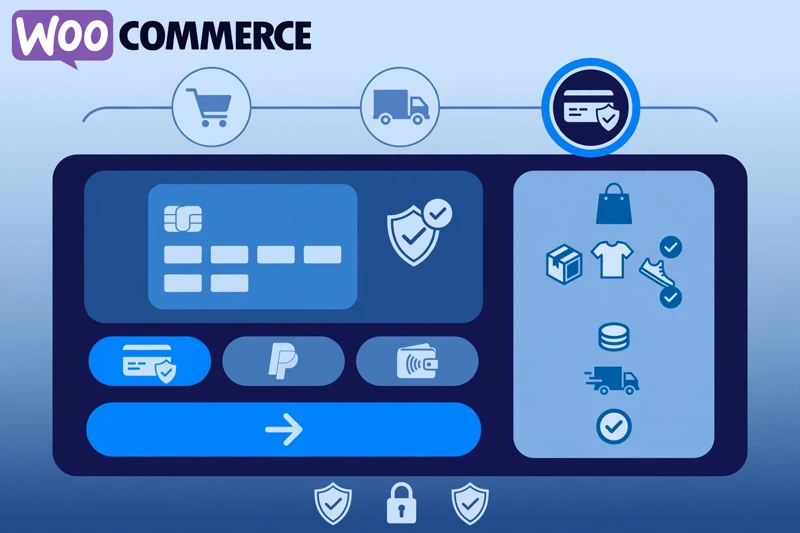
Common Questions
Frequently Asked Questions
Short answers to the questions readers ask most about a slow WooCommerce checkout.
Keep reading
-
Best Hosting for WooCommerce: What to Check Before You Choose
What does WooCommerce hosting need to handle? A store is not a…October 27, 2026 -
Which WooCommerce Plugins Slow Down Your Store? How to Test, Not Guess
Why do plugins slow a WooCommerce store? To answer which WooCommerce plugins…October 27, 2026 -

WooCommerce Product and Category Page Speed: Fast Pages That Still Sell
Why are product and category pages slow? A slow WooCommerce product page…October 27, 2026
Leave a Reply