

WooCommerce Cart Fragments: What wc-ajax=get_refreshed_fragments Does and When to Disable It
Cart fragments update the mini-cart without a page reload. That convenience costs an AJAX request. Disable them only where the mini-cart is not shown, and test add to cart after.
Umair Khan •
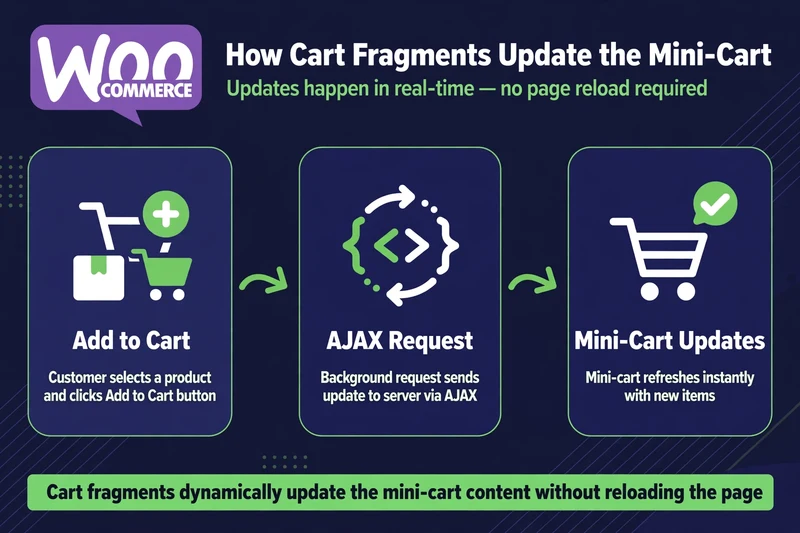
If you have ever looked at the Network tab in your browser on a WooCommerce site, you have probably seen a request called wc-ajax=get_refreshed_fragments. It is not malware, and it is not always a problem. It is how WooCommerce keeps the mini-cart in your header updated without reloading the page.
The problem starts when that request runs on pages where there is no mini-cart to update, or where it adds an uncached request that competes with the main content and with user interactions. That is where it can contribute to slow pages and poor Interaction to Next Paint (INP), especially on mobile.
The safe rule is simple. Keep fragments where the mini-cart matters. Remove them only where it does not. Do not disable them site-wide without testing.
What Is get_refreshed_fragments?
When a shopper adds a product to cart, WooCommerce needs to update the cart count and total shown in the header, and any other fragment on the page that depends on the cart. Cart fragments are small pieces of HTML that WooCommerce refreshes with an AJAX request, instead of reloading the whole page.
That request is wc-ajax=get_refreshed_fragments. It asks the server for the current cart fragments, and the browser replaces the old mini-cart HTML with the new one.
That is useful on a product page, a shop page, and anywhere a shopper can add to cart and should immediately see the count change. It is wasteful on a blog post, a landing page, or a checkout information page where there is no mini-cart widget at all, because the server still does work to build fragments nobody will see.
Note an important change in WooCommerce itself: since WooCommerce 7.8, cart fragments are disabled by default on pages without the Cart Widget. So if you are on a current WooCommerce version and you still see this request everywhere, check first whether it is coming from your theme, a mini-cart widget, or a plugin that forces fragments to load. Do not assume the default behaviour is the cause.
Is It Safe to Disable Cart Fragments?
It depends on where you disable them.
Safe, with testing: pages that do not show a mini-cart, cart count, or any other cart-dependent element. Blog posts, most landing pages, and information pages are typical candidates, if your theme does not put a cart icon with a live count in the header on those pages.
Not safe without a replacement: cart, checkout, product, and shop pages, and any page where the header mini-cart must update instantly after add to cart. If you disable fragments there, shoppers may add a product and see an old cart count, think the add failed, and add it again.
If your store redirects shoppers to the cart page after adding a product, fragments matter less on product pages, because the shopper lands on the cart page anyway. If your store uses AJAX add to cart and stays on the same page, fragments matter much more.
Before you change fragments, check the cache side too. A page-cache rule that caches a cart-dependent page can cause similar stale-cart symptoms. Compare options in the best WordPress cache plugins review.
How to Disable Only on Non-Cart Pages
Put this in a child theme’s functions.php, or in a code snippets plugin, on staging first. Do not edit the parent theme directly, or your change will be lost at the next theme update.
add_action( 'wp_enqueue_scripts', 'psg_disable_cart_fragments_selectively', 11 );
function psg_disable_cart_fragments_selectively() {
if ( ! is_cart() && ! is_checkout() && ! is_product() ) {
wp_dequeue_script( 'wc-cart-fragments' );
}
}
This is the selective version: it keeps fragments on cart, checkout, and product pages, and removes the script on other pages. Adjust the conditions to match your theme. For example, if your header shows a live mini-cart on every page, do not use this version on pages that header appears, or test the header behaviour first.
There is also a stricter version used by some stores that redirect to cart after add:
add_action( 'wp_enqueue_scripts', 'psg_dequeue_cart_fragments_front_blog', 11 );
function psg_dequeue_cart_fragments_front_blog() {
if ( is_front_page() || is_single() ) {
wp_dequeue_script( 'wc-cart-fragments' );
}
}
Use the stricter version only if you have tested it with your redirect setting on. The setting is in WooCommerce > Settings > Products > Display: “Redirect to the cart page after successful addition”.
After any change, test this exact sequence on staging, in order: add a product to cart from a product page, check the mini-cart count updates, go to cart, change quantity, go to checkout, and complete a test order. If any step shows a stale cart, revert the change and narrow the pages where fragments are disabled.
Run the same test on your staging site before publishing a result: record the page and metric you measured before disabling fragments on non-cart pages, and record the same metric after, and record whether mini-cart updates on product, cart, and checkout pages passed. Only a measured improvement on your own store counts as a result. Do not quote another store’s numbers as your own. For the front-end timings in that before-and-after check, use the best WordPress speed test tools.
How Cart Fragments Relate to INP
INP measures how quickly a page responds to interactions such as clicks and taps. A fragment request is not, by itself, an INP score. It can contribute to INP in two ways: it adds server work and JavaScript work that competes with the interaction the shopper just made, and it can trigger layout or DOM updates in the header at the same time as another interaction.
That is why fragments come up in INP discussions, but it is also why you should not promise an INP improvement from disabling fragments alone. Measure INP in the field and in DevTools before and after, on the same pages, and report only what you measured. If fragments were not the main INP culprit on a store, the fix will be elsewhere — for example a heavy script, a long task, or a slow add-to-cart handler, covered in the WooCommerce INP post in this series.

Next in this series: WooCommerce HPOS Migration — step-by-step with WP-CLI and a rollback plan.
Common Questions
Frequently Asked Questions
Straight answers about what cart fragments do, when it is safe to disable them, and how to test the change.
Keep reading
-

Best Hosting for WooCommerce: What to Check Before You Choose
What does WooCommerce hosting need to handle? A store is not a…October 27, 2026 -

Which WooCommerce Plugins Slow Down Your Store? How to Test, Not Guess
Why do plugins slow a WooCommerce store? To answer which WooCommerce plugins…October 27, 2026 -

WooCommerce Product and Category Page Speed: Fast Pages That Still Sell
Why are product and category pages slow? A slow WooCommerce product page…October 27, 2026
Leave a Reply