

WooCommerce HPOS Migration: Step-by-Step with WP-CLI and Rollback Plan
HPOS moves orders out of the posts table into dedicated order tables. Done on staging, with compatibility mode and verification, it can speed up admin and order queries. Done without…
Umair Khan •
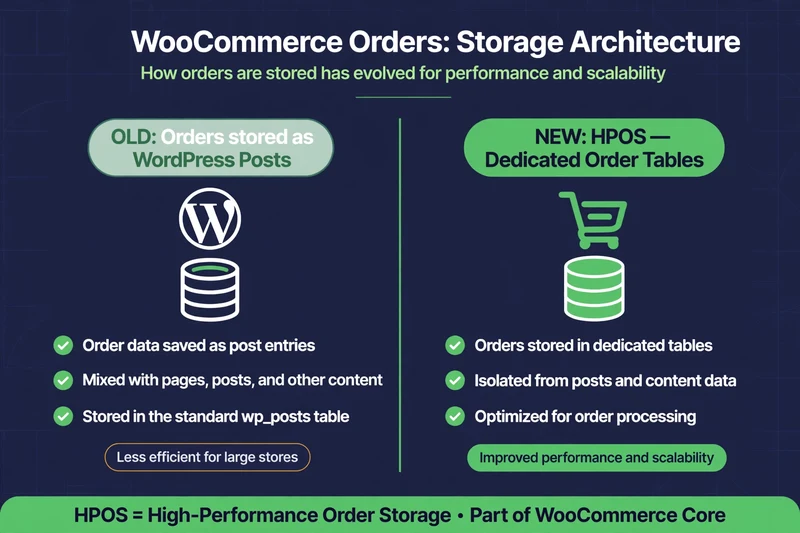
WooCommerce HPOS migration moves orders out of the posts table into dedicated order tables. High-Performance Order Storage, or HPOS, is WooCommerce’s dedicated storage for orders. Instead of storing orders as WordPress posts with order data in postmeta, HPOS stores orders in dedicated tables such as wc_orders and related tables, designed for order queries.
That matters most for stores with many orders, a slow orders page, or slow admin searches. It matters less for a brand-new store with few orders, where the posts table is not yet a bottleneck.
HPOS is not a speed plugin. It is a storage migration. If a plugin, theme, or custom snippet reads orders directly from posts or postmeta, and has not declared HPOS compatibility, that code can break or miss orders after migration. That is why this guide starts with compatibility and a rollback plan, not with the enable button.
HPOS changes order storage, not page caching. Do not expect it to fix a cached checkout problem. For that side, see the best WordPress cache plugins review.
What Is HPOS and Should You Enable It?
Before HPOS, every order was a post of type shop_order, with customer, items, totals, and metadata stored across posts and postmeta. Order queries had to join and filter that generic structure, which gets slower as order count grows.
With HPOS, orders live in tables built for orders. Admin queries, order searches, and reporting can be faster, and WooCommerce can index order data more efficiently. How much faster depends on your order count, your plugins, and your server, which is why this post does not claim a universal percentage. Measure admin timings on staging before and after, on the same orders page and the same search, and report only that measurement.
Enable HPOS if: you have a growing order history, admin or orders page is slow, your active plugins declare HPOS compatibility or have been tested, and you can test on staging first. Delay HPOS if: a critical plugin has declared incompatibility, you have custom code that reads orders as posts, or you cannot test on staging and cannot roll back.
How to Check Plugin Compatibility
Go to WooCommerce > Settings > Advanced > Features. WooCommerce shows HPOS status and a list of active plugins with their compatibility declaration.
Treat the list in three groups:
- Compatible: the plugin declares HPOS compatibility. Still test it on staging, because a declaration is not a guarantee for your specific use.
- Incompatible: the plugin declares it is not compatible. Do not migrate until you update it, replace it, or get a compatibility update from its author.
- No declaration / unknown: the plugin says nothing about HPOS. WooCommerce flags this too. Test it carefully on staging, especially if it touches orders, checkout, refunds, subscriptions, or reporting.
Also search your child theme and custom snippets for direct order-as-post code: wp_insert_post for orders, get_post_meta / update_post_meta for order data, and direct SQL against wp_posts where the context is orders. The HPOS-safe replacements are WooCommerce functions such as wc_get_order(), $order->get_meta(), $order->update_meta_data(), and $order->save(). Replace those before migration, not after.
Step-by-Step Migration on Staging First
Step 1: Backup, and test the backup
Take a full backup of files and database on staging, and confirm you can restore it. A backup you have never restored is a hope, not a plan. Note the backup time and where it is stored.
Step 2: Enable compatibility mode first
On staging, go to WooCommerce > Settings > Advanced > Features and enable compatibility mode, which synchronizes orders to both HPOS tables and the legacy posts table. In plain terms: new and updated orders are written to both tables, so you have a current fallback while you test.
Compatibility mode is a safety net, not a permanent solution. In recent WooCommerce versions the sync-on-read safety net that used to reconcile old-style writes has been reduced, so a plugin still writing the old way is less protected than it used to be. Check that plugin directly, rather than assuming compatibility mode covers it.
Step 3: Sync existing orders
Enabling HPOS triggers a background sync of existing orders into the new tables, processed in batches through Action Scheduler. You can monitor it in WooCommerce > Status > Scheduled Actions, or speed it up from the command line if you have WP-CLI access.
Check HPOS status first:
wp wc hpos statusThis reports whether HPOS and compatibility mode are on, how many orders are out of sync, and how many are waiting for cleanup, on recent WooCommerce versions.
To run the sync from WP-CLI:
wp wc hpos syncOlder documentation and older WooCommerce versions use wp wc cot sync for the same job. On newer versions that name is deprecated in favour of the hpos commands above. Run wp wc hpos --help on your server to confirm the exact subcommands for your installed version before you run them in a guide or a script, and do not copy a command from an old blog post without checking it.
For a large store, do the sync on staging first and time it. That time is your planning number for the live maintenance window. A sync that takes hours on staging will not take minutes on live.
Step 4: Verify orders, then test everything
After sync, verify data before you switch HPOS to authoritative:
wp wc hpos verify --allOn older versions the verify command was named wp wc cot verify-cot-data. Again, confirm with --help for your version.
Then test, in order: orders list and search in admin, opening and editing an order, refunds, new test checkout, payment in test mode, order emails, subscriptions or renewals if you use them, and any reporting or export plugin that reads orders. If any of those fail on staging, stop. Fix the plugin or code on staging, and do not push the migration to live.
Measure this on your own staging site before claiming a result: record orders page load and order search time before HPOS sync, record the same timings after sync and verification, and record how many orders migrated and how many mismatches were found. Only your own measured result counts — do not quote another store’s timings as your own. For public-page timings around the same change, use the best WordPress speed test tools.

Step 5: Switch to HPOS as authoritative, on live, in a window
Only after staging passes, repeat the same steps on live in a low-traffic window: backup, compatibility mode, sync, verify, test checkout, then switch HPOS to authoritative. Keep compatibility mode on for a short period after the switch if your plugins need it, then turn it off once you are confident, and clean up redundant postmeta only after a verified sync, with a backup in place.
The cleanup command on recent versions is wp wc hpos cleanup. Run it only after verification, and only with a backup you can restore.
How to Roll Back HPOS Safely
Rollback is only safe if you planned for it before the switch. That is the whole point of compatibility mode: while it is on, the legacy posts table stays current, so switching back to posts storage does not lose recent orders.
Rollback plan, in order:
- Stop new checkouts if possible, or do the rollback in a low-traffic window and tell the team.
- Go to WooCommerce > Settings > Advanced > Features and switch order data storage back to WordPress posts storage, while compatibility mode data is still current.
- Test: orders list, opening an order, new test checkout, and the plugin that caused the problem.
- Restore from backup only if the switch-back does not fix it, and only from the backup taken immediately before the migration.
- Do not delete HPOS tables or clean up postmeta until you are sure you will not roll back again.
If compatibility mode was off and the posts table is out of date, rollback is no longer a simple switch. That is why you do not turn compatibility mode off on day one, and why you do not migrate on live without staging and a backup.
Common HPOS Plugin Conflicts to Check
- Order export, reporting, and accounting plugins that read orders directly from posts/postmeta
- Custom checkout, upsell, or subscription plugins that update order meta with post functions
- Old CRM, fulfilment, or shipping plugins that sync orders by post ID
- Custom snippets in functions.php that use get_post_meta for order data
For each one, check its HPOS declaration, its changelog for an HPOS update, and its behaviour on staging after migration. A plugin that works on the frontend but silently misses new orders in its export is a worse failure than a visible error.
Next in this series: WooCommerce Speed Optimization — the complete 2026 guide, and the Query Monitor tutorial.
Related in this series: WooCommerce Cart Fragments, and Slow WooCommerce Admin.
Common Questions
Frequently Asked Questions
Straight answers about HPOS storage, plugin compatibility, sync and verification, and rolling back safely.
Keep reading
-
Best Hosting for WooCommerce: What to Check Before You Choose
What does WooCommerce hosting need to handle? A store is not a…October 27, 2026 -
Which WooCommerce Plugins Slow Down Your Store? How to Test, Not Guess
Why do plugins slow a WooCommerce store? To answer which WooCommerce plugins…October 27, 2026 -

WooCommerce Product and Category Page Speed: Fast Pages That Still Sell
Why are product and category pages slow? A slow WooCommerce product page…October 27, 2026
One response to “WooCommerce HPOS Migration: Step-by-Step with WP-CLI and Rollback Plan”
-
[…] Next in this series: WooCommerce HPOS Migration – step-by-step with WP-CLI and a rollback plan. […]
Leave a Reply