

WooCommerce Cache Exclusions: Cart, Checkout, Cookies and Plugin Rules
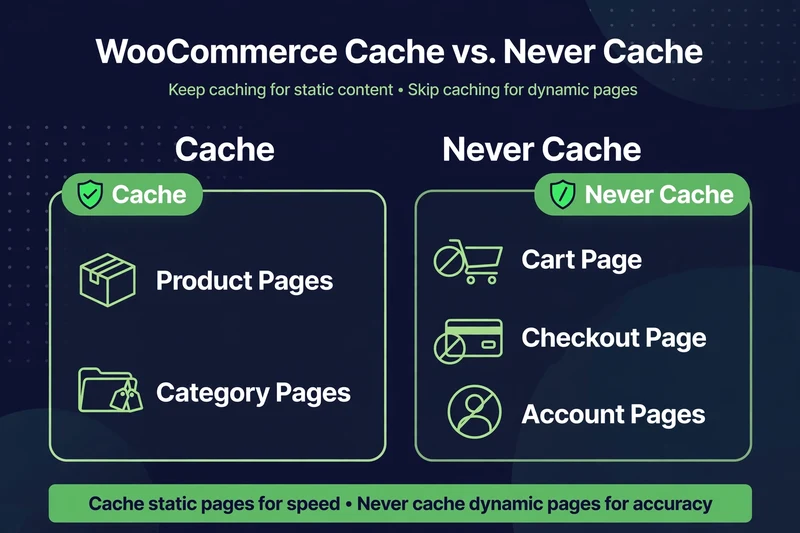
Cache product pages aggressively. Never cache cart, checkout, or account pages. This reference table shows the exclusions and cookies for the main cache plugins, tested on staging.
Umair Khan •
WooCommerce Cache Exclusions: Cart, Checkout, Cookies and Plugin Rules
Cache exclusions are the most important WooCommerce cache setting, and the most dangerous to get wrong. Get them right, and product pages load fast for logged-out visitors. Get them wrong, and shoppers see each other’s carts, checkout breaks, or discount codes stop working.
This post is a reference, not a copy-paste-and-forget list. Plugin settings change by version, and your theme and plugins change which pages are dynamic. Test every rule below on staging, with the test at the end of this post, before applying it to live.
For full plugin comparisons, see the best WordPress cache plugins review.
What Must Never Be Cached in WooCommerce?
- Cart page: shows a personal cart. Caching it can show the wrong cart to the wrong shopper.
- Checkout page: shows personal details, shipping, payment, and order totals. Never cache it.
- My Account pages: orders, downloads, addresses, and account details are personal. Never cache them.
- Any page with a logged-in shopper’s data: if the page changes because of who is logged in, do not serve a cached copy to everyone.
- Pages with dynamic pricing, discounts, or stock that must be current at checkout: cache the product page, not the checkout calculation.
Product, category, and blog pages for logged-out visitors are normally safe to cache, provided the exclusions below are in place and your theme does not put a live mini-cart count in the cached HTML without fragments or another dynamic mechanism.
Which Cookies Break Caching?
Cache plugins use cookies to decide whether to serve a cached page or a dynamic page. The key WooCommerce cookie is woocommerce_items_in_cart. When a shopper has items in cart, that cookie is present, and a correctly configured cache should bypass page cache for that shopper, or at least for cart/checkout/account pages.
Other cookies that can affect caching include:
woocommerce_cart_hash– cart contents hash, used to detect cart changeswp_woocommerce_session_*– WooCommerce session cookie for the shopperwordpress_logged_in_*– logged-in user cookie; logged-in users should normally bypass page cache- Plugin-specific cookies for currency, location, or membership, if your store uses them – these must be checked per plugin, because a cached page in the wrong currency or membership level is a broken page
If a cache plugin is configured to ignore these cookies, or a CDN cache rule caches cart/checkout regardless of cookies, you will get intermittent, hard-to-reproduce bugs. That is why “sometimes checkout shows the wrong cart” is often a cache exclusion problem, not a WooCommerce bug.
Rules by Plugin: WP Rocket, LiteSpeed, FlyingPress
Verify these setting names in your installed version. Do not apply a rule from an old screenshot without checking your version.
| Plugin | Pages to exclude (never cache) | Cookie / user exclusions to check |
|---|---|---|
| WP Rocket | Cart, Checkout, My Account – check Advanced Rules > Never Cache URLs, and confirm WooCommerce pages are listed there by default in your version | Logged-in users bypass cache by default; check that woocommerce_items_in_cart and session cookies are not ignored |
| LiteSpeed Cache | Cart, Checkout, My Account – check Cache > Excludes > Do Not Cache URIs, and confirm WooCommerce exclusions are present | Logged-in users and WooCommerce cookies should bypass cache; check Do Not Cache Cookies / Roles settings in your version |
| FlyingPress | Cart, Checkout, My Account – check Cache > Exclude Pages, and confirm WooCommerce pages are excluded | Logged-in users bypass cache; check cookie exclusions for WooCommerce session/cart cookies in your version |
For all three: after changing a rule, purge all cache, then test. A stale cached cart page can survive a settings change if you do not purge.
Verify each rule in your installed plugin version on staging before applying it to live, and note any version-specific setting name change there. No rule here is presented as tested on a specific store until that staging test is done.
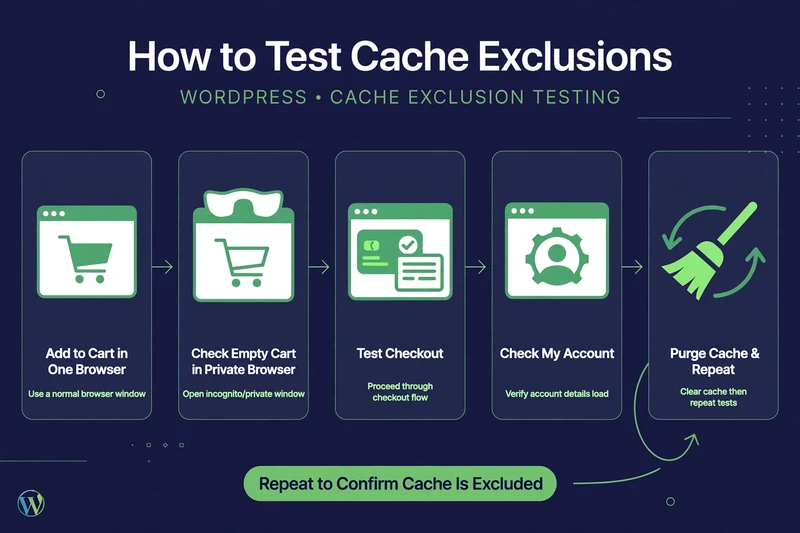
How to Test Cache Exclusions on Staging
- Add a product to cart in Browser A, as a test shopper.
- Open the same cart and checkout pages in Browser B, in a private window, with no login and an empty cart. You should not see Browser A’s cart.
- Open a product page in Browser B. It may be cached, and that is fine, provided the mini-cart count in Browser B does not show Browser A’s count.
- Complete a test checkout in Browser A, in test payment mode. Check that totals, discounts, and shipping are correct, and that the order appears in admin.
- Log in as a test customer in Browser B, and check My Account. You should see only that test customer’s orders.
- Repeat after purging cache and after changing any cache rule. A rule that passes once, before a purge, has not been tested.
If any step fails, revert the last cache change first, purge cache, and re-test. Do not add more cache rules on top of a failing test.
Once exclusions pass, measure the cached product pages with the best WordPress speed test tools.
Related in this series: Slow WooCommerce Admin, WooCommerce Cart Fragments, and the complete WooCommerce Speed Optimization guide.
Common Questions
Frequently Asked Questions
Straight answers about what never to cache, the cookies that break caching, and how to test exclusions before they reach live shoppers.
Keep reading
-
Best Hosting for WooCommerce: What to Check Before You Choose
What does WooCommerce hosting need to handle? A store is not a…October 27, 2026 -
Which WooCommerce Plugins Slow Down Your Store? How to Test, Not Guess
Why do plugins slow a WooCommerce store? To answer which WooCommerce plugins…October 27, 2026 -

WooCommerce Product and Category Page Speed: Fast Pages That Still Sell
Why are product and category pages slow? A slow WooCommerce product page…October 27, 2026
One response to “WooCommerce Cache Exclusions: Cart, Checkout, Cookies and Plugin Rules”
-
[…] measure the result with my best WordPress speed test tools guide. If you run a store, read the WooCommerce cache exclusions rules first, and see the wider plan in the WooCommerce speed optimization complete […]
Leave a Reply