

Slow WooCommerce Admin and Orders Page: 9 Fixes That Work
A slow orders page wastes staff time and hides real orders. Diagnose admin the same way you diagnose checkout: profile, find the bottleneck, fix that one thing.
Umair Khan •
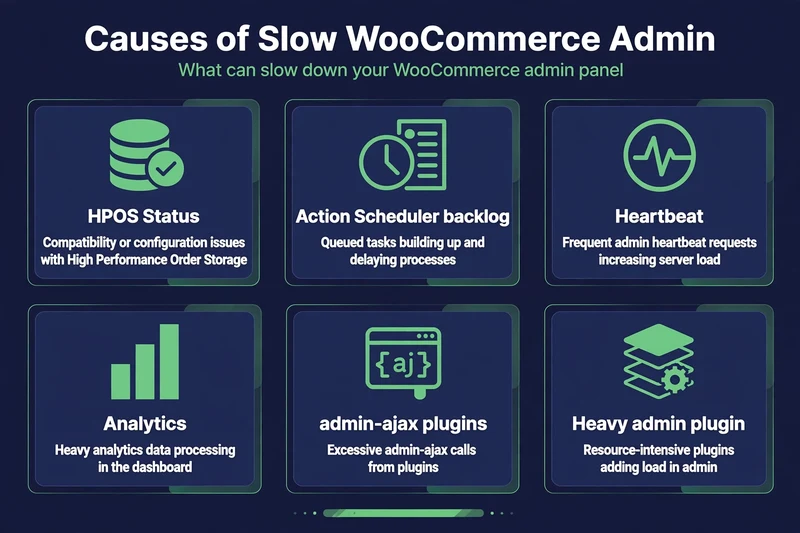
WooCommerce admin slow performance is not just annoying. It slows order fulfilment, makes staff avoid the orders page, and hides problems until a customer complains. It also has different causes from a slow frontend, so frontend cache plugins will not fix it.
Admin pages are logged-in, dynamic, and database-heavy by design. The usual causes, in the order to check them, are: HPOS status, Action Scheduler backlog, Heartbeat, analytics, admin-ajax from plugins, and a heavy plugin on admin pages. Profile admin before you change anything.
Caching is a frontend fix, not an admin fix. For what cache plugins can and cannot do, see the best WordPress cache plugins review, and for frontend timings, the best WordPress speed test tools.
Why Is WooCommerce Admin Slow?
Start with a simple test on staging: time the orders list, an order search for a known order, and opening a single order, three times each, and take the median. Note which one is slow. Orders list slow, search slow, and single order slow point to different causes.
Then profile admin with Query Monitor, as an administrator on staging. Look at Queries sorted by time, Hooks, and HTTP API calls for the admin page you just timed. Do not profile the frontend and assume admin has the same cause.
Measure on your own staging store before publishing any timing claim: time the orders list, an order search, and a single order three times each, and record the median for each before and after the fix you actually applied.
Does HPOS Speed Up the Orders Page?
Often, yes, for stores with many orders, but only if the store is actually on HPOS and its plugins are compatible. If you are still on posts storage, orders queries go through the generic posts/postmeta structure, which gets slower as order count grows.
Check WooCommerce > Settings > Advanced > Features. If HPOS is off, read the HPOS Migration post in this series before switching: check plugin compatibility, sync on staging, verify orders, and keep a rollback plan. Do not switch HPOS on live as a quick admin fix.
If HPOS is already on, HPOS is not the bottleneck. Move to the next cause.
How to Stop Heartbeat from Hurting Admin
WordPress Heartbeat is the admin-ajax polling that keeps autosaves, post locks, and some plugin data fresh. On a WooCommerce admin with many open tabs, or with plugins that poll frequently, Heartbeat can add constant admin-ajax requests and database load.
Check first whether Heartbeat is actually a problem: in Query Monitor or your server logs, look for frequent admin-ajax requests from Heartbeat on admin pages, and whether they coincide with slowness. If Heartbeat is not frequent on your admin, throttling it will not help.
Safe options, on staging first: increase the Heartbeat interval in admin, disable Heartbeat on specific admin pages where it is not needed, or use a reputable plugin that controls Heartbeat frequency, with settings tested for WooCommerce. Do not disable Heartbeat entirely without testing autosave, post locks, and any plugin that depends on it for live data.
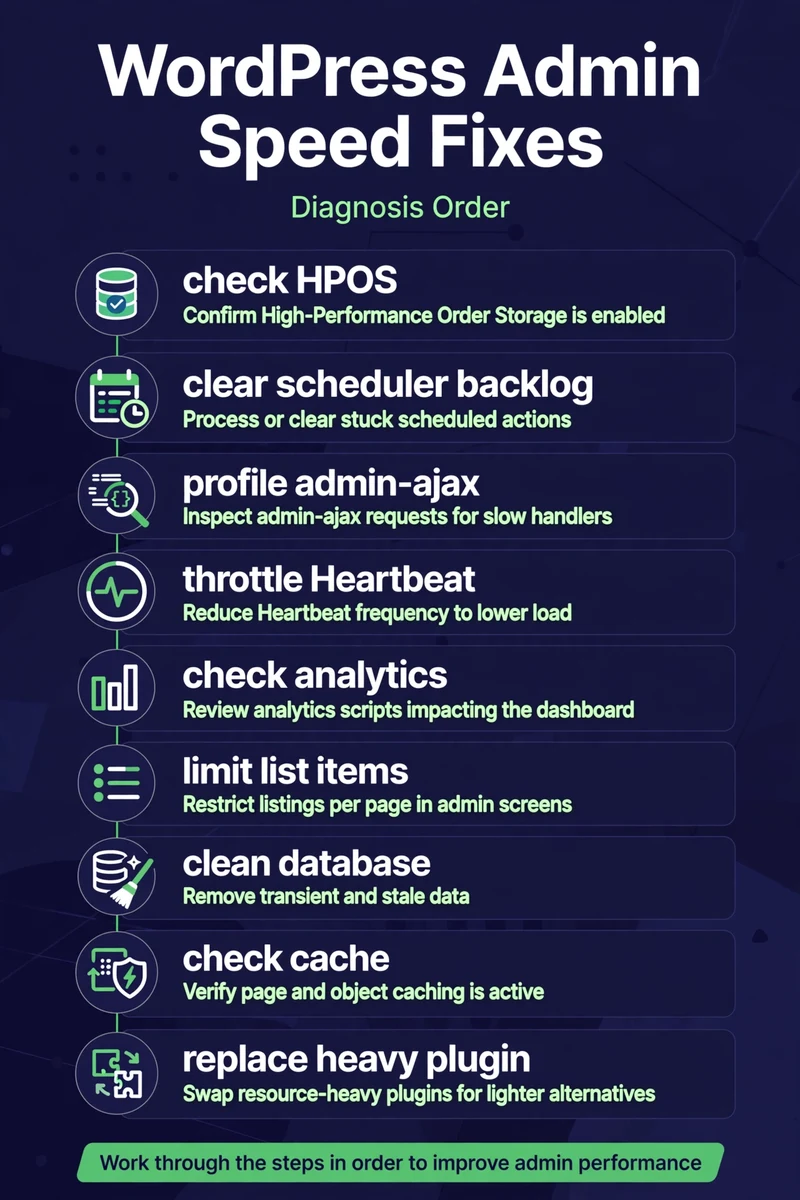
9 Fixes, in Diagnosis Order
1. Check HPOS status and compatibility
See above. Migrate only on staging first, with verification and rollback.
2. Clear the Action Scheduler backlog
Go to Tools > Scheduled Actions and look for thousands of pending, failed, or stuck actions. A huge backlog can slow admin and consume CPU, especially if actions are retrying. See the Action Scheduler post for safe cleanup with WP-CLI, and never delete actions blindly on live without a backup and a check of what those actions do.
3. Profile admin-ajax
Use Query Monitor and browser developer tools to see which plugin calls admin-ajax most often on admin pages. A plugin that polls admin-ajax every few seconds, or runs a heavy query on every admin load, is a prime suspect. Disable one suspect at a time on staging and re-time admin.
4. Throttle Heartbeat, carefully
As above, only if Heartbeat is actually frequent and costly on your admin.
5. Check WooCommerce Analytics and reporting
Analytics reports can run heavy queries over large order histories. If reports are slow but the orders list is fast, the problem is reporting, not orders storage. Limit report date ranges, check whether analytics tables are up to date, and do not run large exports during peak admin hours.
6. Limit admin list items and dashboard widgets
Reduce orders per page in Screen Options, remove dashboard widgets you do not use, and check whether a dashboard widget or admin column from a plugin runs a heavy query on every orders list load. This is a small fix, but it is free and it helps large stores.
7. Clean database bloat, safely
Check wp_options autoload size, expired transients, and old WooCommerce sessions. See the Database Cleanup post for safe SQL and WP-CLI steps, with a backup first. Do not run a generic “database optimizer” that deletes data you have not reviewed.
8. Check object cache and database server
A persistent object cache such as Redis can help repeated admin queries, but only if it is correctly connected and sized. Check the database slow query log for the slowest admin queries, and check whether the database server, not WordPress, is the bottleneck.
9. Remove or replace the heavy admin plugin
If profiling points to one plugin on admin pages, check its settings first: does it need to load on orders pages, does it add columns or widgets you do not use, is there an update that fixes the cost? Replace it only after staging tests fail.
Related in this series: Query Monitor tutorial, WooCommerce HPOS Migration, WooCommerce Cache Exclusions, and the WooCommerce Speed Optimization guide.
Common Questions
Frequently Asked Questions
Straight answers about why admin slows down, what HPOS changes, and how to fix the bottleneck safely.
Keep reading
-
Best Hosting for WooCommerce: What to Check Before You Choose
What does WooCommerce hosting need to handle? A store is not a…October 27, 2026 -
Which WooCommerce Plugins Slow Down Your Store? How to Test, Not Guess
Why do plugins slow a WooCommerce store? To answer which WooCommerce plugins…October 27, 2026 -

WooCommerce Product and Category Page Speed: Fast Pages That Still Sell
Why are product and category pages slow? A slow WooCommerce product page…October 27, 2026
One response to “Slow WooCommerce Admin and Orders Page: 9 Fixes That Work”
-
[…] in this series: Slow WooCommerce Admin, WooCommerce Cart Fragments, and the complete WooCommerce Speed Optimization […]
Leave a Reply