

Interaction to Next Paint Basics for WordPress Site Owners
Interaction to Next Paint describes how quickly your page reacts after a visitor taps, clicks, or types. This guide explains it in plain language, and shows where to look when…
Umair Khan •
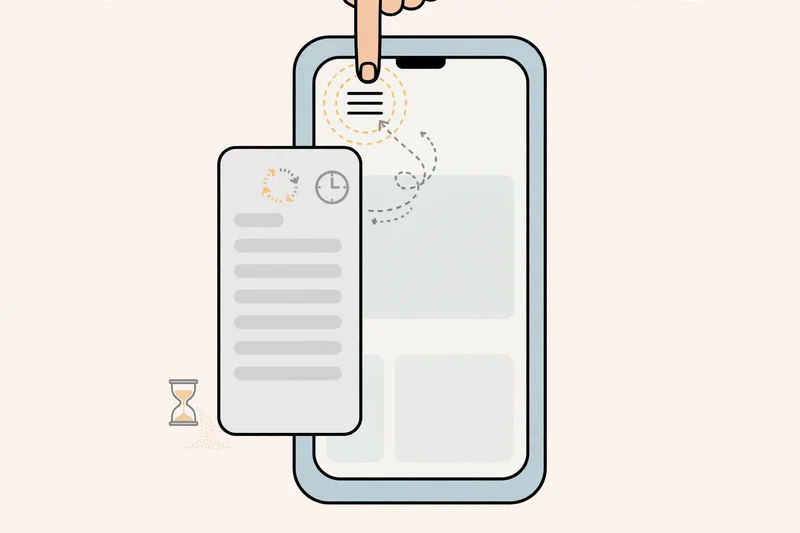
I wanted to explain interaction to next paint basics in plain language before we look at how a visit should feel.
interaction to next paint basics: Start with how a visit should feel
A fast page is not only a page that appears quickly. It is a page that reacts quickly. A visitor taps a menu, and the menu opens. A visitor clicks a button, and something visible happens. A visitor types in a form, and the text appears without a pause. When that reaction is prompt, the site feels trustworthy and easy to use. When it lags, the site feels broken, even if the content eventually loads correctly.
That reaction time is what Interaction to Next Paint, usually shortened to INP, is trying to describe. It is a Core Web Vitals signal, which means it is one of the visitor experience signals used to describe how a real visit feels. You do not need to memorise the full technical definition to use it well. You need to know what it measures, what usually makes it worse, and how to find the problem on your own site.
I see this often on WordPress sites that look fine at first glance. The homepage loads, then a visitor opens the mobile menu and nothing happens for a moment, or taps a product filter and the page freezes briefly. Those moments are where visitors give up, or tap again and trigger the wrong action.
This post is a basics guide. It explains INP in plain language, gives practical WordPress examples, and sets out a sensible order for fixing responsiveness problems. It does not promise a specific score, ranking, or traffic outcome. If you need help with the practical work, you can reach the team behind this site through https://prospeedguy.com/.
What Interaction to Next Paint measures, in plain language
INP measures the delay between a visitor interaction and the next visible change on the page. An interaction can be a tap, a click, a key press, or another direct action. The next paint is the moment the browser shows an updated frame, so the visitor can see that something happened. The shorter that delay, the more responsive the page feels.
Think of it as a conversation. The visitor asks a question by tapping, and the page answers by changing what is shown. A quick answer feels natural. A slow answer feels like the other person stopped listening. INP is concerned with that gap, not with how long the whole page takes to load in the first place. A page can load quickly and still respond slowly, if the browser is busy with other work when the visitor interacts.
INP looks at interactions across a visit, not only the first tap. Test the actions visitors actually take, including menus, search, filters, carts, and forms where they apply.
Testing tools usually label the result in simple terms, such as good, needs improvement, or poor. Use those labels as a starting point, and read the tool result on the day you test it. What matters is the pattern on your own pages.
What good responsiveness feels like
Good responsiveness is almost invisible. A visitor does not think about it, because nothing gets in the way. The menu opens when tapped. A dropdown shows its options without a pause. A button shows a pressed state, or a loading state, promptly. Text appears as it is typed, without characters arriving in a burst after a delay.
Poor responsiveness is easy to recognise. The visitor taps, nothing happens, taps again, and then both taps take effect at once. A form field lags behind typing, or a filter takes a moment to update. Each small delay adds doubt, and doubt is what makes visitors leave.
The best test is simple. Use your site as a visitor would, on a real phone, on a normal connection. Tap the main actions, open the menu, and use the search. If you feel a delay, note exactly where it happens. A specific delay in a specific place is far easier to fix than a vague report that the site feels slow.
What commonly slows interaction on WordPress
Heavy JavaScript is the most common cause I see. JavaScript is the code that makes menus, sliders, forms, filters, popups, and many interactive features work. When there is too much of it, or when a single task takes a long time to run, the browser cannot respond promptly to a new tap or click. It is busy finishing the old task first. Visitors experience that busy period as a freeze.
Third party tools are a frequent source of heavy JavaScript. A chat widget, a tracking script, a social feed, a review widget, a video embed, or a popup tool can each add work to a page. One tool may be fine. Several tools, all loading on the same key page, can add up quickly. The question to ask for each tool is simple. Does this tool earn its place on this page, for visitors, right now. If it does not, remove it from that page, or delay it until after the main content is usable.
Your theme and plugins also matter. A theme with many interactive features, a page builder with complex blocks, a form plugin with heavy validation, or a store plugin with many product options can all add interaction work. This does not mean those tools are bad. It means you should test the pages where they are used most, and check whether a specific feature is causing the delay. Changing a theme or removing a plugin without evidence can create a larger problem, so start with observation, not with a rebuild.
How to find the interaction problem on your own site
Start by choosing the pages that matter most. For most sites, that means the homepage, a key service or product page, and any page where visitors must interact to convert, such as a contact page, a booking page, or a checkout page. Do not try to test every page at once. Start where a delay costs you most.
Test each page as a visitor would. Open it on a real phone first, if most of your visitors use phones, and confirm that choice from your own analytics rather than assuming it. Tap the menu, use the search, open a dropdown, change a filter, and submit a form if there is one. Note any action that feels delayed, and describe it in plain words. For example, the mobile menu took a moment to open, or the product filter froze before updating. That description is the start of a useful fix list.
Then run a testing tool that reports INP, and note whether it points to the same actions you felt. Lab data comes from a controlled test, while field data comes from real visits when enough data exists. If the tool names a script or a long task, note that name, so you can focus on the right part of the site.
Repeat the test after each change, on the same page and device type. Change one thing at a time, and keep a short log of the date, page, device, action tested, and whether it felt better, the same, or worse.
Practical fixes, in a sensible order
First, review third party tools on key pages. Remove anything that is not earning its place, and delay anything that does not need to be active before the visitor interacts. Do not remove an essential checkout or booking tool without a replacement plan, and test the page fully after any change.
Second, look at the interactive features on the page itself. Does the page need every slider, animation, popup, and filter on first load. Can a less important feature load later, or only when the visitor asks for it. Keep each change reversible.
Third, check for plugin and theme overlap. If two tools do similar jobs, that overlap may add unnecessary work. Removing a duplicate is often safer than adding another plugin, which can add its own work and hide the real problem.
Fourth, test on a real device after each fix, not only in a tool report. Tap the same actions you tested at the start. If the delay is gone, keep the change. If it remains, undo it and try the next item. Do not keep a fix that breaks a form, a menu, or a checkout step.
What not to chase
Do not chase a single score in isolation. INP is one signal about responsiveness, not a complete picture of your site. A page can improve on one metric and still feel awkward to use, if the layout shifts, the main content is slow to appear, or the design is confusing. Judge the result by the whole visit, not by one label in one tool.
Do not assume a fast desktop result means mobile is fine. Test mobile separately, and fix mobile first if that is where most of your visitors are, confirmed from your own analytics.
Do not rebuild your site to fix one slow interaction, unless the evidence points to a deep problem. Most problems I see are caused by a specific script, tool, or feature on a specific page. Finding that cause is usually faster and less risky than starting again.
FAQ
Question: What is Interaction to Next Paint in plain language?
Answer: It is a measure of how quickly a page visibly reacts after a visitor taps, clicks, or types. A short delay feels responsive. A long delay feels like the page has frozen, even if it eventually works.
Question: Is INP the same as page loading speed?
Answer: No. Loading speed is about how quickly content appears in the first place. INP is about how quickly the page reacts after a visitor interacts. A page can load quickly and still respond slowly, if the browser is busy with other work when the visitor taps.
Question: Why does my site feel slow on mobile but fine on desktop?
Answer: Mobile devices often have less processing power, and mobile connections are often slower and less stable. A script that runs quickly on a powerful desktop computer can take longer on a phone, and that delay shows up when a visitor interacts. Test mobile separately, on a real phone.
Question: Should I add a plugin to fix INP?
Answer: Not before you know what is causing the delay. Note the action that feels slow, and check whether a third party tool, a specific feature, or a heavy script is involved. Removing or delaying the real cause is usually more effective than adding another plugin, which can add its own work.
Question: Can a single third party tool ruin responsiveness?
Answer: Yes, it can, especially if it loads early, runs long tasks, or loads on every key page. That does not mean every third party tool is bad. Ask whether each tool earns its place on that page, for visitors, right now, and delay or remove the ones that do not.
Question: How do I know if a fix worked?
Answer: Test the same action, on the same page, on the same device type, before and after the change. If the action now feels prompt, and nothing else broke, the fix worked. Keep a short log of what you changed and what you observed, so you do not have to guess later.
Keep reading
-

Why Is My WordPress Homepage Slow? Fix the Hero, Slider, and First Screen First
A slow first screen loses visitors before the rest of the page…November 12, 2026 -

PageSpeed Looks Good but Core Web Vitals Fail? Lab vs Field Data Explained
A good lab score does not always mean a passing Core Web…November 9, 2026 -

Are Google Fonts Slowing Down WordPress? How to Fix Slow, Shifting Text
Text that appears late, flashes, or jumps after loading can make a…November 5, 2026
Leave a Reply