

Are Google Fonts Slowing Down WordPress? How to Fix Slow, Shifting Text
Text that appears late, flashes, or jumps after loading can make a page feel broken, even when images are optimized. This guide explains how fonts cause that, and how to…
Umair Khan •
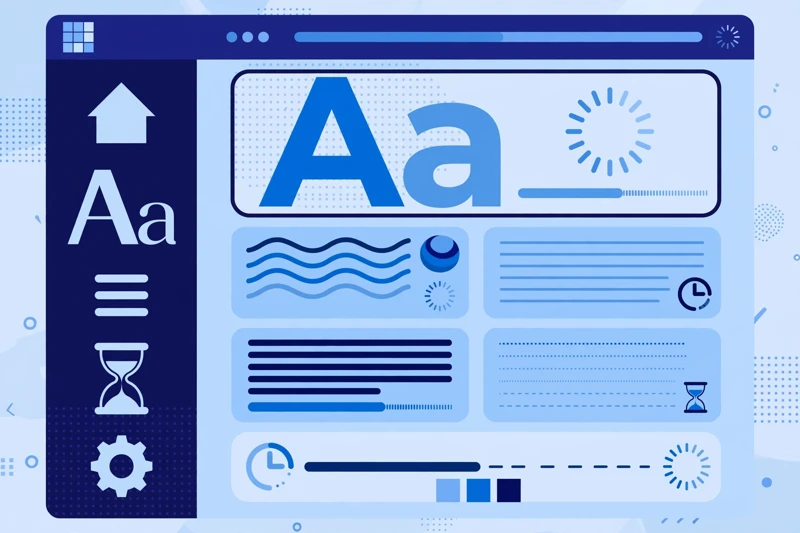
Google Fonts slow WordPress pages more often than most site owners expect. A page can feel broken even when images are optimized and hosting is sound. The headline appears late, text flashes or jumps, and visitors notice text first because reading is the first thing they try to do on a page.
Fonts are often the hidden cause. This guide explains why Google Fonts slow WordPress pages, why text sometimes stays invisible or shifts, and how to fix font loading without breaking your design.
How do fonts slow down a WordPress page?
Fonts are files that browsers must download before they can show text in the chosen typeface. The cost grows with every family, weight, and style you load, so a site that loads several families in many weights is asking visitors to download far more than it needs for its headings and body text.
Those font files can also compete with the hero image and scripts for the browser’s attention. When font loading is render-blocking, it can delay the headline itself, even if the rest of the page is ready. That delay is felt most on slower connections and mobile devices, where every extra request matters.
To put font problems in context, start with the broader picture in the WordPress Core Web Vitals guide, then return to the font-specific fixes below.
Why does text stay invisible while a font loads?
When a browser waits for a web font before showing text, visitors see a blank space where the headline should be. This is known as a flash of invisible text: the layout is there, but the words are not.
The alternative is a flash of unstyled text, where the browser first shows a fallback font and then swaps to the web font once it arrives. That is usually better than invisible text, but the swap can shift the layout if the fallback and the web font have different sizes, spacing, or line heights.
Both problems hurt the experience in different ways: invisible text feels like nothing is happening, while a late swap can move headings, paragraphs, buttons, and images after a visitor has started reading. If layout shift is your main symptom, see the guide on how to fix CLS in WordPress.
What does font-display swap actually change for visitors?
With font-display: swap, the browser shows a fallback font quickly so visitors can read sooner, then swaps to the web font when it is ready. The key benefit is time to readable text, not a smaller file.
Swap does not make the font file smaller and does not make it arrive sooner on its own. It changes what visitors see while they wait. That is why it works best with a well-matched fallback: if the fallback is close in size and spacing to the web font, the swap is barely noticeable and layout shift stays small.
Pair swap with fewer weights and families for the best result. A fast fallback followed by a smaller, well-chosen font set gives visitors readable text early without a jarring change later.
Should I load fewer font weights and families?
Yes. Reducing what you load is often the simplest and most effective fix. Many themes and page builders load far more than a page actually uses, including light, regular, medium, bold, and black weights for several families, plus italics you may never need.
List the families, weights, and styles actually used on your site, then remove the unused ones. Keep bold and italic only if they are genuinely used, and check headings, body text, buttons, and menus on both desktop and mobile after each change.
- Keep only the families used for headings and body text.
- Keep only the weights and styles that appear on real pages.
- Remove weights added by default by a theme, builder, or plugin if they are not used.
- Test headings, body text, buttons, and menus on desktop and mobile.
Should I self-host fonts instead of loading them from Google?
Self-hosting means downloading the fonts and serving them from your own site. That removes an external request, and it gives you control over the format, the weights included, and caching. For many sites, that control alone is worth the change.
Before you switch, check the font licence and use your theme’s supported method for loading fonts. Do not edit theme files unless the change will remain maintainable through updates, because a manual edit that is overwritten later can silently bring the old loading behaviour back.
Self-hosting is not a cure-all. If you self-host every weight and family you used before, you will still load too much. Combine self-hosting with fewer weights, a well-matched fallback, and font-display: swap. The contrast is useful here too: unlike a lazy-loaded LCP image, which should load immediately, fonts need a different strategy, as explained in the guide to a lazy-loaded LCP image in WordPress.
Which fonts should I preload, and which should I not?
Preload only the main first-screen font, and only the weight and style that appear above the first screen. Preloading tells the browser to fetch that font early, which helps the headline and first paragraph appear in the right typeface sooner. Google’s guide to optimizing WebFont loading and rendering explains preload, font-display, and caching in detail.
Do not preload every font. Preloading every family, weight, and style competes with other critical resources and can hurt performance instead of helping it. If a font is not needed for the first screen, let the browser fetch it in the normal order.
How do I check fonts without breaking the design?
Check fonts safely by working on staging first, making one change at a time, and keeping a backup you can restore. A visual check matters as much as a score: a faster score is not a success if headings look wrong or text becomes hard to read.
Before and after each change, list the families, weights, and styles in use, and check for invisible text, flashing, and shifting in the headline and first paragraph. Keep font changes separate from script changes, so you know which change caused any difference you see.
For a related script-side check, read the guide on delaying JavaScript execution in WordPress, but test it separately from your font changes. The safest first step for fonts is usually font-display: swap with a well-matched fallback, followed by removing unused weights and families.
If you want a broader diagnosis, start with the guide on why your WordPress site is slow. For hands-on help, a free speed audit can identify whether fonts, images, scripts, or hosting are the main cause on your site.
Common Questions
Frequently Asked Questions
Short answers to the questions readers ask most about slow fonts in WordPress.
Keep reading
-
PageSpeed Looks Good but Core Web Vitals Fail? Lab vs Field Data Explained
A good lab score does not always mean a passing Core Web…November 9, 2026 -
WordPress Slow on Mobile Only? How to Find the Mobile-Only Cause
Your site feels fine on a laptop but slow on a phone….November 2, 2026 -

Why Is My WordPress Site Slow?
A slow WordPress site is frustrating because the cause is rarely obvious….October 28, 2026
Leave a Reply