

WordPress Slow After a Plugin or Theme Update? How to Find and Fix It
If your site was running fine yesterday and feels slow today, an update is a sensible first suspect — but it is not proof. A plugin or theme update can…
Umair Khan •
If your site was running fine yesterday and feels slow today, an update is a sensible first suspect — but it is not proof. A plugin or theme update can add new scripts, change how a page is built, load extra styles, or start work in the background. It can also expose a problem that was already there, such as a slow database query or a weak server. That is why the goal is not to blame the newest update at once. The goal is to confirm what changed, test safely, and change one thing at a time.
This guide walks through a calm, step-by-step method. You will learn how to check whether the update caused the slowdown, how to use staging so your visitors are not your test group, how to find the culprit without guessing, how to roll back safely, and how to make the next update less risky. If your site is generally slow rather than slow only after an update, start with Why Is My WordPress Site Slow? to rule out the wider causes first.
What changed, and how can I confirm the update caused the slowdown?
Start with the timeline, not the settings page. Write down when the slowdown was first noticed, which pages feel slow, and whether the problem is on the front end, in the admin area, or both. Then check what changed around that time: plugin updates, theme updates, WordPress core updates, and any change to hosting, caching, or a connected service. Many sites update several items at once, so “after an update” can hide more than one change.
Next, describe the symptom in plain terms. Is the whole page slow to start loading, or does it load and then feel jerky when you click? Do images or a slider shift the layout? Does only one type of page suffer, such as product pages, checkout, or the homepage? A slow server response points in a different direction from heavy front-end scripts, and a problem on one template often points to a theme or page-builder change. The WordPress Core Web Vitals guide is useful here because it separates loading, responsiveness, and layout stability instead of treating every slow page as the same problem.
Also rule out the usual false alarms before you start switching things off. Clear or bypass your own browser cache, test in a private window, and check the site on another connection if you can. A caching layer can hide a problem for a while and then show it after a cache clear, which can make an unrelated change look guilty. Note whether logged-in pages are slow while public pages are fast, or the other way around, because caching often treats those two cases very differently.
- List every plugin and theme update from around the time the problem began, including automatic updates.
- Note the exact pages affected, the device type, and whether the admin area is also slow.
- Check for error messages, failed forms, missing images, or features that stopped working.
- Keep this short timeline in one place. You will use it again on staging and when deciding whether to roll back.
How do I check safely on staging first?
Staging is a private copy of your site where you can test without affecting visitors, orders, or search results. Do not use the live site as your laboratory, especially during busy hours. A good staging copy should match the live site as closely as possible: the same theme, the same active plugins, recent content, and the same kind of pages you need to test, including a product page, a form, or checkout if those are affected.
Before you change anything on staging, take a backup of the live site and confirm you know how to restore it. A backup you have never tested is only a hope, not a safety net. On staging, record a simple baseline first: which pages feel slow, what breaks, and what works normally. Then make one change, retest the same pages, and write down the result. If you change five things at once and the site improves, you will not know which change helped — and you will not know what to repeat on the live site.
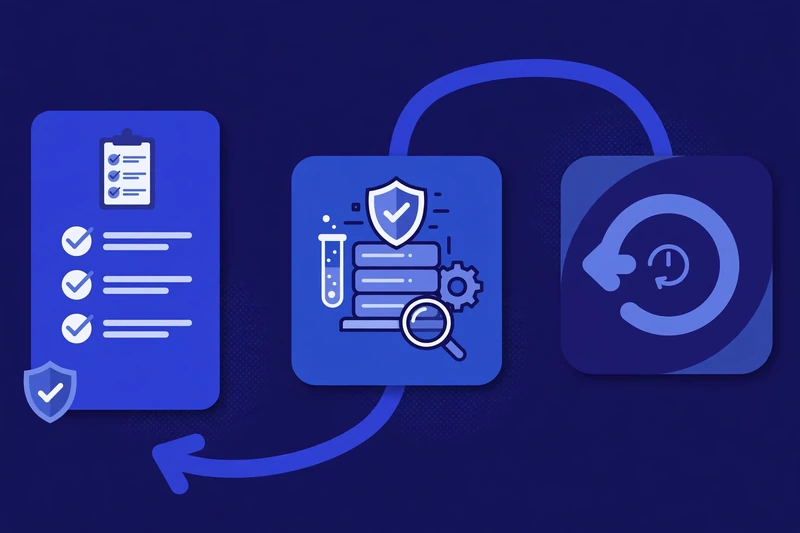
Test the journeys that matter, not just the homepage. Visit the slow page, use the menu, submit a form, add a product to the cart if you run a store, and check a logged-in view if that is where the problem appears. Use staging to find the cause and to prove a fix works, then retest carefully after you apply the same fix to the live site.
- Back up the live site before testing, and keep the backup details somewhere you can find them under pressure.
- Create or refresh staging so it reflects the current live site, not an old copy.
- Record a baseline for the affected pages before changing anything.
- Change one item at a time, retest the same pages, and note the result each time.
How do I find the culprit plugin or theme without guessing?
On staging, work from your timeline. Start with the items updated closest to the slowdown, not with the plugin you like least. If only one plugin or the theme changed, test that change first. If several changed, you will need a method that isolates them one by one, because two updates can interact in a way that neither causes alone.
A useful first step is to look at what the updated code actually loads on the slow page. Use your browser tools or a profiling tool to see which scripts and styles appear, which requests take the longest, and whether the delay is in the server response or in the browser. The Query Monitor tutorial explains how to read slow queries and hooks in WordPress, which can point to a plugin doing heavy database work or running on pages where it is not needed. For stores, the same staged method is explained in Which WooCommerce Plugins Slow Down Your Store? — test, do not guess, and check cart and checkout as well as product pages.
Then run a simple on-and-off test on staging, one candidate at a time. Deactivate one plugin, retest the same pages, then reactivate it before testing the next one. This matters because leaving several plugins off at once can hide an interaction, and a site can behave differently when a needed plugin is missing. For a theme, switch to a default theme on staging only, and compare the same pages. If the problem disappears with a different theme, the updated theme, its templates, or a theme feature is the likely source. If it disappears when one plugin is off, you have a strong lead — but still check whether that plugin is slow on its own or only slow together with another plugin or the theme.
Do not delete plugin files blindly, and do not run delete commands on a database you have not backed up. Deactivation on staging is reversible; deletion is not always easy to undo, and it can remove settings or data you still need. Also check whether the slowdown is really a plugin problem at all. An update can increase database work, which then exposes a tuning problem, or it can add requests that expose a server limit. In that case, the WordPress server optimization guide and the MySQL and MariaDB tuning guide can help you separate a code problem from a server or database bottleneck, and Managed VPS Still Slow? explains why a stronger plan alone does not always fix a code or query problem.
- Test the most recently updated items first, then work outward.
- Use the same pages, actions, and checks for every test so results can be compared fairly.
- Check both the front end and the admin area, and check forms, search, and checkout where relevant.
- Write down each result before moving on, including cases where nothing changed.
How do I roll back safely?
Rollback means returning to the version that worked, in a controlled way, not rushing to undo everything. First, confirm the problem on staging and keep your backup ready. On staging, restore or reinstall the previous version of the suspect plugin or theme, then retest the same pages. If speed and function return, you have a workable short-term answer. If they do not, the problem may involve more than one update, a setting change, or a server or database issue, so do not keep rolling back items at random.
On the live site, apply only the change you proved on staging, during a quiet period if possible. Afterward, retest the key pages, forms, and checkout, and watch for errors. Keep a note of the version you rolled back to and why, and check the plugin or theme changelog and support notes for a fix before updating again. A rollback is a pause for safety, not a permanent solution: an old version may miss security fixes, so plan a safe retest of the newer version on staging, with the problem reported to the developer if you can describe it clearly.
How do I prevent this next time?
Make updates a routine, not a surprise. Update on staging first, one item at a time, and test the same key pages before touching the live site. Keep a simple inventory for each plugin and theme: what it does, who owns it, and which pages depend on it. Remove duplicates and tools you no longer use, because every active item is something to update, test, and maintain.
Also protect the basics. Keep reliable backups, keep WordPress, PHP, and your hosting setup supported and up to date, and review caching after an update, since a changed script or style can behave differently when cached. A short update checklist — backup, staging test, key-page check, live retest, and a note of what changed — turns a stressful surprise into a repeatable process. If you still cannot isolate the cause, or the fix touches checkout, payments, or a large store, ask for a free speed audit rather than guessing on the live site.
Common Questions
Frequently Asked Questions
Short answers to the questions readers ask most after an update slows a site.
Keep reading
-

Why Is the Elementor Editor Slow? How to Speed Up Editing
If the Elementor editor is slow, editing feels like hard work. Panels…October 28, 2026 -

10 BEST Gutenberg block libraries for WordPress
Here are the best Gutenberg block libraries to redesign your WordPress site,…October 25, 2026 -
10 Best WordPress SECURITY plugins review
Want to know the best WordPress security plugins to protect your site?…October 25, 2026
Leave a Reply