

Slow WooCommerce Checkout: Find the Real Cause with Query Monitor
Generic speed tips won’t fix a slow checkout. Profile checkout with Query Monitor, find whether it’s a query, a plugin, a payment gateway call, or cart fragments, then fix that…
Umair Khan •
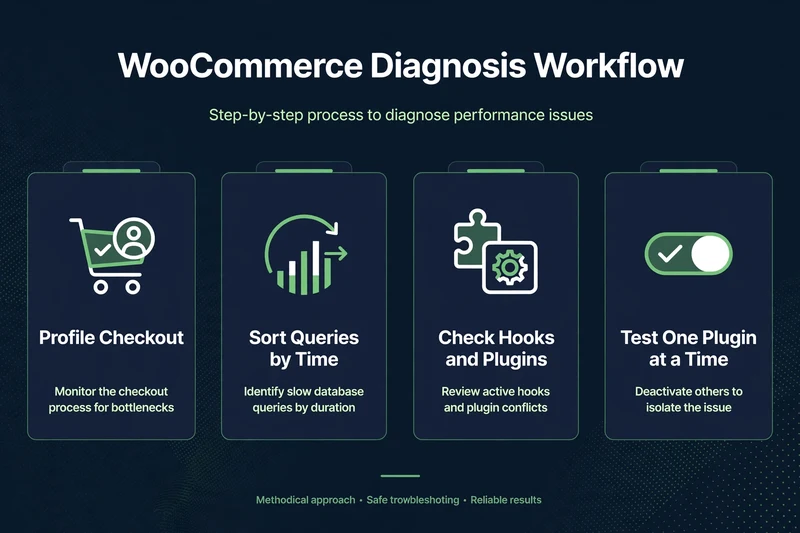
Slow WooCommerce checkout is fixed by finding the cause first. Ten generic speed tips will not fix a slow checkout. You need the cause first.
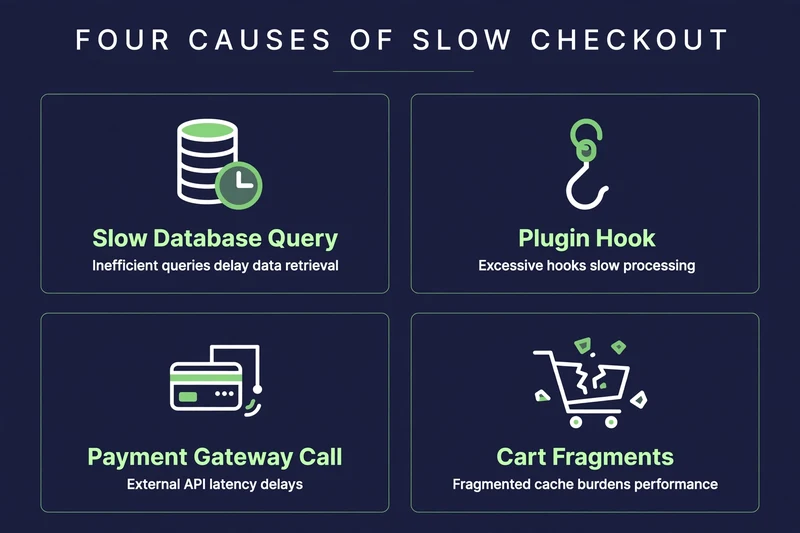
In most stores, that cause is one of four things: a slow database query, a plugin hook running on checkout, a slow payment gateway call, or cart fragments.
Query Monitor is a free WordPress plugin. It shows you, right on the page, which queries ran, which hooks ran, and which plugins were involved. On staging, it turns a vague complaint — “checkout is slow” — into a specific problem you can fix.
Do this work on staging or a test copy first. Query Monitor is a debugging tool. Do not leave it active on a live store longer than you need it, and do not share its output publicly. It can expose queries and paths.
For a front-end timing check alongside this profiling, see the best WordPress speed test tools. They measure what shoppers see, while Query Monitor shows why it happens.
Why Is My WooCommerce Checkout Slow?
Separate two problems first. They need different fixes:
- Checkout page loads slowly: the page itself takes a long time to appear. Look for slow queries, heavy plugins on checkout, and uncached dynamic content.
- Checkout is slow after clicking Place Order: the page loads, but placing the order hangs. Look for payment gateway calls, order creation, email sending, and stock / webhook processing.
Fix the wrong one, and checkout will still feel slow. Query Monitor helps directly with the first problem. For the second, it helps by ruling out page-load causes.
How to Profile Checkout with Query Monitor
1. Install Query Monitor on staging
Install Query Monitor from the WordPress plugin directory on your staging site. Activate it, then log in as an administrator. You will see a new item in the admin bar with timings for the current page.
2. Go through checkout as a shopper would
Add a product to cart. Go to checkout, fill in test details, and load the checkout page. Do not use a payment method that charges a real card on staging. Use test mode, or a cash-on-delivery / test payment option if your gateway supports it.
3. Open Queries and sort by time
In Query Monitor, open Queries. Sort by time, slowest first. Look for:
- One query, or a small number of queries, taking a large share of total time
- The same query repeated many times, which often points to a plugin or theme loop
- Queries on WooCommerce tables, postmeta, options, or sessions, and which component called them
Query Monitor shows the caller for each query. That matters. A slow query is not just “the database is slow.” It is a specific plugin, theme function, or WooCommerce process asking for something expensive.
4. Check Hooks and the plugin involved
Open Hooks in Query Monitor and look for hooks running on checkout, especially hooks added by plugins that do not need to run there. Common examples to investigate, not to blame automatically, include:
- Plugins that load their scripts, styles, or data on every page, including checkout
- Plugins that check cart, pricing, or discounts on every checkout load
- Custom code or snippets that run a heavy query on checkout
Test by disabling one suspect plugin at a time — on staging only — then re-profiling checkout.
5. Check cart fragments and AJAX calls
Open your browser developer tools. Go to the Network tab. Watch checkout and cart page requests. Look for wc-ajax=get_refreshed_fragments and other AJAX calls. Cart fragments keep the mini-cart updated, but they can add an uncached request to pages where the mini-cart is not shown.
If fragments are a large part of checkout or cart load, do not just disable them everywhere. That can break the mini-cart. The safe rule, covered in detail in the cart fragments post in this series, is to disable fragments only on pages where the mini-cart is not needed, and to test add to cart and mini-cart updates after any change. For the caching side of that decision, compare options in the best WordPress cache plugins review.
Which Plugins Hit Checkout Hardest?
There is no honest universal list of “slow plugins” for every store. The cost depends on your theme, your other plugins, your product types, and your settings. That is exactly why profiling matters.
Instead of a list, use this method on staging:
- Profile checkout with all plugins active and note the total time and slowest queries.
- Disable one suspect plugin, re-profile, and compare.
- Repeat for the next suspect, one at a time. Disabling five plugins at once tells you nothing about which one mattered.
- For the plugin that matters, check its settings first: does it need to load on checkout, does it need to query on every load, is there a newer version that fixes the cost?
Pay special attention to plugins that add checkout fields, payment methods, discounts, upsells, or shipping calculations. Those legitimately do work at checkout. They should not do that work on every other page, and they should not repeat expensive queries.
When the Cause Is the Payment Gateway
If the checkout page itself is fast in Query Monitor, but placing an order hangs, the problem may be after the click: the payment gateway API call, fraud checks, webhook handling, or order email sending.
Query Monitor will not show an external gateway API call as a database query. For that, check your gateway logs, your host’s slow request logs, and the time between clicking Place Order and the order confirmation. Test the same checkout with a different payment method on staging. If one method is slow and another is fast, the gateway or its plugin configuration is the lead to investigate, not your theme.
Do not disable a payment method on a live store to test this. Test on staging, with test credentials, and keep the live checkout unchanged until you have a fix.
Fixes, in the Order to Try Them
- Fix the single slowest query or hook you found, not ten things at once.
- Remove or replace a plugin that is expensive on checkout and not essential there.
- Stop unnecessary plugins from loading scripts and queries on checkout.
- Fix cart fragment usage only where the mini-cart is not needed, and test mini-cart after.
- Investigate gateway slowness separately if the page is fast but order placement is slow.
- Re-profile checkout after each fix. If the total time did not improve, that fix was not the cause.
Next in this series: WooCommerce Cart Fragments – what wc-ajax=get_refreshed_fragments does and when to disable it safely.
Related in this series: WooCommerce Speed Optimization guide.
Common Questions
Frequently Asked Questions
Straight answers about profiling checkout, finding the slow query or plugin, and separating page-load slowness from gateway slowness.
Keep reading
-
Best Hosting for WooCommerce: What to Check Before You Choose
What does WooCommerce hosting need to handle? A store is not a…October 27, 2026 -
Which WooCommerce Plugins Slow Down Your Store? How to Test, Not Guess
Why do plugins slow a WooCommerce store? To answer which WooCommerce plugins…October 27, 2026 -

WooCommerce Product and Category Page Speed: Fast Pages That Still Sell
Why are product and category pages slow? A slow WooCommerce product page…October 27, 2026
Leave a Reply