A list of my favorite pagebuilders and why. I also include a list of my non-favorites for comparison reasons. I compare them on features, ease-of-use, speed, clean output code, and compatibility. For those who keep asking, I don’t like pagebuilders! This list exists only for people who insist on having one.
Best pagebuilders for WordPress:
Elementor – the most popular, and powerful free-version. Cutting-edge pagebuilder with all the trendiest gimmicky effects/features. Newbies and non-coders should start here.
BeaverBuilder – 2nd best, most stable and reliable. Preferred by more serious tech-savvy folks who prefer stability over features. Also nice that many devs like BB.
LiveCanvas – a great raw HTML/CSS pagebuilder where you can code your site from scratch. Great for devs and coders to handcode things exactly as they like.
Oxygen – great for developers wanting really lean pagebuilder experience. Arguably the fastest/leanest pagebuilder. Very aggressive marketing; you may or may not like his personality. I do love that the Oxygen community is full of dev-level users.
Zion Builder – I hear more and more good things but haven’t tried for myself. The owner and I couldn’t agree to a timeline. He wanted to give me access but only for a limited time and I couldn’t be bothered to schedule time out for a free review.
Gutenberg pagebuilders (not quite pagebuilders in the traditional sense, but can do similar things):
Stackable – most polished UI, looks nicest of all Gutenberg libraries (except maybe Genesis PRO) but still some bugs in everyday use depending on what you do. I like this one.
Qubely – they were good before, but not anymore IMO. I don’t recommend them.
Pagebuilders I don’t like:
Brizy – lots of complaints about bugs, unstability, poor UI/UX. But yes, it was toted as another good one, lightweight and less bloated.
Divi – way bloated, tons of shortcode lock-in. Can’t tell you how much money I’ve made optimizing/converting sites built with DIVI. (I hate AND THANK them every day.)
Fusion Builder (AVADA) – bloated, one of the worst. You should avoid the theme it comes with as well.
King Composer – hardly no one uses it and really bad.
Site Origin – CAN be lean but I think it’s not popular among devs.
Thrive Architect – not coded well compared to the rest of the market, slow!
WPBakery – one of the worst!
Visual Composer – basically a better version of WPBakery but still massively bloated. I hate the giant autoload entries in database.
Fusion Builder – comes with those super bloated themes like Avada. Get rid of this and the whole theme!
It currently powers 1/3rd of all websites (33.6% market share in 2019 and STILL GROWING) and is used by all kinds of sites for all kinds of industries. Small obscure blogs use it. Big name brands use it.
If you need to make a website, there’s a good chance WordPress is probably the best option for you. Here’s why…
1. WordPress is free
Free to use, free to try, and free to get started. Free is a great foundation to build something because it lets you experiment with little investment. You can try it yourself, then try it for a friend, and use it for a temporary project. Or start off a small project with it and then grow into paid solutions if needed. The cost of free is especially convenient for beginners who don’t know what they’re doing and don’t know what they want.
The other benefit of free is that because it’s free (and open-source), many people use it and contribute to it. Many users and support forums and free guides and tips are everywhere. Free themes and plugins. It’s a thriving community full of endless add-ons. Paid software on the other hand can feel less fun and free, with fewer options, and every little feature seems locked behind a paywall.
2. WordPress is popular
Again…using popular software has the advantage that it’s well-maintained, regularly updated, and improved, lots of community contributions to it to make it better. Tons of extensions (free and paid) and support (free and paid) are available. Things are easier when you’re using what many other people use. Easier to find compatible solutions for it. Easier to get help for it. An absolutely overwhelming abundance of solutions and options to do just about anything you can think of.
Basically, all benefits below are ultimately a side-effect of the 1st two points.
3. WordPress is flexible
Now onto the first real reason why WordPress even got popular in the first place. WordPress can be as simple or as complicated as you needed it to be. If you’ve been around the internet since over 10 years ago when the battle was between WordPress, Joomla, and Drupal…you would know exactly why WordPress got so popular. It’s because it was clean and simple.
But now, WordPress is more than just simple…it’s flexible! It can be a simple little blog if that’s all you want. But it can also be a megastore with thousands of products, a super-sexy agency portfolio page, a community membership portal, or an events calendar/ticketing system. It can quickly take on any role you can think of. Simplicity WITH OPTIONS for more features is simplicity at its finest!
Hundreds of thousands of plugins are available for you to create any kind of site you want. Many themes are available as well! There’s so much you can do with it. It never ends!
4. WordPress is easy-to-use
While I do think the UI could still be improved, I would say WordPress was definitely the first content management system that could be easy enough to use for non-technical users. If you’ve ever messed with Dreamweaver, Joomla or those free webhosting website-builders, then you know exactly what I mean!
Before WordPress, content management systems (CMS) suffered from overwhelming UI and someone ambiguously labeled things to non-technical users. Thankfully, everyday UI in front-end web development has come a long way since then.
Want to explore new themes? Want to mess with plugins? Want to change where and how your posts show and mess with the menu? Want to edit content? Mess with text and images? WordPress lets you do it all and with full freedom. You never feel like important features are locked behind some paywall or some limitation (like with Wix or Weebly). WordPress can do it all!
5. WordPress is still evolving
I think this is the most beautiful aspect of WordPress. Its unparalleled agility continues to adapt well to the times. New tools are constantly coming out that change how we use and interact with the web. All the latest trends and 3rd-party integrations out there are forced to play nicely with the WordPress ecosystem. And likewise, WordPress has always stayed compatible through the constant evolution of web technology. Web servers, SEO, social media integrations, marketing and ads, eCommerce, and other 3rd-party API.
6. There are few exact alternatives to WordPress
Sure, WordPress isn’t the only incredible website system out there…but it’s hard to find one more powerful and more flexible, and better supported. But we’ll try anyway.
Large CMS (Joomla, Drupal, Magento) – can feel like overkill. Too technical and overwhelming, especially for smaller/simpler sites. Can also be too resource-heavy for cheap hosting.
Other smaller CMS (Typo3, Concrete5, etc) – are either too simple or too technical. Not free. Limited in features if you’re trying to do anything too custom. Less 3rd party options (themes/plugins) to choose from. Smaller community base. Fewer developers/contractors are available to help you with it.
Hosted free model (Wix, Weebly) – very attractive for non-technical users who don’t know anything about making websites or webhosting. Their platforms will host your site and allow you simple free options to start with and then you can pay if you want more options and support. Nice to start but can feel very limiting if you want truly custom designs or functions.
Hosted premium-model (Squarespace) – excellent platform and popular, but costs money. Limited in options but very polished design and functions…which is both a pro and con. Can feel limiting if you want truly custom solutions. In terms of function, it’s easy to get up and running with a professional-looking website. But in terms of cost, it feels too expensive if you’re trying to put up some simple personal (or non-commercial) sites.
Hosted e-commerce (Shopify, BigCommerce, BigCartel, etc) – these locked-in platforms are great for specific use cases, like eCommerce! You’ll have solid hosting, great themes to choose from, and many eCommerce-specific extensions. When it comes to eCommerce (and where you actually make money), it can be so much easier to use a platform that’s ready to go and doesn’t have to be “built”, also no concerns about security and upgrades. It’s also perfect if you run an actual store in the real world. The only drawback about these is that they can be overkill if you only need to sell 2-3 products and don’t actually need a full-blown eCommerce website.
I’ve given examples for both “www” and also “without www”. I gave neutral code that works with any site. If you want, you could also replace “%{HTTP_HOST}%” with your domain name. I only have rewrites for Apache htaccess right now. (NGINX servers can try this.)
Add this code above the #BEGIN WordPress line in your htaccess.
Method #1
This one uses less code but has more redirects when you use page tools. It works well but is perhaps slightly less efficient than the second. (I recommend this method for everyone using Swift Performance plugin.)
WITHOUT www (all visits go to “https://domain.com”):
#301 https redirects to without WWW
RewriteEngine On
RewriteCond %{HTTPS} off
RewriteRule ^(.*)$ https://%{HTTP_HOST}%{REQUEST_URI} [L,R=301]
WITH www (all visits go to “https://www.domain.com”):
#301 https redirects to with WWW
RewriteEngine On
RewriteCond %{HTTPS} off
RewriteRule ^ https://%{HTTP_HOST}%{REQUEST_URI} [R=301,L]
Method #2
My new favorite method, thanks to Nazar Hotsa who’s researched every method and shared this with me. Awesome community guy with tons of enterprise webhosting experience.
WITHOUT www (all visits go to “https://domain.com”):
# BEGIN Redirects
RewriteEngine On
# 301 redirect www to non-www
RewriteCond %{HTTP_HOST} ^www\.(.*)$ [NC]
RewriteRule ^(.*)$ https://%1/$1 [R=301,L]
# 301 redirect to https
RewriteCond %{HTTPS} off
RewriteRule ^(.*)$ https://%{HTTP_HOST}%{REQUEST_URI} [L,R=301]
# END Redirects
WITH www (all visits go to “https://www.domain.com”):
# BEGIN Redirects
RewriteEngine On
# 301 redirect to www
RewriteCond %{HTTP_HOST} !^www\.
RewriteRule ^(.*)$ https://www.%{HTTP_HOST}%{REQUEST_URI} [L,R=301]
# 301 redirect to https
RewriteCond %{HTTPS} off
RewriteRule ^(.*)$ https://%{HTTP_HOST}%{REQUEST_URI} [L,R=301]
# END Redirects
Other ways to redirect?
Some people complained my examples used too many redirects. In that case, you’re welcome to research on your own and try other methods of redirection.
Read below and see which one you like best (beware, they all have their implications):
CDN’s are becoming all the rage nowadays ever since CloudFlare offered their free plan. But now, there are all kinds of micro-CDN’s popping up everywhere. Each with a different set of pricing and services. I won’t go over the differences…all I care about is speed, reliability (HIT frequency), coverage, and ease-of-use.
Here’s a list of CDN’s I’ve experienced and my thoughts on each:
Akamai – fast, but expensive.
Amazon (CloudFront) – annoying name with same initials as CloudFlare. Fast and works well! I use it for loading large files (videos) from S3 buckets.
BunnyCDN – cheap, fast and works! DNS is not as fast as CloudFlare, IMO. I have many clients on this. All are very responsive.
Beluga – I haven’t tried yet.
CDN.net – never tried, but heard about awful/shady billing practices.
CloudFlare – many say they aren’t a true CDN but they perform with similar results…also free and super fast, fastest DNS times out there. I’ve heard many complaints from folks I respect but I can’t help but wonder if all their 500 errors might just be their server. (If CloudFlare’s DNS is reliable in your target areas, use them! Some areas of the world are not routed as quickly and it appears they sometimes send your data from faraway proxy.)
CDN77 – slow! Don’t even bother.
Fastly – great when it works.
KeyCDN – heard great reviews so far. I would try them if I was venturing out for a new service.
MaxCDN (StackPath) – largely considered fast, but expensive. I’ve had some instances were I felt it wasn’t particular fast at all.
Thoughts on choosing a CDN provider
Decide what matters to you:
budget (how much bandwidth you need)
what you want to cache (small static assets vs large assets vs dynamic pages)
coverage (POP locations in the world, and proximity to your visitors)
quality of service (speed/reliability)
If all you need is static assets (images/css/etc), CloudFlare free plan should be just fine. If you want to have the fastest page loads (caching pages as well as static assets), it’s best to have a CDN with lots of configurable page rules.
Those caching big items will prefer fast bandwidth. Those caching small items (images, css, js) will prefer fast DNS times.
Converting to HTTPS/SSL is one of the scariest tasks out there.
It feels like SUCH a big project with a billion little details. Feels like you need to hire a programmer or server expert or someone to make all the edits on your website, webserver, and Google accounts.
Here are some simple steps to manually set up HTTPS and HTTPS redirects instead of using plugins (further slowing down your site). This will give you the proper URLs and fast speeds.
STEP 1 – Install SSL certificate
Either you do this on your own from cPanel or your webhosting panel. (It’s also possible to get free shared SSL from CloudFlare. But you should still be doing it the proper way, which is from your webserver/webhost.)
Can’t do it yourself? Ask your webhost, or programmer or server guy to do it.
SSL’s are free now! – thanks to LetsEncrypt. Don’t let anyone fool you into thinking you need to pay for it! (Yes, it’s true that not all SSL certificates are the same and that some big stores may prefer the fancier kind that shows your brand name in the address URL. Most sites don’t need this.)
STEP 2 – Change WordPress URL to HTTPS
Go to your WordPress settings and change the website address and site address to HTTPS. If you can’t get in there for whatever reason, you can edit wp-config.php.
STEP 3 – Update your database URL’s
This is the part where most people either get lazy or don’t know how to do it. They’ll use a plugin like some “Really Simple SSL” that forces HTTPS or enable the feature from their security plugin. I HATE THIS…don’t install another plugin just for this basic function!
The best way is to do it manually from your database so that all your asset URL’s and internal links use native HTTPS instead of wasting server resources to reload the links in HTTPS.
Back up your database if you’ve never done this before.
Enter “http:” in the top field and “https:” in the bottom field. Please write it exactly as I say…otherwise, if you put only “http” and not “https:”, you risk jacking up all the entries that already have “https”.
Select all tables.
Honestly, editing database URL’s manually is very easy to do but also very easy to completely screw up your site if you don’t know what you’re doing. Please be careful and make backups.
STEP 4 – Update Google Search Console
Update your website settings in Google Search Console and also Google Analytics to use your new HTTPS address!
STEP 5 – Apply HTTPS redirect in your htaccess file
This is the last step. Put whichever code fits the address you want your users to redirect to….HTTPS with or without WWW? Then relax and you are done!!! WOOHOO! (Don’t have htaccess or you’re not on Apache/LiteSpeed? You probably don’t have to worry about this, but do ask your webhost.)
WITHOUT www (all visits go to “https://domain.com”):
RewriteEngine On
RewriteCond %{HTTPS} off
RewriteRule ^(.*)$ https://%{HTTP_HOST}%{REQUEST_URI} [L,R=301]
WITH www (all visits go to “https://www.domain.com”):
RewriteEngine On
RewriteCond %{HTTPS} off
RewriteRule ^ https://%{HTTP_HOST}%{REQUEST_URI} [R=301,L]
STEP 6 – Resolve any problems (if needed)
Everything should be working. But just in case, here are a few diagnostic steps you can do if the HTTPS doesn’t show green of you don’t get that padlock.
www.whynopadlock.com – this should be your first order of business. Check here and it will tell why you’re not getting a full HTTPS status.
Google Chrome > Developer Tools > Security – another way is to right-click anywhere on the page, then click “Inspect”, then “Security” TAB. Then reload the page.
Most likely, you may still have some assets loading from HTTP instead of HTTPS. Use the search-replace tool again or go through all your theme/plugin settings.
After moving nearly a dozen WordPress speed-up clients away from “managed VPS” hosting services this past month, I’ve decided it’s time to state loud and clear:
MANAGED VPS sucks! It’s slow as hell and way over-priced!
And don’t think I’ve haven’t tried them all!
A2 MANAGED VPS sucks. ($80-160/month)
InMotion MANAGED VPS sucks. ($80/month)
LiquidWeb MANAGED VPS sucks. ($80/month)
And a dozen smaller lesser known ones as well.
Let me tell you all the reasons why they “suck”.
Managed VPS Hosting is Usually SLOW!
“But how can this be?!” you ask. Or the ever popular, “But how do you know?!”
Ha! I know it is because I manage a dozen web clients every week and get to see every webhosting service out there. I routinely come across really awful slow websites only to find out they aren’t on shared hosting plans but MANAGED VPS hosting plans! Looking at their panel, I can see outdated versions of PHP, GZIP/Brotli compression not enabled, no object caching (Memcached/Redis) installed…you wonder if there was ever a human tech overlooking the server build. (I move them to a new webhost and sure enough, the problems go away.)
“But my MANAGED VPS server is definitely faster than my previous shared hosting plan!”
And THAT right there is the reason why the greatest scam continues to con people into it. Yes, I’m calling it a scam. Most people upgrade to managed VPS from a slow shared hosting account. They call their host complaining about speed, and their host blames their site instead saying “your website is using too many resources, you have too much traffic”… blah blah blah…
The friendly tech support says “upgrade to our premium VPS and it will be much faster!” and customers upgrade because it makes sense. Sure the new VPS is indeed much faster than their shared hosting plan but they don’t realize their $80/month VPS is still slower than most true $10/month VPS servers out there.
What the hell is a “true” VPS server?
How to Detect “FAKE” VPS Specs
The terms “true VPS” and “fake VPS” are completely made up. I consider true VPS as plans that show their true specs and “fake VPS” plans as ones misrepresenting their specs to look more appealing to unsuspecting customers. Another way to look at it is “hardware providers” vs “customer support providers”—more on this later!
Let’s learn how to detect this “scam”, shall we?
Linode UNMANAGED VPS – here’s a standard UNMANAGED VPS plan table by one of my favorite hardware providers. You can see how many CPUs, RAM, hard drive space, and other specs are available. Our reference plan here will be the middle plan ($20 for 2 CPU Cores, 4 GB RAM, etc).
LiquidWeb MANAGED VPS – let the games begin! Here is the respected LiquidWeb, with its managed VPS plans (they promise great hardware AND support). Pay close attention to the middle plan…. 4 vCPU, and 4 GB RAM.
Now ask yourself: what is a vCPU?
Well, I can only assume it stands for VIRTUAL CPU…which means it’s probably not 4 CPU cores at all. Is it even an equivalent of 2 CORES?! From my experience…a $20/month VPS server from Linode or Digital Ocean will easily blow that $119/month LiquidWeb VPS out of the water. Yes, my comparisons are current and yes, I’m 100% dead sure of it.
Whatever hardware they’re using, it’s sub-par compared to true VPS companies. It’s slow as hell and overpriced. Their customer service though is friendly. Whatever you do, don’t be fooled by LiquidWeb’s clever marketing and “technical whitepapers”, no self-respecting systems admin/engineer would use those guys.
LiquidWeb’s DEDICATED SERVER – oh wait, what’s this? Click on dedicated plans (hardware only, no support) and all of the sudden, they’re giving true hardware specs. No bullcrap vCPU’s labels to be found! They tell you exactly what processor you’re getting and its exact speeds. So what does that tell you?
Not all CPU’s are the same!
A virtual CPU could be equivalent to an actual physical CPU but how would you know?
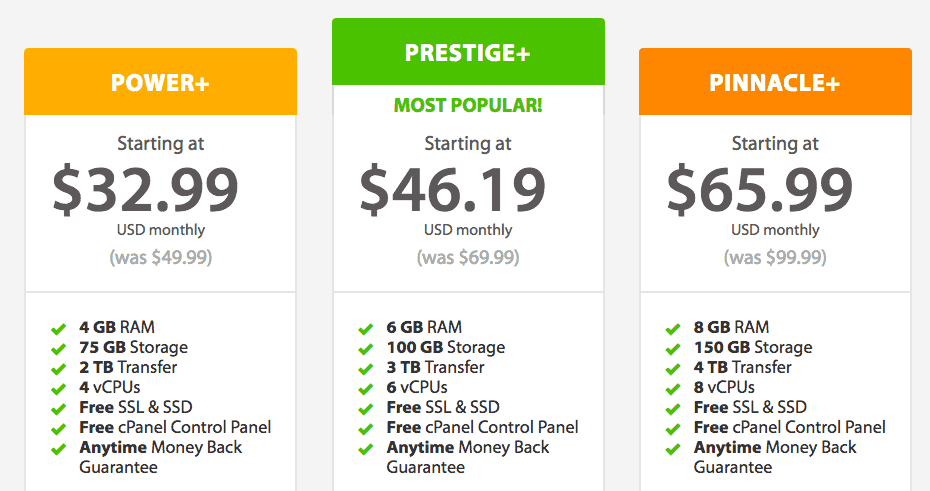
A2 MANAGED VPS – Oh, this one is a classic! Check out the plan on the right side…you get EIGHT (8) vCPU’s for only $65.99/month. I had a client who was so unhappy with it. It wasn’t only a weak server but also terrible support. So much for “managed”. He had a $120/month server with millions of hits every month. The server had frequent downtimes for hours every week and even when it was “up”, it was slow as heck and could barely handle the traffic load. Customer support wouldn’t even acknowledge that it was ever down. He’s since switched to my own private webhosting server and is happy as a clam.
InMotion VPS hosting – ok these guys are a joke! (Just now when I was trying to visit their site, it was DOWN—hahaha!) Anyway, I had a client who was previously on their $80/month plan and so unhappy with it. It was slow as hell and tech support could not fix the problem let alone accept responsibility for it. They SWORE it was his website, and he swore it was their servers.
With my help, he switched to a $20 unmanaged VPS and his website just flew like it never had before. His load time went from 10 seconds to below 1-second! But let’s humor ourselves with the specs for a minute…
Hmmmm…no mention of CPU’s anywhere, which means it’s not a dedicated resource. Their explanation is:
“We allow you to spread your CPU load across all available CPU cores on your server, meaning less time waiting for tasks to be completed on 1 or 2 cores, and more simultaneous processing.”
So this isn’t necessarily a bad thing if they’re being truthful. Will they allow your web traffic to spread across ALL CPU’S on the server? If so, does that mean all other sites have the same benefit and are able to slow down the whole server? Or are they only letting your traffic burst up to a certain amount before hitting the limits? From my experience, whatever they’re offering for $80/month is still much slower than what you get on your own $20/month server.
Next up is the storage, 260 GB of storage for only $64.95/month? Guess what, my friend…those gigabytes are sure as heck not on fast SSD drives. Let’s look back at Linode’s UNMANAGED plans…for $80/month, you could have 192GB of SSD storage. And those plans are without any support. So from what I’m seeing here…InMotion is either offering the deal of a lifetime or just not letting you know their hard drives are much slower.
NONAME MANAGED VPS – Ok, this one is REALLY bad. If you could ever get any worse than InMotion, this smaller company has managed it—haha, get it? *I’m silly.*
“Equal Share CPU” means you’re sharing the CPU with all other accounts on the server. Either they’re not giving you dedicated CPU resources, ORRRR, they’re giving you so little that they can’t even put a number to it.
Only 1GB RAM for $89.95?! That’s stingy as hell. How will you ever have enough to cache your website AND power your server applications? This doesn’t even make sense.
75GB RAID-10 Storage – this basically means it’s NOT SSD hard drives! OH NO, their hard drives are gonna be so much slower than everyone else! By the way, if you’ve ever seen shared hosting plans with unlimited hard drive space…that also means you’re getting SLOW hard-drive space, which definitely affects your website speed!
They obviously haven’t revamped their plans since the 90’s and it probably doesn’t matter since they’ve got tons of clients already.
Why Don’t MANAGED VPS Hosts Provide Faster Servers?
REASON #1 – They want to maximize profits.
You would think it’s a total no-brainer of an answer but I’m guessing it just isn’t in their business model. They want you to hit the limit as soon as possible so they can up-sell you on the next faster server. It’s kind of like air travel. The seats keep getting smaller and more uncomfortable every year so that: 1) they can fit more people in the plane, and 2) make money out of the ones who can’t stand the discomfort.
It’s “engineered discomfort!”
And as long as your next server is faster than the previous one, you might not notice that you’re caught in the managed VPS trap. Just so I can give you a reference of how inefficient managed VPS servers can be:
Average $80/month MANAGED VPS – only nominally faster than shared hosting, and can barely handle 50,000 visitors/month. Sadly, many think this server is faster than unmanaged VPS. After all…it sounds better, doesn’t it?
Average $10/month UNMANAGED VPS – with an optimal configuration, can be super fast and can handle 100,000 hits/month. Some crazily aggressive guys can get it to handle even 1 million hits/month!
Managed VPS servers are always going to be optimized to hold as many accounts as possible to maximize profits. And because their servers are set up that way, you’ll always have fewer resources (CPU/RAM) to make your sites truly fast.
And I haven’t even spoken about the configurations. Large companies deal with the volume. They have tons of servers so they don’t spend the time to do any custom configurations for each one. They just load stock settings and move on, with no performance tweaks or anything!
REASON #2 – MANAGED VPS are “customer support” companies.
Remember? MANAGED VPS is really just selling you support, not hardware. Most of the money you’re paying goes to a guy setting up the server, and another one to answer the phone/email/chat when you have problems. When you buy UNMANAGED VPS, more of the money you pay goes to the hardware…this is why unmanaged VPS services are always faster for the dollar.
MANAGED VPS is for non-techy customers who just go by numbers, the higher the numbers the more they can charge. If your server is slow, the support will tell you to upgrade.
UNMANAGED VPS is for true server/tech guys who know technical specifications and configuration details. If your server is slow, the support will show you a bunch of tests and show benchmark numbers to prove how fast their hardware is.
REASON #3 – Managed VPS plans to market to non-techie customers who don’t know any better.
I’ve had friends tell me, “Company XYZ is great! They guarantee how much resources, CPU/RAM/HD you get!”
You would think with clearly defined numbers like that, it’s impossible to get ripped off. But think again…
CPU speeds – are not equal. Intel 3ghz cpu from 2015 is not the same as the Intel 3ghz CPU from 2018. Split it in half and it can be very different for each tiny part. In fact, some 2.5ghz CPU’s are much better than other 3.0ghz CPUs. Same with ram…not all ram is equal.
Cores – some providers say 4-CORE CPU and they really give you 4-CORES. But others like A2 VPS say things like 8 vCPU, which means they give fewer CPU’s but split them virtually to resemble 8. I don’t have a problem with virtualization except for when it’s used to mask how little resources they’re actually giving you. Sometimes you do get the promised number of CPU’s but they’re shared with other accounts.
Memory – is it truly fast memory, and is it dedicated to only you? Are you even sure it’s ALL memory? Some sneaky hosts will give you half-memory and half-SSD hard drive acting as memory. Yes, it’s really shady and makes it that much harder for honest hosts to measure up against them. Most beginners will pick 8 CORES for $60/month over 2 CORES for $60/month. It’s a no-brainer, numbers matter to them.
Hard drives – are they slow drives or fast SSD drives? (Even SSD ranges a lot in speed…just like cable internet…it varies a lot.)
Bandwidth – they might say unlimited but is it really? There’s always a limit somewhere.
ANALOGY: let’s pretend you were outsourcing overseas, and paying for 10 workers (CPUs) at $10/hr each. How do you know what you’re getting?
Is it 10 skilled workers? Or unskilled/child/indentured workers?
Is it 10 dedicated workers? Or workers multi-tasking with other client projects?
Is it really 10 workers? Or just 5 workers doing (2) separate jobs each?
Does each worker have their own machines? Or do they share the same 2 machines and have to take turns?
Just because the company says “10 SUPER-FAST CPU’S” doesn’t mean it is so. There are a dozen ways to cheat the numbers.
Here are some good TECHNICAL QUESTIONS:
BURST CAPACITY – does the account let you burst? What if for a split second, you use up double or triple your allotted CPU/MEMORY? Will they allow that extra traffic, or do they show traffic errors to the other visitors? (This is horrible if your traffic comes in spikes.)
STACK CONFIGURATION – how precisely is the server tuned? Apache on default settings is easily 3-5 times less efficient than properly-tuned Apache. 2-core CPU/4gb ram with expert configuration will easily beat 4-coreCPU/8gb ram with default configurations. What about more performant servers like LiteSpeed or NGINX? What versions of php or mysql is provided? What about object caching modules such as Memcached or Redis?
TRAFFIC/BANDWIDTH – some providers off “unlimited traffic” or a high amount like 1 million visitors, but do they take your website into account? They might mean 1 million “low impact” visitors.
HOW MUCH MANAGEMENT – I highly doubt for $100/month, that you’ll get even an experienced sys-admin to proactively tune your server. They’re so busy fixing issues, they most definitely aren’t going to look at your server unless there IS an issue.
REASON #4 – Most webhosting customers don’t have a point of reference.
How fast IS fast?
Is it 1 second? or 2 seconds? Most of us have a limited understanding of what fast really means. Many of us never defined it, it’s just a perception we have about websites. “Fast” means it feels fast. And “slow” means it takes a couple of seconds. And for most people, “fast webserver” means faster than their previous one.
See, that’s part of the problem. For server administrators, “fast” means 1-second loads or less. For me, “fast” means instant load. End-of-story. If the site doesn’t come up immediately, I can’t stand it. If anything, I would say all web-servers should be able to load your site within 1 second (if it can’t, it’s grossly underpowered). The only reason why you would need a bigger server is so you can handle more traffic!
So for me, bigger servers are for higher traffic/load capacity and not so much about speed. Even a $20/month VPS server should be ultra-fast for most of us.
How to Buy MANAGED VPS
Ok, not all managed VPS services are overpriced. Just most of them, that’s all. If you can find a reputable host with excellent performance reviews and transparent disclosures about their systems, great!
One of the safest ones I’ve found so far is Runcloud or Gridpane. The only issue is they’re not meant for total newbies. Give them a try, I think you’ll be shocked at how much faster their $20/month servers are compared to $80/month servers from other companies. If you want a truly managed VPS, you can look around at some other companies.
Want to venture into UNMANAGED VPS?
They are not for the faint of heart but I can certainly give some tips in another guide.
What managed VPS does is give you a pre-tuned hosting environment that fits most sites out there (with varying levels of aggressive caching enabled). If you’re coming from shared hosting, any VPS will be a noticeable performance gain to you. But where managed VPS can be a turn-off is the price. You might pay upwards of $30-500/month for a server that you could have leased yourself for a quarter of that.
Think of it this way, $80/managed gets you either:
6-core server unmanaged VPS and you have to set everything up yourself, or…
2-core VPS with everything pre-configured, or…
shared hosting account on premium managed VPS (like WPengine).
Most techies will choose the 1st option and set-up the server themselves or hire a cheap sys admin somewhere around the world to provision it for them. (“Provision” is the sys-admin word for ‘setting up a server or network component and providing access’.)
The route of going unmanaged is indeed much cheaper and potentially offers superior service/functionality in the long run since you have full control (but also full responsibility) of everything. Being that you don’t plan to learn any bit of server management, it’s not a bad idea to always have a programmer and sys admin you can hire from time to time to manage this for you. You’ll only need them a couple times a year and you save more money paying them only when needed rather than to pay a managed VPS company a ton of money upfront.
However, some folks really do prefer the convenience. It’s like choosing to build your own PC vs buying a Dell/Apple and it comes with warranty. Given all things equal, it’s always cheaper and better performance to build things yourself.
About 98% of the shared hosting services out there suck!
The bigger and more well-known the company, the more likely it is to suck. It’s slow, it’s insecure, it’s missing features you need, the tech support doesn’t understand your problem (or even your English), or the server keeps going down.
Why is shared webhosting always like this?! (Answers to these galactic mysteries lay inside…)
SHARED HOSTING PROBLEM #1 – Slow Speeds
SHARED hosting = SHARED resources
Imagine being in a crowded apartment building. Noisy neighbors, limited space, lack of privacy, potential security issues, have to share everything. Always having to wait your turn for the laundry machines, someone hogging the hot water, mailboxes sometimes unsecured, can’t park your car however you want. Want to change something in your own apartment? You need permission from the landlord first. Lowest quality carpeting, paint, windows, and other amenities (if it’s even included at all).
That’s exactly how shared hosting is—thousands of low-paying customers crammed into one server. Realistically speaking, what do you expect to get for $5/month? Either a really weak server or a powerful one but shared across many customers. And it’s not just the server, but also the server maintenance and then customer support to be there whenever you need help. So maybe only $2 of your monthly fee actually goes to the server. And then how many sites do you have? Most of these shared hosting servers let you have as many sites as you want, which for many shared hosting accounts can be 10-20 sites. So you might be paying only $0.20 cents per month, per site. Now let’s contrast this to the big corporate companies that pay thousands of dollars to host just their one site. Big difference in quality, as expected.
AWFUL neighbors
This is probably the biggest problem in shared hosting for both the webhosting company as well as webhosting clients. You always have that one awful neighbor ruining it for everyone else. There’s some guy sending spam and getting the server IP blacklisted (causing your emails to hit the spam box as well). Or there’s a guy using his $5/month account to run a huge business…hogging all server resources. Or there’s someone using totally outdated software, making himself and everyone else on the server more vulnerable to hackers. Guess what happens when these neighbors run amuck….the webhosts mitigate this by putting cages on everyone’s account, throttling back their performance.
OUTDATED hardware & software
For the pennies you pay, do you really think that server is gonna have the latest and greatest CPU/memory/hard drive, software, latest PHP, latest Apache modules, and convenient 1-click solutions for all your needs? Of course, not! Most shared hosting servers are like 2 iPhone models behind the top guys.
Sure, if you’re lucky and just found a company starting out, they’ll be more updated than the others. The truth is, they prefer only to update when they absolutely have to. Most of them will run old software for a few reasons: one is to save money on maintenance, and another is to maximize compatibility for different software or different versions. Shared hosting is a high-volume business, remember?
EXTERNAL databases
Quite often the databases are not on the same machine. They’re on another server. Sure, the external database might still be in the same data center or nearby but it’s still an extra proxy and an extra connection time.
“But not all of them are slow!”
This is absolutely true. Not all of them are slow. The same goes for renting an apartment—not all apartment tenants are awful, and not all apartments are crappy. But the saying remains, “You get what you pay for.” and it’s always held true in the long run for me.
Sure, your account might be the first one on a large unfilled server. Or you’re on a server with mostly “quiet tenants”. Or maybe you getting great service from a company just starting out. Sooner or later, the law of economics and sustainability kicks in. Either the performance or maintenance or support suffers somewhere…or the best thing that can happen—is prices go up (quality stays the same).
SHARED HOSTING PROBLEM #2 – Frequent Downtimes
Shared hosting goes down often, unlike VPS/Dedicated servers
It happens ALL the time. It’s something very unique to only shared hosting accounts, and almost never for VPS or dedicated servers. Shared hosting can go down anywhere from a few minutes a month to hours every week. Even the best ones may be fine for a year and then have rampant downtime for 2 or 3 months straight. It’s the industry’s dirty little secret. So why the downtime?
Frequent restarts
Anytime you have tons of different software fighting for CPU, memory, and storage resources, there’s bound to be a crash. Some software might hog all the memory. Some sites might lock up the CPU. A PHP thread might be left open or the database can crash. Maybe a backup function got stuck. Or somebody’s error log ate up all the disk space. It’s not like the software is so primitive and can’t account for all these scenarios, it’s just that you have way too many things going on at once. It’s like asking a parent to watch 30 kids instead of just one kid.
So what happens when something goes wrong and the server locks up? Sure, you can spend some time trying to fix the issue (and risk hundreds of tech support complaints), or you can just restart the server before anyone notices the problem, and act like it never happened. Bandaid solutions are the norm in the shared hosting industry. Just keep the server running and most clients will be ok with that.
Slow maintenance restarts
The other reason for restarts—is maintenance. All servers need to be maintained. At the very minimum, this means security patches to close up known software vulnerabilities. But there’s tons of maintenance that goes beyond that, updating or adding new software models. Tweaking software configurations. Or maybe replacing failing hardware like old disk drives and power supplies. Now here’s a good question…do you think shared webhosting companies update the servers as often as possible? Or do they let the updates stack up until the server is 3 months behind in updates? The longer you wait to fix and update things, the longer it takes to do it. Let’s not forget, these are probably not the newest and fastest servers, right?
Suppose I was a high-end webhosting client, most webhosts would provide a clone server or some kind of backup to prevent any downtimes. But for a $5/month shared hosting account, NOPE! They just shut it down, take their sweet time and it comes up whenever it comes up. And they’re not gonna answer your ticket until it does because they know better than to waste your time. It’s going to be 15 support requests from you saying, “Where’s my server? Where’s my server?!” And then 6 hours later, a small reply of “Server was down for maintenance. Your site is working now. Have we fixed your problem? Please give us 5 stars.”
SHARED HOSTING PROBLEM #3 – Low-Skill Tech Support
Most shared hosting support can’t fix serious problems.
This is a tough dilemma for shared hosting companies and customers. When it comes to most tech support, the REAL TECHIES are the “Level 3 – Tech Support” guys. Level 1 is just a bunch of low-level “customer support” staff. They answer chats, emails, and phone calls. They ask you for your name and account info and then read from a script. Anything they don’t know, they look up on Google first. Some of them probably know even less than you do about web technology but here they are…serving as “friendly fast tech support”.
They’ll go back and forth with you on a few exchanges, writing down your information but the truth is they can’t fix half your problems. They have to ask someone else and then follow up with you a day later. For the money you pay, it’s not possible to have truly skilled systems engineers answer your relatively basic questions right away. They’re probably undermanned and have tons of server issues to tend to.
SHARED HOSTING PROBLEM #4 – Limited Features
This is not actually a problem. You get what you paid for. But it’s important to know what you’re not getting.
Outdated PHP – some hosts offer the latest PHP 7, and some don’t. It should be the standard now but it isn’t.
Uncommon modules – there may be some uncommon Apache modules that are needed by your plugins. If you’re lucky, your webhost has it or is at least willing to install it. If you’re not lucky, they say “NO!” and you’ll have to move to another webhost.
No Memcached/Redis object caching – these PHP extensions can make a huge difference in performance (especially for ecommerce). Unfortunately, they eat up valuable memory and so hosts don’t allow it.
SHARED HOSTING PROBLEM #5 – Security issues
Security issues with data vulnerability
Data vulnerability is perhaps the biggest security issue for most people; imagine someone accessing your server, and seeing all your files and database information. Shared hosting servers aren’t always updated with the latest patches. Old PHP software, old MySQL, older cPanels that haven’t been updated in a year. There’s also the issue of not properly isolating each account. So your account could be hacked into if your neighbor’s account was compromised. How annoying!
Why do some webhosts have this problem? Simply by not backing up the server or lazy setup and maintenance habits that leave holes for hackers to squeeze through. With that said, no server is 100% hack proof. Any hacker given enough time and resources WILL get through. The idea is that you trust your webhost to at least make an effort and slow them down to the point where it isn’t worth it for them to target your server.
Security issues with performance
This is a lesser-known issue with security problems. It isn’t so much about hackers accessing your data but about them affecting your server performance. Quite often, that’s ALL hackers want to do…bring down your server. It’s like that kid pulling the school fire alarm…while he isn’t causing any real problems, he’s still wasting resources. In the server world, hackers can easily bring down your server with DDOS attacks or brute forcing or somehow in some way, overloading it with so many requests that the server gets so backed up, it can’t serve any more webpages.
I think DDOS is best handled with software and manual implementations. It doesn’t that much time, money, and effort but it does take some effort. While some webhosts care about this, others don’t.
SHARED HOSTING PROBLEM #6 – Upsell Business Model
And this here lies the other secret truth about the shared hosting industry. It’s all about the upsell! They’re not gonna give you the best webhosting for your money. They’ll give you great service, but just good enough servers. At some point, you’ll ask them for faster speeds and THAT’S where they make their real money. As with many other businesses, it’s all in the upsell!
The upsell is usually either the $30 “Premium Hosting Plan” (basically still shared hosting but on a less crowded server), or it’s the $50-80 “Managed VPS Plan” where they claim to give you this incredible server that you have all to yourself. And guess what, the same company that sold you those plans is not going to maximize them either. They’ll hope you outgrow it soon and they’ll upsell you again to a bigger plan!
SHARED HOSTING PROBLEM #7 – Fineprint
This is a major issue for many large corporations. They cover their asses, legally, so to speak. Tons of fine print in the contracts where they don’t have to honor any of their marketing promises.
99% UP-TIME GUARANTEE? – there’s probably somewhere in the contract that says they’re not responsible for “unforeseen circumstances”.
FAST WEBHOSTING – but they can just blame your site for the slowness instead of their servers.
SHARED HOSTING PROBLEM #8 – Upfront payments
Webhosting companies are usually high-volume profit-driven machines. Which means a lot of their work goes to driving profit. You would think that means having the best webhosting service and what not but it’s far from that. Their biggest efforts go to marketing and promotions, huge affiliate networks and commissions.
You sign-up for the year and guess what happens after the first month? The server slows down as they pack more customers onto it, and service just gets worse. You’ve already paid the money and locked yourself into a contract so what incentive do they have left to keep you happy? Whatever negative review you might make will be drowned out by the tons of affiliates and corporate partnerships they have out there. Give up all your money too early and the ball is in their court to stretch that dollar as far as they can.
Why Webhosting Sucks
It’s not just shared hosting, VPS can suck too! Any webhosting company can suck! They suck when they care more about profit than quality. They suck when they get acquired by bigger (and less personable) companies. They suck when the industry pivots in a direction they can’t adapt to. All industries, not only webhosting, are prone to shady business practices.
If you want true quality hosting, either:
Pay premium pricing for a proven company.
Be prepared to change webhosts often when their quality drops.
Ahhh, they keep making WordPress themes more and more complicated! Which one should you choose and which one is the best?!!! What features do you need and what marketing gimmicks should you avoid?
There are actually easy ways to tell which themes are good and why.
IMO, the best themes/frameworks are marketed to developers. The worst themes are marketed to end users. So take a look at their marketing…and ask yourself who you think their target demographic is? Experienced/professional WordPress developers or impulse-buying wannabe online entrepreneurs with zero tech skills?
WordPress theme features that DEVELOPERS like:
clean-coding, bloat-free
easily extensible
used by many developers, active community
accessibility & smart architecture
easy to update over time
WordPress theme features NOOBS like:
“no coding necessary!”
tons of features, color & typography options
every flashy effect you could ever want
great for making money
mobile-responsive, speed, SEO
great customer support
What WordPress theme features are most important?
1. Nice Design
Clean, professional design, with a little personality (or at least allows you to add some personality). As long as it looks great or can look great with a little effort, that’s all you need. No more than that! It doesn’t (and shouldn’t) need to be 100 great themes in one! It’s easier to start simple and add a little from there than to start complicated and have to cut it down.
2. Clean coding
This is something you (as a non-coder) probably won’t be able to verify for yourself. You’ll have to ask around, read the reviews and see what other creditable developers are using it. Basically, good coding is done in an intelligent, efficient manner and also in accordance with WordPress’ recommended practices. No shortcuts or strange hacks are made. Clean code runs fast and efficiently and is also easy for other developers to work with. It’s kind of like how you organize your room. If you do it right, it not only looks good but other people can understand where to find things quickly.
3. Compatible with many plugins
This is also known as “easily extensible” in that it’s easy to extend the theme’s basic functions with other plugins and add-ons. Generally, themes that are well-coded will be compatible with all other plugins (shopping carts, forms, pop-ups, caching, calendars, SEO, etc and etc). It isn’t just the coding that makes it play nicely but because the theme isn’t trying to do everything by itself. Most themes with plugin conflicts are because they aren’t coded well, lack code, or are simply too opinionated about everything. This is why you should avoid “all-in-one” themes; it’s because they try to do everything themselves and won’t function smoothly when you try to add something else.
4. Used by many developers
Yes, this is a HUGE FEATURE! Why? Because your website will always evolve over time. Your business may grow or break or change in other ways. You’ll always make changes eventually and one way or another will have to hire someone to help you make changes. For this reason, it’s important that you pick a theme that many developers know (and love to use). It will make the site easier for developers to work with and less costly to make changes.
5. Following the latest trends (mobile-responsive, SEO, high performance, schema, etc)
These things are important but the good news is you shouldn’t have to worry about them as much. This is because they should already be standard. And when something’s standard, it’s not so much a special feature anymore.
What WordPress theme “features” should be avoided
1. Overly-customizable
This is the #1 reason why many WordPress themes are slow as heck. Too many users want one theme to be anything and everything to everyone. It’s not possible!
Developer-centric themes are bloat-free because they load only a few features if that. And the developers can then code in only the features they want. Themes marketed towards non-developers load every single feature right off the bat. That’s the only way to make it feature-rich without requiring users to code anything. And that’s part of why your themes take so much longer to load. They load huge JS libraries with everything when you’re only using 2% of the features in there.
2. Flashy effects
This is another reason why many WordPress themes are slow. They load too many effects right off the bat. Sliders, counters, animations, etc and etc. This is ridiculous. It’s appealing to newbies who don’t know how to code or design but are scorned by experienced developers. Newbies don’t know how to design and don’t have any vision of what they want. So they actually design by “undesigning”, which means starting with a finished design and then taking away or customizing that. Professionals start with a blank slate and add to it. (This is why professionally-designed sites are usually much cleaner.)
3. “Great for everything…businesses, studios, making money, etc”
I think it’s really gimmicky for a theme to make promises of what it’s good for. That’s all design-related and has nothing to do with the code quality. I think it’s ok if a theme aims to be one thing, such as a shopping site, a corporate site, or a blog. But definitely not good if it claims to be good at everything. If anything, that should be a red flag to you that it’s trying to do too much. That’s like a jacket claiming to be the best jacket for all occasions.
4. Popular (has many users)
Mcdonald’s sells more burgers than anyone else I know. Does this mean they have a good product? No, it doesn’t…it just means they have good marketing (and that they appeal to the masses, i.e. inexperienced crowd). The only popularity I care about is if the theme is popular with true WordPress experts and developers.
5. Great customer support
It’s not that this isn’t important but its that this feature is marketed to newbies and non-coders who think “great customer support” means the company will tell you how to do everything with your theme. I think a theme company should spend its time actively developing the theme to make bug fixes, increase compatibility with plugins, and finally…add features if necessary. What I don’t like to see is a theme company that spends more time on sales and customer support, which tells me active development will be slow. And that if there’s any development, it will be to make new themes to have new customers.
Anyway, what WordPress themes do I recommend? (These are my top 2)
Genesis Framework and child themes (By StudioPress) – best coding and performance, highly polished designs, most popular among developers, active development with great support and user forums.
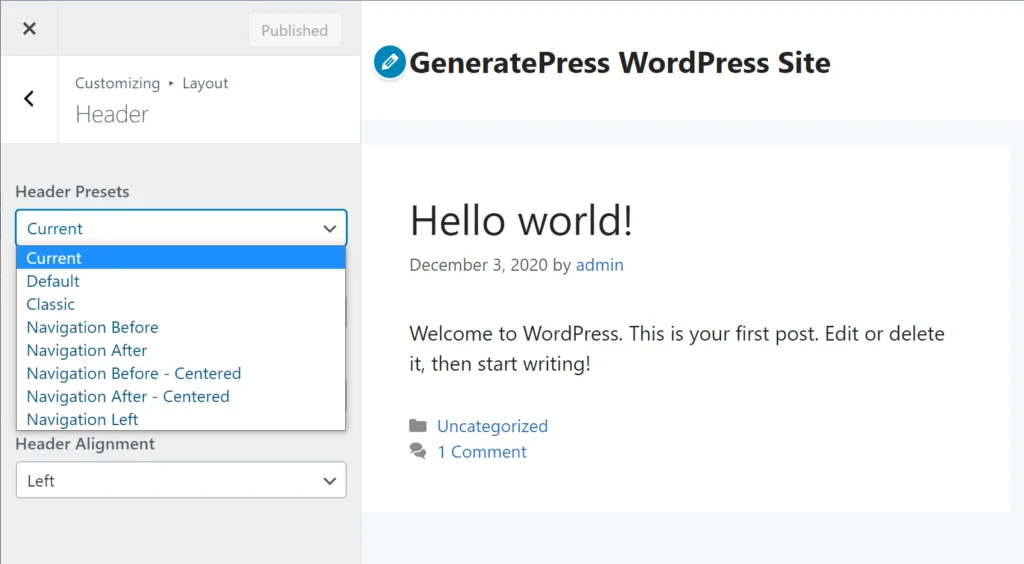
GeneratePress – for the coders who love great performance and don’t mind coming up with their own designs. I don’t recommend this to newbies, non-coders, or non-designers. It’s coded really well but requires some work to look like a polished theme.
Of course, there are other great themes that I like as well but Genesis and GeneratePress are my general recommendations.
Best WordPress Hosting Reviews in 2026 – Pro Speed Guy
All the WordPress web hosting companies I’ve personally tried or heard about from people I trust!
My comparison criteria are SPEED, reliability (up-time), FEATURES (easy to make changes, add SSL?), and PRICING (not crazy expensive). Customer service is not as important for me since I can do 99% of things myself.
I’ve used nearly all of these web hosts myself (via clients) across a broad range of websites — from small blogs or portfolios to big shopping sites, database-intensive forums, or large portals with many tracking/ad/conversion scripts running.
Good Webhosts
Shared Hosting (cheapest, but functional)
SiteGround – most popular and considered top of the shared hosting tier. Fast, good features and support! The GoGeek plan starts at $11.95 but renews at $35/month making managed hosting or unmanaged cloud far more attractive. (Their built-in SG Optimizer is meh, use SWIFT LITE for best results.) A2 is now becoming the favorite low-tier company due to SiteGround’s recent resource limits.
HostArmada – low cost, good performance, and skilled and friendly 24/7 support. An awesome service and compares favorably (better service yet lower cost) against other shared hosting companies.
ScalaHosting – low cost, reliable service along with helpful 24/7 support. They offer low-cost VPS hosting as well under their proprietary SPanel (which saves on the usual WHM/cPanel costs). (Added)
WebHostFace – started as ridiculously cheap shared webhosting and even faster than SG. Their initial lifetime plans were a great bargain even if you only used them for only a few years. Nowadays, I think their performance has dropped greatly to be more in line with the usual shared hosting.
A2Hosting – largely touted as a “great service” but many complain of long TTFB. I’ve used it and it’s definitely not on the same level as SG. Their turbo caching isn’t much, either. It is cheaper than SG though.
GNUHost (UK) – I heard good things about this one but haven’t tried it.
Veerotech – haven’t tried them yet but have heard good things. They’re a smaller large company (does that even make sense?).
Krystal (UK) – good speeds and cheap pricing, also use LiteSpeed servers. I recommend this for UK folks. I personally tried it.
GURU (UK) – another good UK host. Some people like GURU better than Krystal. They use LiteSpeed and allow crawling.
My personal recommendation:
Shared hosting is great for new websites with no traffic. It’s easy to use, allows you to host/manage many sites, and still pretty fast if you pick a good webhost. But the moment you get over 25,000 visits/month (and assuming you make some $$$), you should really consider moving to a VPS. The speeds are much faster and a magical world of difference for those who’ve never tried VPS before.
Those of you who aren’t married to cPanel and don’t need to have email hosting, should really just go with RunCloud or Cloudways. It’s far more performance and service at similar cost ($10–25/month). Should you want to ADD emails to Cloudways, you can go with G-Suite or use their Rackspace add-on, etc. Using a professional email service gives you much higher deliverability. If you’re a true techie, you can also do RunCloud.
I would also like to do a huge shoutout for the smaller webhosting companies. I’ve come to find they always offer better pricing and great service than the major ones who don’t care if you leave.
Unmanaged VPS Hosting (best speeds & cost-efficient, but requires sys-admin)
Amazon Lightsail – expensive and not as fast, with terrible UI. But can be useful if you want tighter integration with other AWS services.
DigitalOcean – best pricing and sexiest interface, solid speed/uptime. Considered by many as the leader of the price war (race to the bottom for cheapest VPS). They are still quality but with slight issues for downtimes or slow to roll out old hardware. Also some bad PR and customer service here and there (shutting clients down erroneously).
Prgmr – no-nonsense VPS for techies. Great pricing, solid speed and uptime.
Linode – my favorite. Solid, reliable, no BS, always faster HDparm reads. They used to have some power outage problems but they are few and far between. Linode/Vultr/DO are top 3.
RamNode – try them if you want to check out a smaller company (cheaper pricing), I like their DDOS-filtered IP protection. It’s a great idea if you’re running a webhosting business.
Scaleways – not the best VPS provider (slower speeds, disks, CPU, etc), but still serviceable and offers $2.50/month micro-plan. Scaleways is considered really bad.
Webdock.io – semi-managed solution. I haven’t tried yet but they’re now on my radar for some interesting value points.
Vultr – similar to Scaleways (slower speeds, disks, CPU) but offers small $2.50 micro-plans and also bare metal servers. Vultr is however better in some parts of the world and considered even faster/more reliable than DO by some, especially since their recent upgrade. Don’t bother with their DDOS protection; I hear it isn’t very good. I did have dropped network packets in their Sydney (AUS) data center.
Lesser-known unmanaged VPS hosts:
LunaNode (CA) – nice VPS provider out of Eastern Canada (only) with good pricing, many configurations, and good reviews on the web.
UpCloud (FI) – friendly Finnish company with servers all over the world; great speeds, pricing, and industry-leading SLA. I hear great reviews about them being faster (record-breaking IOPS) although my personal tests showed otherwise. Many customers switched over to them happily from Linode and DO. They have a nice UI, but I don’t like how the web console can’t copy-paste and is stuck on the Finnish keyboard. Chat support is nice!
My personal recommendation:
When buying a VPS, choose a company that doesn’t deal with shared hosting. For whatever reason, I find pure-VPS/dedicated hosts to be more knowledgeable and specific to the niche of high-performance servers and 100% up-time as opposed to shared hosts who often over-sell their servers and have rampant downtime or performance degradation.
It’s an important distinction to make that shared hosts are focused on features, ease of use, and customer service. VPS hosts are focused on hardware and speed. Basically, they are 2 entirely different businesses.
In case you’re wondering about different VPS providers: DO, Linode, and VULTR should be your industry baseline standard. From there, all the other backbone providers will differ in performance, pricing, or security features. They might also be the same for their base plans but differ on add-on pricing (they charge more for IPs, DDOS-filtering, etc).
You should beware of new VPS providers offering huge discount pricing. Most of the time, the pricing and deals are legit and you will get incredible hardware at a great price. The big issue is knowing how well they’ll scale into the future. Many of them are really small-time providers mixing different hardware which will be harder to maintain over time and harder to get consistent upgrades/maintenance.
There are ALSO “managed VPS” solutions which are different from the options listed above which are the usual “unmanaged VPS”. Managed VPS allows you to have both VPS speeds without having to configure the server but comes at a high price that I think isn’t worth it. In case you’re wondering, I use “unmanaged VPS” and hire a sys-admin to handle it for me.
Managed VPS Panels aka “Cloud Panels” (high performance, low-cost, but for techies)
RunCloud.io – most mature UI and has both Apache-NGINX and pure-NGINX stacks. Performance has improved a lot since their latest RunCloud Hub caching solution (much more on-par with GridPane and top-tier NGINX performance stacks). I find them cheaper, faster, and more user-friendly than most average cloud-panels. Really full-featured panel; great for dev environment. Awesome support. My favorite choice in this tier.
GridPane:
Good performance; clean/minimal but useable UI. Intro pricing is much higher than others ($100/month?), so only a reasonable deal if you have many servers. I cannot in clean conscience recommend them to anyone. It’s a good product, but not a good value for your money. Most of all, you feel like you’re constantly being upsold. (Updated — more detailed and more direct)
GP CEO Patrick Gallagher is known for terribly unprofessional attitude (publicly trash-talking or leading mobs against anyone criticizing any part of GridPane), but the rest of the team seem like nice people.
While this panel makes many promises and is aggressive with feature development, their latest features can be buggy. Despite their “Transparent Pricing” label, it’s anything but. Their pricing and business model changes all the time (like 2–3 times per year). I never know what it is at any point in time.
They also have an annoying cliché “online marketing” sales model where they’re always trying to upsell you to some expensive training program or secret products/services. I prefer a company that focuses on hosting and profits via hosting (not constant side-gig upsells).
The GridPane lifetime LTD plans have turned out to be a scam IMO. As all new features they develop are not included, but require a separate ongoing subscription payment. It’s no surprise that many previous holders of their LTD licenses have abandoned their $3k investment and looked for new hosting elsewhere. (Added)
SpinupWP – new cloud-panel company by respected WP plugin house. Fast, but overly-simple UI. Feels like it has no features, slightly overpriced IMO. Great if you want a simple server and Digital Ocean. Delicious Brains recently sold off all their plugins to focus on this business, so we can expect aggressive growth here soon.
Cloudways – popular managed cloud hosting, fair price, average performance but good enough for most folks, full-featured control panel (good for noobs and sys-admins). Most hassle-free option here for non-techies. Their support is the best in this hosting category. Friendly and helpful but will not teach you how to use WordPress! Make sure you purge/disable Varnish during development. They do have some buggy issues from time to time.
Laravel Forge – another high-performance option. Similar to RunCloud.
ServerPilot – an established panel in this industry. Trusted by many pros. Their UI looks more plain, which some folks like. They now have a cheap 1-server plan (unlike RC/GP).
Moss.sh – haven’t tried it yet but really cool vibe. I like the branding. UPDATE: they are shutting down Sep 1, 2020. And update again, they are NOT shutting down. (Hooray!)
Ploi.io – reminds me a lot of RunCloud. I haven’t tried yet but heard nice things.
ClusterCS – same as others but this one also allows easy cluster-deployment for building your own HA environment without having to configure all those proxies and what not. How cool!
My personal recommendation:
These solutions were originally created for techies to manage their “unmanaged” servers from Linode/DO/etc for very cheap but still great performance. They used to be extremely technical and required a lot of server skill to use but have since become more and more approachable for regular power users.
If you’re a developer or at least WordPress and Google-expert, these are a fantastic/cost-efficient way to have your own powerful VPS server without having to do server management or muck around in the command line.
Premium/Managed WordPress Hosting (fast, but expensive & limitations)
Amazon EC2 – expensive/weak to me, horrible over-technical UI.
Flywheel – promises to be better than WP Engine but user comparisons are mixed. Nice UI. Doesn’t allow different PHP settings per site, stupid! I only recommend it if you have one tiny site. ($14/month & up)
Kinsta – great branding and unanimously faster than WPengine/Flywheel although I’ve heard a few bad reviews about downtimes. As of AUG 2019, I can say they’ve definitely gone downhill and even slower now, with lower resource limits but still better than WPE. ($30/month & up)
Pantheon – incredible speeds and service. Servers switch to inactive mode when websites get no visitors making 1st visits slower as the server “wakes” again. ($35/month & up)
WP Engine – best marketed and most popular premium WordPress hosting. They’re like the GoDaddy of managed hosting. Not the fastest, have some plugin limitations, and many issues that people complain about. Non-techie users find them to be amazing (compared to crappy shared hosting), tech users find them to be sub-par (compared to VPS) and limiting. FYI: they use Linode servers and add proprietary caching layer; you can beat them with a $5 VPS. ($35/month & up)
Closte – good performance but pricey. Some technical issues here and there and also rude-ish French support. Some people like them while others always run into problems. I don’t recommend them for non-techies.
Rocket.net – high-performance host with edge-caching capabilities. Pricey but works well and easy to use. Can be affordable enough if you only have 1 or 2 critical sites but definitely too pricey if you have many small ones.
Lesser-known premium/managed hosts:
RaidBoxes.io (EU) – nice host out in the Germany/Switzerland area using NGINX. Fast servers and excellent super fast/friendly support. My only annoyance is that they edit core files (so be careful if you ever migrate away from them).
My personal recommendation:
Unlike cloud hosts which give you a server with limited resources (hardware lease) and let you do whatever you want, premium hosts give you a traffic limit and guarantee high speeds (speed service).
Maybe it’s the DIY-techie in me, but I don’t like premium WordPress hosting. It’s really expensive if you have: 1) lots of traffic, 2) more than one site, or 3) an uncomplicated site. Go to WPengine and see how much it costs to host ONE site with 500k visits/month (answer: over $300/month). For a third of that price, I could get my own VPS and host a dozen of those. And assuming the sys-admin setting up the server is experienced, I could get those sites to load even faster than on WPengine.
Non-techies go with premium hosting because it’s the easiest way to set up a super-fast host. It comes with fancy panels and is really easy to use, no configuration. Kind of like buying a new computer and just turning it on. Getting a VPS is more like buying individual computer parts and putting it together yourself. Some tech-savvy owners choose VPS because they love messing with tech things and appreciate the benefits-to-cost ratio. Other tech-savvy owners respect the complexity involved and prefer to pay someone else to deal with it (thus choosing premium hosting).
To those who say managing servers is too much work: setting up a server takes like 2 hours to build out and a few minutes of maintenance every couple months. How else do you think these “managed hosts” stay in business? None of them are proactively maintaining your server either. You call them when you have an issue and THAT’s when they fix things. Same goes for having your own server and sys-admin. Only difference is you save a ton of money.
Pagely – incredible speeds but REALLY pricey. ($299/month & up)
Pantheon – is here in ultra-premium space as well. ($150/month & up)
ServeBolt – still pricey but reasonable with ultra fast enterprise-grade performance. I like them. ($150/month & up)
WordPress VIP – overpriced to me. ($1,000 & up)
My personal recommendation:
These guys are the absolute most expensive and most professional tier of WordPress hosting you can get. Super fast TTFB, great performance even for many dynamic requests. They’re more for huge sites — like 10 million hits/month and up, or really big stores. If you have fewer visits or a smaller site than that, you can save a whole lot of money with other providers.
The first questions are: why are they SOOOO expensive and what do they offer that’s different from the other (much more affordable) premium hosts?
To start with, their server hardware and configurations are extremely optimized for performance. They tweak the servers for every possible bit of speed. Compared to other plans, it may not seem like a lot of resources but your configuration is much more customized than other hosts. They write their own PHP libraries/handlers — it’s almost like running their own custom server software. Things like DNS are managed in a proprietary way instead of just leaving that to each customer. They have their own in-house panels.
For the most part, they’re complete overkill for 99% of customers out there. But suppose you had a huge worldwide business and don’t have expert sys-admins on hand, these guys are perfect for you. Their servers can handle tons of traffic and also huge traffic spikes. Also, these server plans are not limited by traffic like WPengine/Flywheel/etc. These servers can handle virtually millions of hits, instead of WPengine and the others charging by traffic. 400k visits/month costs you $290/month at WPengine whereas with Servebolt, your site could easily handle 400k visits/day with their $150/month plan. So in theory, these plans could actually be higher performance and even cheaper than other hosts!
All those top guys will be about the same speed/performance — you should try Servebolt (I like them).
Pay close attention to what their SLA says — ideal is at least three 9’s for that amount of money you’re paying. Many of them market themselves as “HA” but only offer 99.9% which is the same as most backbone providers.
Ask them if their IPs are already DDOS-filtered or if that’s an extra cost.
All of them will be more than happy to load up demos for you to pit against each other.
Might also be a good idea to test their support and see how quickly you can get access to a level 3 tech.
If you have tons of traffic, you should not be paying by traffic count (you should be paying for the stack management only). Keep in mind that some of the cheaper-priced ones offer limitations somewhere (visitor count, storage size, number of websites, bandwidth, CPU processing limit, etc).
If you have a budget of $5k, that’s fantastic but you really don’t need to spend that much. You could easily get the same performance if not faster for a small fraction of that. And not pay for all that overhead. Hire someone — a direct level 3 tech who can provision and manage the server for you. Whatever other add-ons you like, you pay a much smaller fee.
Bad (or Mediocre) Webhosts
These are all the crap hosts. Avoid them, no matter what they promise. I’ve had direct experience with every company here through my own accounts or client/friends accounts. And yes, I’m well aware the companies below might have many happy users.
1and1 – yes, it’s bad.
20i (UK) – typical low-tier super cheap host… and super slow.
ASmallOrange – used to be good but turned terrible when they were bought out.
A2 (VPS) – weak, expensive. Sucks compared to others. Their 8 “vCPU” is weaker than even 4 CPU from typical VPS hardware providers (DO, Linode, etc).
BellHosting – BAD!
BeyondHosting – bad hardware, bad service, overpriced.
BigScoots – slow and lots of downtime.
BlueHost – customer service improved but servers are still slow. Awful!
canspace.ca – really slow (even with no traffic) and lots of intermittent downtimes.
DreamHost – great promises but mediocre hosting speeds, awful control panel and downtimes, but great customer service.
EasyWP – NameCheap’s cheap shared hosting service. With a clean website design and using the trendy “managed hosting” label. No, I don’t recommend it. I also think it’s too pricey for cheap tier. (Added)
EIG companies – too many to list, avoid all EIG-owned hosting companies. Terrible service.
FastComet – complaints about being slow, or that they’re great until they have random downtimes.
Godaddy – they’ve improved over the years but still poor speeds, UI, and overall service. Yes, even their GoDaddy managed hosting sucks.
GreenGeeks – I love their mission of ECO-friendly and clean energy. Their hosting, I’ve heard mixed results about. Some people say really helpful, fast, and great service. Others say the service is annoying and they can’t wait to get off. One thing for sure, many people feel their pricing and refund policies are manipulative. Just from looking at their site, I’d guess they are mediocre-performance shared hosting. Not bad, not great.
Hetzner – hardware vendor in Germany popular for their low prices. Some feel they’re a great bargain for the price (super cheap dedicated servers) whereas others feel they have horrible support, issues with unfair billing and interface, also annoying technical/hardware issues. Their performance is subpar for me so I don’t consider them but do agree they are cheap.
Hostgator – oh no. Now owned by EIG, same like BlueHost.
Hostinger – seemed like a friendly new outfit (and their current panel design seems smooth, looks like they copied RunCloud). But I saw them get kicked out of Facebook groups for marketing too aggressively and also making shill reviews. (Their spam posting happened in my Facebook group, too!) Then I also heard of angry customers — some complaining about speed, others about service. Oh and these clowns only give you a free SSL for the 1 site, the others you have to pay! (No other legit webhost does this bullcrap.) The first time I went to their site, I saw a Cloudflare 502 error. Hmmmm… (Updated — added note about RunCloud panel copy)
Hostnet.nl – terrible speed and customer service.
Incendia Web Works – smaller (but great) company run by knowledgeable system expert Budd Grant. Great if you have one site and only one site to focus on. It’s not defunct but who knows, maybe he’ll start another.
InMotion hosting – slow and bad service, horrible VPS. Also running vastly outdated software (old PHP). I move about 5–10 clients away from them every month.
Ionos (by 1and1) – sucks! Super cheap… what did you expect?
InterServer – mixed reviews.
KnownHost – known to be bad! There are some good reviews out there.
LiquidWeb – absolutely horrible performance, but polite customer service. Gone downhill since they acquired WiredTree as well as other companies. I move about 5–10 clients away from them every month. Destroyed many acquired companies (like WiredTree). All their plans seem overpriced except maybe their bare metal servers, which are the only ones I would try from them. They’re like the GoDaddy of server hosting.
LunarPages – average.
Media Temple – used to be good… then they got acquired by GoDaddy. Now it’s in the shitter.
NameCheap – better than Bluehost/EIG but still slow.
Network Solutions – bad!
nosupportlinuxhosting – cheap but good webhosting (with no support) for only $1/month per website. Small 1GB space limit, which is more than enough for small sites. Great option for web-techies wanting to get up and running for cheap. (They got hacked and closed down their service. No longer running!)
OVH (VPS) – bad! Bad service, stuck IO, frozen boxes, reboot issues, slow disks, server crashes, many complaints out there.
Pressable – supposedly a “premium service” but I found it to be slow.
Pressjitsu – I really wanted to like these guys (they know their stuff) but their stack was underwhelming for me. Better than shared hosting but a step behind the usual “managed” tier like WPengine/Kinsta.
Rackspace – used to be good but went downhill.
Site5 – it’s gone downhill ever since getting bought out (by GoDaddy?), super slow. Many users switching away.
SmartHosting (UK) – another UK one, like Krystal and GURU, and some people like SmartHosting better than Krystal as well but they’ve since been bought by Krystal and some people say they’ve gone to crap.
SSD Nodes – on my radar. Love the website and vibe, heard mixed reviews. Some people are happy with performance and uptimes, others complain about slow speeds (oversold servers), confusing pricing, and poor support.
WiredTree – has been really bad since the acquisition.
VentraIP – only tried a few times and it was usually slow, or average at best. (Added)
VPS.net – horrible, tons of downtimes. These guys are the “shared hosting” of VPS providers.
Wedos (CZ) – very cheap and very slow. Don’t use it.
WPMU hosting – the same guys behind WPMU DEV. Somebody from our Slack group tried it and said his site was 4 seconds slower. Hahaha, not surprised.
WPX Hosting – the owner is well-intended, creating WPX as a superior alternative to overpriced/poorly-supported shared hosting out there. Most people are happy but the ones who aren’t… are really unhappy. I’d say they’re comparable to SiteGround (ok speed, great support). They aren’t good for big sites, even their big VPS plans. I often have backup issues with them, sometimes large sites, sometimes even small sites throw errors when trying to backup even a 40MB database. Their support is always helpful but I hate that I can’t do many basic things.
My personal recommendation:
Understanding why these webhosts are “bad” can be the most confusing thing for new website owners. On one hand, you have “expert” sites saying such and such company is “HORRIBLE, AWFUL, NEVER USE THEM!” and on the other hand, you see hundreds of “trusted” review sites showing thousands of happy customers and many 9.5/10 scores. How do you know who to trust?
Haha, you can trust your own experience or mine. Most people don’t listen and will go for the super cheap hosting with the 75% OFF promo code. The server may be fine for 2 months, or even 2 years, and then slowly degrade. Your site keeps getting slower and customer support will tell you it’s because of your theme or your plugins (which could be true). You’ll even hit downtimes on a monthly, weekly, or even daily basis. Your host will assure you it’s only a minor server upgrade and will be up and running better than ever!
At some point, you get fed up and start asking around. Your friend who just signed up with some other host gives you an affiliate code, and you leap all over again — but the cycle only continues. You get bad service again and can’t figure out how to find a decent host. How is this happening?! It’s because these big-name hosts pay huge affiliate commissions. That’s why you see them promoted by so many bloggers out there. An Amazon link might only net them a couple of bucks but a web hosting referral link can earn up to $150 per sign-up.
On My Radar
These are webhosts that I heard of but don’t have any concrete opinion of their service yet.
BunnyShell – reminds me of RunCloud. I like their polished website. Their vibe feels really professional.
10Web – can’t they get rid of that FOUT issue on their website? It looks so unprofessional.
How to Research Webhosts
Looking up established webhosting companies
Check out the sites below to see what systems techs are saying about them.
www.lowendtalk.com – many sys-admins and webhosting experts, many new company deals
Looking up new webhosting companies
How do you research a new hosting company? With new companies that just popped up, you can’t. You have to trust in their branding and the people behind the brand. And not only that, but you have to trust that they’ll have the same enthusiasm for low pricing and great service in 5 years. Many new webhosts start out great but then start over-crowding servers to increase profits or don’t make enough to pay for quality support techs as their service grows. As expected, performance and service goes down so profits can go up!
Is there a way to technically measure them? Yes, you can ask them questions like how many resources per server, per account, etc. You can look up the TTFB’s, use their trial period to check disk speeds, how long to process queries, how many requests per second, etc. It’s a great idea but not something I can bother with. For me, when dealing with companies I don’t know, the biggest thing I’m looking for is how reliable they will be over the years. And only when I know they’re reliable will I start to compare CPU, disk speeds, max requests, etc.
Should you still use WordPress when there are all those other cool “static CMS” or “headless CMS” sites?
Are static CMS better than WordPress?
Should you be jumping on the next trend?
Is WordPress forever doomed to its pending issues?
I’ll be frank. WordPress is STILL the #1 CMS for you.
What is STATIC CMS?
As you know, CMS is typically “dynamic” by nature. So a static CMS (aka “headless CMS)) is a really interesting concept because it’s an oxymoron. The logic of how they work in reality is very simple. They use a dynamic interface to build the website and edit content but then output a static version of the site that is then ready to be loaded quickly to website visitors.
The idea is because the pages are already built statically, they load super fast and also don’t have security issues that a dynamic site might represent. In theory…it sounds great!
But in reality, I think they are a poor alternative to WordPress and other popular CMS.
Here’s why…
You should just stick to WordPress
1. WordPress is easier to USE
WordPress has so many more users and documentation available. It’s been around for 10 years and many people already instinctively know how to use it. Its ubiquitousness allows you to more easily work with it, and find developers who can help you with it. Sure, these new CMS sell you on the “ease” but part of this ease is that it can’t do much.
2. WordPress is easier to CUSTOMIZE
The moment you want to do something custom, you’ll realize that those STATIC CMS or even many other CMS won’t be able to do it. They don’t have as many free options and plugin options. Fewer developers know how to work with it.
3. WordPress is LOWER COST
WordPress has tons of free options and free help already. If you need to hire a developer, there are many developers all over the world. If you use a static CMS, fewer options are available and fewer developers can work with it.
4. WordPress is really NOT that slow or insecure
Don’t want a slow/insecure WordPress site? Then use high-quality themes and plugins from respected development teams. Don’t weigh down your site with cheap junk that isn’t coded.
5. WordPress can be JUST AS FAST as static CMS
Not literally, but I mean WordPress can perceivably load just as fast. Cache plugins pretty much work in the same manner as static CMS (prebuilding content so it loads faster when requested).
THE BOTTOM LINE – WordPress can do so much more!
In regards to security and speed or any comparison that you might think WordPress loses, it’s simply not a fair comparison because WordPress can do so much more than other CMS. To argue that static CMS is more secure than WordPress is like arguing that a wall is more secure than a door. A door is less secure because it can open up and allow things to go in and out. So yes, bad and good things can travel through it. But if designed well, the door can be secure enough while providing you with tons of functionality that a plain wall wouldn’t. It’s the same logic as how we wouldn’t argue that a bike is safer than a plane. Or that staying in your house for the rest of your life is safer than not ever going outside.
Static CMS is cool…IF you’re a developer
Don’t get me wrong. Static CMS is still really cool and really fun to use and play around with. But only if you know how to work with it yourself and plan to manage the site by yourself forever. If you’re the kind of person who needs lots of help or documentation, or you plan to have some custom functionality, WordPress is a much better fit for you.
I think it’s a silly question and often misinterpreted by newbies/non-coders for all the wrong reasons. If you even had to ask this question, I would say WordPress is more than secure enough for you!
But first off, what IS “security” anyway?
The word “secure” means different things to different people.
To an average person – “secure” means that it’s hack-proof and your sensitive data is safe from thieves/bad guys, also very low instances of ever getting hacked.
To an experienced developer – “secure” means that it’s coded to best practices, commonly used, and updated often.
If you go by the average person’s definition of “security”, nothing is secure and the best website is one that nobody knows about, has very few features, and is therefore not as often a target for hackers.
But if you go by the experienced developer’s definition of “security”, then WordPress is incredibly secure because everybody uses it and therefore it’s well-maintained by not only the core organization but also the community.
“Security” is about the function
The only reason why any software could ever be a hacking target is that it can do many things and store all kinds of information. To suggest WordPress is insecure is about the same as suggesting that doors are “insecure because they let bad guys in”. Well…doors serve the function of letting personnel in and out of your place. So in a way, WordPress has many areas to protect because it can do so many incredible things…blog, company site, store, etc.
Why on earth would you use something “more secure” if it doesn’t allow you the functionality you need?
“Security” is relative
Back to the door analogy. Doors are only insecure if 1) you don’t need them, and 2) you can build a better door. Most of you can’t. And likewise, with WordPress, most of you cannot build a better CMS and maintain it properly over time than the WordPress community can.
If you (or your developer) are not skilled enough or do not have the resources to build a better CMS, then WordPress would clearly be the most functional and secure option for you.
“Why are people getting hacked if WordPress is so secure?”
People get hacked when they run outdated or poorly coded themes and plugins. They can also get hacked when they have an insecure server. They can also get hacked when they choose weak passwords that are easy for robots to guess. Keep your software updated and regularly vetted for code quality, or hire someone to worry about that stuff for you.
“Can you still get hacked even if you always update your WordPress core and extensions?”
Absolutely. Even banks and the government get hacked. The idea though is that you lock your stuff enough that the energy and time they spend to get in isn’t worth it.
“What about WordPress security plugins?”
That’s a whole other can of worms. Some of them are more useful than others. Some features are more useful than others. Your developer would know best.
Honest advice from an experienced user in both WooCommerce (with WordPress) and Shopify platform. They’re both fantastic eCommerce platforms with incredible designs and features. Both are popular for all users, beginners, experts, and even large corporations.
It used to be that Shopify was considered the “expensive/paid/pro” option and WordPress/WooCommerce was the “cheap/free/open-source/DIY” option… but a lot has changed. Both platforms have matured and grown a lot over the years and now it’s no longer as clear cut. Both can do similar things with overlaps in many areas. Both have unique advantages and disadvantages.
Choosing the right eCommerce platform for you depends on these areas:
1. SITE PURPOSE – Store or Blog?
Is your site just a store? Or is it a full website that also has a store? Are your website visitors only there to buy or also to read/share your content?
WordPress is unbeatable blogging – tons of blog features, blog-related extensions, and better SEO. Shopify doesn’t even come close. If you need to have a nice blog, WordPress all the way! If your site is about a niche subject with many pages and posts about this subject and then with a store attached, WP/WC is probably better for you.
Shopify is great for stores – it’s built as a store CMS first. If your main function is a store with some pages and a blog built-in, Shopify is the right pick. Yes, Shopify can have a blog as well but it isn’t designed to be a truly engaging blog. It’s more like a corporate blog with some info for people to read, and nowhere near as many options as WordPress.
Both are ok for store and pages – if all you need is a store and some other information pages, both can do the same task.
2. Budget – HIGH or LOW?
Both options can cater to high and low budgets, but how they do it is different.
WordPress/WooCommerce (LOW) – both WordPress & WooCommerce are free and so are the many plugins they come with. But can you truly stick with only free themes and free plugins? You can but at some point, you’ll probably have to pay for certain premium features. At the very least, you’ll have to pay for webhosting which is $5-12/month for the cheapest plan. Throw in a payment for any theme or plugin, or hire someone to do basic customization and you’re getting close to Shopify’s basic plan ($29/month). Paid themes can be around $50-100 (totally worth it, btw). Theme customization can be as low as $500-1000.
WordPress/WooCommerce (HIGH) – WooCommerce can also be very costly and fancy. There are many paid themes and paid extensions. Professional development can take up to $5-10k or more if you want a really fancy design and many custom features. The platform matures rapidly and allows many features that even Shopify doesn’t have. Anything you can think of, you can do it in WP/WC…but it does cost money.
Shopify (LOW) – Shopify’s starting cost is $29/month. It comes with a website, free themes, and even free extensions. For 98% of stores out there, you can do it all without buying anything else. That’s an incredible deal. And then when you consider that Shopify’s plan comes with a powerful server that loads your site quickly, it’s hard to beat that. With WordPress, you have to pay for your own hosting but at least your hosting will let you host many other sites whereas Shopify’s hosting plan only covers your site. Paid themes can be around $100-200 (totally worth it, btw). Theme customization can be as low as $500-1000.
Shopify (HIGH) – Shopify’s development cost can be high or low. Low if you find people on Upwork and high if you choose to go with one of the certified/approved Shopify partners. The code is closed source and also hard to work with on your own so you’ll likely have to hire for help a lot. If you pay for premium themes or extensions, many of them come with free support. Shopify development can also cost up to $5-10k or more.
3. User Skill – NEWBIES, DIY, or PRO?
Who is managing the site and who is making changes? Is it you or someone you’re hiring?
Shopify is easier for newbies – if you plan to manage the site yourself and not hire out as much for 3rd party help. Go with Shopify, many helpful guides and great support out there. It is paid service, after all. Many basic things like setting up products and handling payments are easy to do on your own. Where Shopify really stands out is the maintenance. You never have to deal with maintaining your website plugins or server upgrades. That’s not ever an issue and everything just works!!! No plugin/theme issues ever!
WordPress/WooCommerce is easier for developers – it’s not that WP/WC is easier for developers (great developers exist on both). It’s that WP/WC is easier to find good developers and find people who can work on the platform and hack every part of it. Just beware that WP/WC needs regular maintenance. Theme or plugin updates (coming out every few months) can break your site and require an expert to fix it.
Both are ok for power users – if you’re skilled enough, you can manage either on your own. Whether it’s hacking Shopify or reading DIY guides to resolve issues on WordPress.
4. Features – STANDARD or CUSTOM
This area can get really complicated. WooCommerce (WordPress) has far more features and extensions but also more code conflicts. Shopify has fewer but they work easily. Those needing customizations should research the available extensions on both platforms.
Shopify is great for standard stores – if you need only standard store features? Basic product, some images, a price, simple shipping option…Shopify is the easy winner! Want it to collect some text fields or put in a couple? Perfect! Stick with Shopify and your life will be so much easier. Shopify is probably best for 98% of stores out there.
Shopify is costly for customized stores – want to change the way images are shown? Want to combine multiple coupons? Want some uncommon features…this is where Shopify can be really expensive (since you have to develop it yourself) and sometimes, not even possible! Shopify has a great number of extensions but is nowhere near WordPress.
WooCommerce is easy for small stores – have only a few products? WooCommerce is really easy and simplistic to set up by yourself. But if you have hundreds of products and many kinds, it can be quite tricky (learning curve) for a beginner to set that up. You might even feel like the cost savings, if any, weren’t worth it.
WooCommerce is really flexible for customized stores – this is WooCommerce/WordPress’ strength. An incredible amount of 3rd party extensions to do anything you can ever dream of. Your imagination is the limit. You can do everything in WooCommerce! (For a price, of course.)
5. Business Mindset – SHOPKEEPER or WEB ENTREPRENEUR?
A big part of deciding what is best for you depend on your day-to-day activities. Are you organizing your store, manufacturing, packaging, shipping products, and filling orders? Or are you tinkering around on your website, writing posts, and editing your site?
Shopify is for selling products – serious retail businesses or product management businesses should stick with Shopify and not spend any more of their time on the website than they have to.
WooCommerce is for online businesses – if your business activities are 90% online, WC/WP is for you. Better panel for your cyber workspace. Easier for you to do many things that aren’t related to just your store. Blogging, marketing, and sharing…all things that internet marketers are busy with.
QUICK DECISION MAKER
A few defining points for you to finalize your decision!
SIMPLICITY (tool vs business) – Shopify is all about simplicity. WooCommerce/WordPress is all about options. Is your website only a tool for running your business, or it IS your entire business? Busy people who need to get a shop run and running quickly will prefer Shopify.
DIY cost vs HIRED cost – WC has a lower DIY cost, but that depends on your skill. The less tech-savvy you are, the more WC costs and the more likely you belong on Shopify. WC is cheaper if you’re willing to hire developers to work on your site regularly. Shopify paid costs are cheaper if their paid extensions can do everything you need instead of requiring custom coding.
Product COUNT & CUSTOMIZATION– Shopify is easier if you have many standard products (with few variations). WooCommerce is easier if you have a few products (with simple customization). Both can do it all but this is where their strengths lie for me out of the box.
Choose SHOPIFY if you…
You’re a non-techy person doing everything yourself and want to keep costs down.
You’re an established business with a big development budget and want to keep your time focused on shop-related matters.
Want to start selling as fast as possible.
Choose WOOCOMMERCE if you…
Love WordPress or need it to run other business functions.
Tech-savvy and understanding many basic things about maintaining your website. Or at least have an expert/coder you can hire regularly.
Need extremely customized store functions.
Need not only a store but also a powerful site with blogging and many other functions not related to the store. (Membership area, forums, etc.)
And btw, you can choose BOTH (WC & Shopify) if you need to have both!
Trying to decide between GeneratePress vs Astra as your WordPress site’s theme?
Astra and GeneratePress are two of the best premium WordPress themes right now. If you’re looking for the best bang for the buck, you can not really go wrong with either of these themes. But if you had to compare Astra vs GeneratePress which one comes out on top? By the numbers, these are two of the most popular WordPress themes. They also have the same basic approach, which makes it tough to choose between them.
Both offer lightweight multipurpose foundations with abundant WordPress Customizer controls to help you customize them. You can use each for everything from a blog to a business site, ecommerce store, membership site, and more.
Overall, you won’t go wrong either way, but each theme has some unique strong points that might push you in one direction or another. To help you find those differences, we’ll compare GeneratePress vs Astra in a number of key areas including:
User interface
Starter sites
Pricing
Modules
Free vs premium features
Layout and style customization
Performance
Page builder integrations
Developer compatibility
Ecommerce integration
Other integrations
Support and documentation
Let’s get started!
Table of Contents
GeneratePress vs Astra — Quick Introductions
Before we get to the comparison, we’ll quickly introduce these two free WordPress themes.
GeneratePress
GeneratePress is a lightweight, multipurpose theme from Tom Usborne. Out of the box, it adds under 10 KB in size and it has a great reputation for clean code.
As of December 2020, GeneratePress is active on over 300,000 sites according to WordPress.org. It has a perfect 5-star rating on over 1,150 reviews.
Astra
Astra is also a lightweight, multipurpose theme, weighing in at under 50 KB. It comes from Brainstorm Force, the same team behind a number of other popular plugins including Ultimate Addons for Gutenberg/Elementor/Beaver Builder.
Astra has the impressive distinction of being the only non-default WordPress theme to ever pass one million active installs at WordPress.org. It also has a perfect 5-star rating on over 4,800 reviews.
GeneratePress vs Astra — User Interface
Both GeneratePress and Astra rely on the WordPress Customizer to make most of your changes, which offers a convenient visual, code-free interface to make changes. Another benefit of using the Customizer is that it lets you preview your changes in real-time, no need to save and refresh. Since GeneratePress and Astra are so customizable, it’s sometimes difficult (or impossible) to identify them when looking at the frontend design of a website. If you ever come across a website and want to find out if it’s using GeneratePress or Astra under the hood, check out our handy WordPress theme detector tool.
In this section, we’ll compare the onboarding and user interface of each theme. We’re going to specifically focus on the free themes at WordPress.org for this section, but we’ll touch on lots of premium features as we get further into the comparison.
GeneratePress
GeneratePress doesn’t offer starter sites in its free version (but does with the premium version). Additionally, it doesn’t offer any backend dashboard settings in the free version. So when you install the free theme, your first step is to jump right into the native WordPress Customizer:
The GeneratePress Customizer options
Within the individual Customizer settings, GeneratePress keeps things a little more lightweight than Astra. Because of that, Astra feels a bit more user-friendly inside the individual Customizer settings.
For example, when you’re choosing one of the pre-set header layouts, you just select from a basic text dropdown:
Header settings in GeneratePress
This is a different approach from Astra, as you’ll see in a second.
You’ll also get some additional options when editing individual pieces of content, which we’ll discuss when we get to page builder compatibility.
Overall, GeneratePress’ detailed use of the WordPress Customizer sticks with its lightweight, bloat-free approach.
Astra
Because Astra offers starter sites even with its free version, it has a little more of a structured onboarding process. Still, you’ll also spend most of your time in the WordPress Customizer with Astra.
When you first activate Astra, it will show a prompt to install the companion Starter Templates plugin, which lets you access the importable demo sites:
Astra’s prompt to install starter sites
Clicking Get Started will install the demo site plugin, which we’ll cover next.
Beyond that, you’ll do everything else from the native WordPress Customizer, just as you do with GeneratePress:
The Astra Customizer options
Astra’s Customizer settings areas feel a little more user-friendly and intuitive. For example, when choosing a pre-made header layout, you get a visual representation of the layout rather than just a text list:
The Astra theme Customizer options
Is it a huge difference? Definitely not. But most people will probably prefer the way that Astra has set things up in terms of beginner-friendliness.
You’ll also get page-level controls, which we’ll cover in the page builder compatibility section.
GeneratePress vs Astra — Starter Sites
In terms of pre-built importable demo sites, Astra has a much larger selection. Additionally, Astra still includes starter sites for its free version, while you only get starter sites if you pay for GeneratePress Premium.
For those reasons, Astra is a bit stronger when it comes to importable starter sites.
GeneratePress
Again, GeneratePress only offers starter sites if you purchase GeneratePress Premium. You do not get any starter sites with the free version, which is important to consider if you don’t want to start from scratch.
Native WordPress editor (blocks) – 44 different sites.
Elementor – 14 different sites.
Beaver Builder Pro – 6 different sites.
In total, that gives you 64+ pre-built sites to choose from.
To import GeneratePress’ starter sites, you’ll need to activate the Site Library module in GeneratePress Premium. From there, you’ll be able to browse the demo sites in your WordPress dashboard and import them with a few clicks.
When you import a starter site, you have the option to do a full or partial import. You can import:
Just the WordPress Customizer settings.
The Customizer settings and all the demo content.
How to import a starter site with GeneratePress
Astra
Astra offers many free starter sites, as well as lots more starter sites with the premium Agency version.
Native WordPress editor (blocks) – 52 different sites – 52 free sites and 0 premium sites.
Elementor – 133 different sites – 60 free sites and 73 premium sites.
Beaver Builder – 106 different sites – 38 free sites and 68 premium sites.
Brizy – 40 different sites – 17 free sites and 23 premium sites.
Unlike GeneratePress, there’s some overlap in starter sites between different content editors. For example, you can find the exact same starter site built with both the block editor and Elementor.
For that reason, you can’t just add up the total number of templates. But in general, you can see that Astra definitely offers a much broader selection than GeneratePress. Even if you only look at the Elementor demo sites, it still has double the number.
To install Astra’s starter sites, you’ll first need to install the companion Starter Sites plugin from WordPress.org (or the equivalent premium version to access the premium demo sites).
From there, you’ll be able to browse the starter sites from inside your WordPress dashboard. When you import a starter site, you’ll have the option to do a full or partial import. You can import:
Individual pieces of content from the demo site.
Just the WordPress Customizer settings (no content)
Just the content.
Choosing what content to import with Astra
GeneratePress vs Astra — Pricing
Both GeneratePress and Astra are free WordPress themes that have free versions available at WordPress.org as well as premium(PAID) versions that unlock additional features.
In terms of premium versions, both have basically identical pricing. The one exception is that Astra requires a more expensive purchase to unlock the premium Agency templates.
GeneratePress
GeneratePress offers two payment options:
$59 for one year of support/updates. You can renew for a 40% discount after your first year.
$249 for lifetime support/updates
Both plans allow use on unlimited sites.
Astra
For the premium theme, Astra has three pricing options:
Astra Pro: $49 for one year of support/updates.
Essential Bundle: $169/year
Growth Bundle: $249/year
Both plans allow use on unlimited sites. There is also the “lifetime” pricing option.
However, there are a few differences with GeneratePress. Most notably, if you want access to the premium Agency templates, you’ll need at least the $169 (one year)/$499 (lifetime) Mini Agency Bundle. This bundle also gets you access to some of the developer’s other plugins, such as Ultimate Addons for Elementor/Beaver Builder.
GeneratePress vs Astra — Modules
Both GeneratePress and Astra use a modular approach for their premium versions that lets you enable and disable the specific features that you want to use.
In this section, we’ll show you which modules each theme offers. In general, Astra has a longer module list, which makes sense because Astra is generally a little more feature-rich than GeneratePress.
GeneratePress
The full GeneratePress module list
Astra
The full Astra module list
GeneratePress vs Astra — Free and Premium Features
As we mentioned above, both are free WordPress themes and have popular free versions at WordPress.org as well as premium versions with more features. The premium version is technically an add-on plugin for the free core theme – you’ll use the exact same theme whether you’re using the free version (just the theme) or the Pro version (the theme plus the premium add-on plugin).
You’ll need the premium version to access all the modules that we showed you in the previous section.
Overall, Astra is a little more generous with its free features and is more flexible as a free theme. For that reason, Astra is probably a better option if you’re planning to stick with just the free version.
GeneratePress vs Astra — Layout and Style Customization
We touched on this a bit when comparing the free vs premium features, but now let’s get more in-depth into the layout and style customization options in both themes.
Overall, Astra and GeneratePress both give you a ton of customization options, which is why they’re both so popular.
However, this is a tough section to compare because there are so many options available (especially if you have the premium version). Digging into every single feature would require a whole ebook of its own!
In general, Astra is a bit ahead in terms of the sheer number of features. But for most situations, both themes will give you all the options that you need. Most users will probably only notice a difference when it comes to some of the more niche features.
For example, they’re both super flexible when it comes to “core” areas such as:
Additionally, Astra is not ahead in all areas, and GeneratePress is more flexible in some areas. For example, GeneratePress has more preset header layouts, though this will change when Astra launches its new header/footer builder (currently in beta when we’re writing this comparison).
GeneratePress vs Astra — Performance
Both GeneratePress and Astra are more performance-optimized than your average WordPress theme and both can definitely get you a quick-loading website.
Overall, though, GeneratePress is a little bit ahead in terms of performance, though the difference isn’t huge. Still, if you’re a WordPress performance junkie, that’s an advantage of GeneratePress.
To test performance, we installed each theme on a fresh WordPress install and ran tests with WebPageTest. We did not import a starter site because there are too many variables to compare there. Obviously, your real site will be heavier if you’re using an importable starter site.
GeneratePress
Performance of the GeneratePress theme on a fresh install
Astra
Performance of the Astra theme on a fresh install
Comparison
To make it easier for you, here’s the data of the GeneratePress vs Astra comparison on a fresh install:
GeneratePress
Astra
HTTP Requests
7
9
Page Size
26 KB
42 KB
You can see that, in the default state, GeneratePress is a tiny bit lighter than Astra. However, both are significantly lighter than most other WordPress themes, so it’s tough to quibble about seven vs nine HTTP requests.
GeneratePress vs Astra — Page Builder Compatibility
Both GeneratePress and Astra pair well with popular page builder plugins. More specifically, both offer importable starter sites that are based on page builders as well as page-level controls to easily control the canvas for your page builder designs.
GeneratePress
When working on an individual piece of content, GeneratePress lets you adjust the layout and also disable certain elements.
You can adjust the following elements:
Sidebar Layout – choose from any sidebar layout (disable, switch sides, add an extra sidebar, etc).
Footer Widgets – change the number of footer widgets anywhere from 0-5.
Content Container – choose from default, full-width, or contained.
You can also disable the following elements by checking a box:
Top bar
Header
Primary navigation
Secondary navigation
Featured image/page header
Content title
Footer
The GeneratePress page-level controls
Astra
Astra also gives you detailed page-level controls, including some additional options to control header behavior. For example, you can enable a sticky or transparent header on a page-by-page basis.
Page Header – set a custom page header (more on this feature in the next section).
Sticky Header – enabled or disabled.
You can also disable the following elements by checking a box:
Primary header
Title
Breadcrumb
Featured image
Footer bar
GeneratePress vs Astra — Developer-Friendliness
Both GeneratePress and Astra are quite developer-friendly and each has some useful tools to help you customize your theme.
Overall, GeneratePress might have a slight edge because of its unified approach to customizations, but both are quite strong and give you plenty of options.
GeneratePress
One of GeneratePress’ most useful features for developers is its Elements module (which requires the premium version). GeneratePress Elements acts as an all-in-one place to work with hooks, add custom layout elements, and more.
Once you get the hang of it, it’s super useful to have everything in one place. When you add a new element, you can choose from four different element types:
Block
Header
Hook
Layout
For example, let’s say you want to add a hook to one of GeneratePress’ many hook locations (visual guide here). You would create a new hook element type. Then, you can add the code you want to execute and choose the hook location:
The GeneratePress Elements creator
Then, the really neat thing is that you can set up display rules to only run that hook on certain content (without needing to use any code). You can even target user roles or logged-in status.
You can also target specific content in a ton of different ways including post types, categories, tags, custom taxonomies, author, and lots more:
Using display rules with GeneratePress Elements
Overall, GeneratePress Elements is very well thought out and a great tool for developers.
Astra
Astra also includes plenty of tools for developers.
First off, if you want to work with Astra’s hooks (visual guide here), you can install the official Astra Hooks plugin to be able to add hooks directly from the WordPress Customizer. The benefit of this approach is that it’s free.
However, Astra’s free hook implementation doesn’t have that easy display rules feature that GeneratePress offers, so you would need to add those conditions directly to the code:
However, if you have Astra Pro, you get access to custom layouts and page headers (which are wrapped into Elements if you’re using GeneratePress).
For these elements, Astra does give you detailed display rules just like GeneratePress. You can add hooks using the custom layout feature, which essentially gets you access to those same display rules:
Astra also has a dedicated white-label feature, which GeneratePress currently doesn’t offer (though there are some workarounds).
GeneratePress vs Astra — Ecommerce Integration
Both GeneratePress and Astra offer WooCommerce compatibility and built-in features for your store. Astra also offers a dedicated Easy Digital Downloads module, while GeneratePress doesn’t offer any special Easy Digital Downloads features.
In general, though, Astra has a stronger WooCommerce integration with more WooCommerce-specific features. For that reason, Astra probably makes a better option for WooCommerce stores, though GeneratePress would still be fine in most situations.
For example, Astra has:
Dropdown shopping cart
Off-canvas WooCommerce sidebar
Built-in product quick view
Distraction-free checkout or two-step checkout (read our guide on WooCommerce checkout pages)
An eye-catching indicator for sale products
Lots of Customizer settings to control your individual products and catalog
GeneratePress does match a few of those features, such as the distraction-free checkout. But in general, Astra is definitely ahead in its WooCommerce integration.
Other Notable Integrations
GeneratePress doesn’t really have many notable integrations beyond its WooCommerce integration, but Astra does have a few extra tricks up its sleeve.
In addition to WooCommerce, Astra also has dedicated modules for:
GeneratePress vs Astra — Support and Documentation
If you purchase the premium versions, both GeneratePress and Astra offer premium support. Both themes also have detailed knowledge bases where you can help yourself.
In general, though, GeneratePress has a slight edge for support for some of the reasons that we’ll talk about below.
GeneratePress
First off, GeneratePress offers detailed documentation for all of the theme’s features. This is always a great place to start if you run into any issues.
If you need one-on-one support beyond that, you can use the public support forum. Anyone can view the forum, but you need to have an active license to post topics. Now, support forums can sometimes get a bad rep, but GeneratePress does it really well and responds very quickly to new topics.
You’ll even still find Tom Usborne, the developer, still responding to queries sometimes (though GeneratePress has grown to a point where most queries are handled by dedicated customer support staff).
Additionally, because the support forum is public, you can also often find the answer to your question just by searching Google to turn up an existing support topic.
If you need help beyond that, you can submit a support ticket. Because Astra uses ticket support, there’s no searchable index of questions like you’d get with forum support.
Summary
GeneratePress and Astra are popular for a good reason: they’re both excellent WordPress themes and you won’t go wrong with either.
Overall, Astra offers slightly “more” than GeneratePress. It has more integrations, more starter sites, more customization options, etc. Does that mean it’s better? Well, not necessarily. If GeneratePress has a starter site that you love, it doesn’t really matter that Astra has more starter sites because you only need that single template.
Similarly, if you’re not using WooCommerce, it doesn’t really matter that Astra has a slightly more detailed WooCommerce integration.
On the other hand, GeneratePress has a slight edge when it comes to performance, which is another important consideration. Again, Astra is also quite good when it comes to performance – it’s just that GeneratePress is a bit better.
In terms of pricing, the premium versions are identical, so there’s no difference there. However, there are two things to note when it comes to pricing:
The free version of Astra is more functional than the free version of GeneratePress. So if you’re planning to stay with the free version of either theme, you’ll probably be happier with Astra.
You need one of Astra’s agency bundles to access the premium templates.
You’ll also need to consider the type of website that you’re building. For example, GeneratePress might be the best option for a brochure site or blog, while Astra is probably superior if you’re building a WooCommerce store or online course.
Bottom line: you won’t go wrong with either theme, so you definitely don’t need to worry about making a disastrous decision. Instead, it’s more about just picking the option that best emphasizes and supports what you’re looking for.
From a niche blogging network to the biggest content management system powering almost one-third of all websites, WordPress’s success is a textbook case of how a tech platform can capitalize on its strengths and gradually shed its weaknesses. Among WordPress’s many strengths that have become its USPs over the years, WordPress’s scalability functions are undoubtedly worth mentioning.
If you have noticed, both small and large businesses use WordPress to build their website. Whether it is a mom-and-pop roadside shop or an international e-commerce store, both these enterprises with entirely different business requirements and approaches will opt for WordPress and its same set of themes and templates.
This trend alone suggests that WordPress offers virtually limitless scalability through which a website with a couple of dozens or hundreds of monthly views can scale up for above-million monthly views without needing any drastic changes and overhauls.
If you have a WP website and think that you may have to scale it up in the future, continue reading this article. Here, we will discuss all that you need to know about — web traffic, WordPress scalability, and how you can scale up your WP website in due time.
An Understanding of High Web Traffic Many businesses that are new to the digital medium don’t fully grasp the idea of internet traffic. They consider building and launching a website as a one-time task. Many of them are under the false impression that a website can cater to their growing/future business needs in its existing state for the rest of their lives once it goes online.
However, that’s not how websites work. Just like a brick-and-mortar establishment needs continuous improvements and timely expansions, a website also needs regular overhauls and scaling-up. The primary reason a business needs to scale up its WP website is the increased amount of online traffic. Let’s try to understand how increased web traffic affects site performance and forces you to scale it up with a real-life example.
Suppose there is a small roadside department store that can easily manage all the daily consumer foot traffic. As time passes by, the store owner’s good sales and marketing strategy start paying off, which translates into an uptick in consumer foot traffic.
Eventually, the consumer foot traffic increases to a point where it becomes difficult for the store to accommodate all of them at once. While it is a good problem to have, if the store owner doesn’t address it, this will lead to customer dissatisfaction and many of them will start heading to competitor stores.
To make sure the store doesn’t experience customer attrition and continues to uphold its brand value, the owner has to expand the square footage/ size of the store.
The same scenario can play out in the digital world. If the web traffic of an online business keeps growing, its existing website will be overloaded. This will result in slow response time and frequent crashes of the site on the user end. Just as consumers don’t like to wait outside the store or become a part of long queues, online users hate to sit through slow-loading and repetitive site crashes.
While the owner of a roadside store needs to increase its size, a WP web owner has to scale up its website to make sure its digital platform continues to accommodate the high traffic.
What Is WordPress Scaling? A platform that boasts good scalability allows you to scale up or down your website. WordPress offers impressive scalability functions that can come in quite useful when you need to expand your virtual business capacity, like the scenario mentioned above. Before we explain web scaling, it is important to dispel some misconceptions about it.
When someone says they will scale up their WP website, it doesn’t mean they will add more pages or increase its layout features. Scaling up a website entails improving its capacity to accommodate more workload without undergoing a performance drop. For a WP website, the workload is the amount of online traffic it entertains. Usually, a website is scaled up by increasing its network bandwidth. You can also use a range of other measures and methods to scale up a WP website that we will discuss later in the article.
WordPress Web Scalability: Not Every Website Might be Scalable Until now, you must have understood what high web traffic is and what is meant by scaling up a website. However, it is also essential to understand the concept of web scalability. Again we have to use the roadside department store example used above to elucidate our point.
After the store owner concludes that they have to expand their shop, they realize that there is no room for expansion. Other establishments already surround the existing store location. The only scaling option the owner has is to move to some other location that boasts bigger square footage. In terms of scalability, we will say that the store owner doesn’t have a scalable store and has to move to another place. However, if there had an empty backside space, we would say that the store is scalable.
The same is the case with websites. Some websites are built on platforms where you don’t have too many scalability options. When a web owner has to scale up their website, they have to move to another location with a new URL. On the other hand, a scalable website (e.g., any WP website) can grow in line with the business requirement and growth at the same location with no URL, layout, and back-end changes.
However, scaling up a WordPress website doesn’t mean having a button you can press to scale up your web platform. There is a list of measures that you need to consider for scaling up your WP website. In the next section, we will discuss those WordPress web scaling up tips and tricks.
6 Measures to Scale up Your WP Website Let’s look at six things you need to do to scale up your WP website. Before we start outlining them, it is important to mention here that measure #1 is a complete solution in itself. If you opt for this measure, you may not need to rely on the rest of the measures discussed in the article.
Sign Up for a Hosting Plan that Offers both Horizontal and Vertical Scaling This one measure enables you to set your online WP expansion plan in the right direction. If you have just set up a WP website or are about to set up one, you need to make sure that the hosting plan you opt for offers both horizontal and vertical scaling facilities. Since horizontal and vertical scaling has different meanings in different areas, we will try to explain it in the context of a WP website.
Vertical scaling defines the conventional improvement of bandwidth, storage, and visitor quantity limits of your website. WP hosting platforms usually provide this in a tiered form where you can level up your website as its traffic grows. Vertical scaling is primarily provided by increasing the server resources of the given website.
On the other hand, horizontal scaling entails assigning more servers to a website for handling its increased traffic. This is different from how vertical scaling works, where only a single server is assigned to a website. Usually, vertical scaling involves setting up separate servers for the front-end and back-end (proxy, database servers, etc.) of your WP website. This branched-out scaling enables the web host to ensure that a website can scale for the ongoing back-end requirements.
Vertical scaling is usually best suited for websites that experience regular high traffic and occasional overwhelming traffic peaks. Most managed WP hosting services offer vertical scaling by default. However, horizontal scaling is only offered by seasoned full-managed WP hosting providers because it involves working on a service-oriented architecture.
You must have understood why we advocate signing up with someone that offers both vertical and horizontal scaling. By taking a hosting partner that offers both scaling options onboard, you can easily scale up your website with your business growth for a long time without too much hassle and back and forth.
If you are not working with a seasoned managed WP hosting provider, focus on these measures to scale up your website.
Put a Cap on SQL Requests An overwhelming number of SQL queries characterize the back end of a website experiencing high traffic. If you want to make sure that your WP website can serve more users from the existing back-end structure, you need to put a cap on auto-loading SQL queries. Depending on your bandwidth, a limit set between 100 and 200 will protect your website from going down amid bouts of higher traffic.
Leverage Caching Plugins Another way to scale up your website without increasing its bandwidth is by improving its cache performance. An improved cache performance can come in quite handy when your website boasts a significant number of repeat users. Caching plugins like Hummingbird and WP Fastest Cache can help you cut down the overall HTTPS server requests by returning all the repeated content from the users’ cache memory.
Use CDN Servers Content Delivery Networks (CDNs) are server arrangements spread through a certain geographical area. One of the main advantages of using CDN servers is that they improve the response time of your website in the geographically-distant regions. A single server operating from one location often struggles to maintain its response time when experiencing more traffic from different distant locations.
For instance, a website operated from Sydney will start taking longer to load in London after experiencing an uptick in its total traffic. A CDN server setup helps you get around this issue. If your WP website enjoys a worldwide audience, you need to move it to a CDN to scale it up for increased traffic.
Benefit from Lazy Loading Lazy loading entails the concept where a webpage loads as you scroll down the page rather than fully loaded on the first click. Lazy loading can manage your database’s load if your WP site features long pages with too many images. The lazy loading will ensure that all the bouncing customers who are not scrolling down the entire page don’t inadvertently hurt your site’s bandwidth. There are WP plugins that you can use to implement lazy loading on your web pages without tweaking the CSS/PHP coding of the pages.
Optimize Visual Content Lazy loading can only protect your bandwidth to an extent. If your site experiences high traffic where most users scroll down the visited pages, lazy loading plugins won’t help. In such cases, you will need something that can unconditionally optimize your visual content. Again, WP plugins will come to your rescue. A plugin like Smush will resize and compress the site’s images without sacrificing their quality to shed some load off the bandwidth and server.
Final Words We hope that the above discussion has helped you understand WordPress scalability, the need to scale up a WP website, and how to do it. In the last section of the article, it becomes quite clear that you may not necessarily need to increase your network bandwidth and branch out your servers to scale up your website. The smart use of WP plugins can also help you prepare your website for increased traffic.
However, the first measure we have discussed in the last section also makes a strong case for getting a good managed WP hosting provider onboard. If your budget allows you to work with a hosting service that provides vertical and horizontal scaling, you should opt for this option. Having this holistic expertise at your disposal will let you deal with all sorts of WP scalability challenges in the near and distant future.
Total blocking time is caused by long tasks (over 50ms) that block the main thread.
For WordPress sites, total blocking time is usually caused by unoptimized JavaScript and CSS (often from plugins, page builders, or third-party code) as well as fonts, animations, and images.
Optimizing JavaScript is a good place to start which you can use defer, delay, and asset unloading plugins to do. But if you want to improve TBT at the source, take a look at your JavaScript files and learn which elements on your site are causing high total blocking time.
1. Find Elements Causing High Blocking Time
GTmetrix Waterfall – brown bars represent blocking time.
Chrome Dev Tools – the Performance tab in Chrome Dev Tools shows total blocking time.
Third-Party Code – blocking time of third-party code can be directly measured in PageSpeed Insights. Often, this is from Google Fonts, Analytics, Tag Manager, advertisements, and videos.
Long Main-Thread Tasks – Google lists “minimize main-thread work” as one of the biggest factors of total blocking time. Find your worst main-thread contributors in PageSpeed Insights.
What Is A Good Total Blocking Time?
0–300
Fast
300-600
Average
Over 600
Slow
2. Defer JavaScript
Deferring JavaScript improves total blocking time by eliminating render-blocking resources.
WP Rocket and other cache plugins might let you “load JavaScript deferred” but Autoptimize and Async JavaScript do a better job (they fixed all but one render-blocking resource for me).
Install Autoptimize and enable optimize (and aggregate) CSS and JavaScript code.
Next, install the Async JavaScript plugin, head to the settings, and click “apply defer.”
This should disable “minify CSS and JavaScript” in your cache plugin and let Autoptimize handle it. Retest your website for render-blocking resources and ideally, your scores will be improved.
3. Delay JavaScript
Delaying JavaScript can also improve total blocking time.
This is usually done using the Flying Scripts plugin or WP Rocket’s delay JavaScript execution setting. It will delay JavaScript until user interaction which makes your initial load time faster.
If you’re using Flying Scripts or another method, you can copy WP Rocket’s list of scripts that are delayed and use that as a baseline. You may also consider delaying //cdnjs.cloudflare.com and other non-critical JavaScript in your PageSpeed Insights and GTmetrix Waterfall report.
4. Test Combining CSS And JavaScript
Combining CSS and JavaScript can increase or decrease total block time.
Try enabling and disabling this (usually in your cache plugin) and test the results of both. WP Johnny says that smaller websites should usually combine while larger sites usually shouldn’t.
5. Remove Unused JavaScript
Removing unused JavaScript can significantly lower total blocking time.
Choose An Asset Unloading Plugin
Asset CleanUp and Perfmatters are popular plugins for unloading assets. I use Perfmatters on my WordPress site since the UI/UX is much better. However, Asset CleanUp is free and the Pro Version lets you unload custom CSS while Perfmatters (and Asset CleanUp free version) do not.
Enable The Test Mode And Script Manager
If using Asset CleanUp, enable test mode so you can test unloading assets without breaking your site. If using Perfmatters, enable the script manager in the settings. Perfmatters doesn’t have a test mode, so create a staging site or check your site for errors after unloading assets.
Remove Unused JavaScript Where It’s Not Being Used
Edit a page or post and view all scripts (and styles) loading on the page. If a script or style is being loaded when it’s not being used on the page, you can disable it. You can disable it on the current URL, use regex, or disable it everywhere but current URL, pages, or posts. You will need to do this for multiple pages/posts on your site where different assets/plugins are being loaded.
Examples:
Disable unused CSS/JS in Elementor and other page builders.
Disable social sharing plugin everywhere but posts.
Disable slider/lightbox plugins except content where they’re used.
Disable WooCommerce scripts and styles on non-eCommerce content.
6. Minify CSS And Generate Critical CSS
Most cache plugins have an option to minify CSS, minify JavaScript, and use critical CSS (optimize CSS delivery in WP Rocket). All can help improve total blocking time in WordPress.
However, both can result in errors.
Minification errors are easy to fix (find the problematic files in your source code and exclude them from minification).
Optimize CSS delivery errors may require a few extra steps:
Search “rocket-critical-css” in your source code to make sure it’s working.
If it doesn’t appear, regenerate critical CSS in WP Rocket and page builders (if applicable).
Download the combined, purified, and minified CSS.
Paste the CSS code in the “fallback critical CSS” field.
Exclude files from CSS delivery using WP Rocket’s helper plugin.
Disable optimize CSS delivery on individual pages/posts if needed.
If neither of these work, you can try Gijo Varghese’s FlyingPress plugin.
7. Optimize Third-Party Scripts
Reducing impact of third-party code is the first thing Google recommends to improve total blocking time.
Open this report in PageSpeed Insights to see which third-party code is blocking the main thread as well as its blocking time. Third-party code is anything that loads from external websites (Google Analytics, Tag Manager, advertisements, social networks, Hotjar, others).
Once you know which scripts cause high blocking times, optimize them:
Delay JavaScript from third-party scripts.
Host Gravatars locally using WP User Avatar.
Reserve space for ads and delay the JavaScript.
Host Google Fonts and Google Analytics locally.
Use a lightweight social sharing plugin like Grow Social.
Lazy load videos and replace iframes with a preview image.
Host Facebook Pixel locally in WP Rocket’s add-on settings.
Prefetch third-party domains (here’s a list of common domains).
Take a screenshot of a Google Map and link the image to driving directions.
8. Host Fonts Locally And Preload Them
Fonts can increase total blocking time and it’s always faster to host them locally.
Host Fonts Locally – download your fonts directly from the Google Fonts website (while being minimal with families/weights), convert them to WOFF2 format using a tool like Transfonter, and add them to your CSS. Alternatively, you can also use the OMGF plugin to host fonts locally.
Preload Fonts – preloading fonts can be done manually or using WP Rocket and Perfmatters. Google may recommend preloading some fonts in your preload key requests report, or you can find your font files in the GTmetrix Waterfall “Fonts” section. Copy the URLs and preload them.
9. Fix 4xx And 5xx Errors In GTmetrix Waterfall
If you have red errors in your GTmetrix Waterfall chart, it means there’s an error loading the request. As you can see, it adds quite a bit of blocking time and wait time. Fix this immediately!
10. Remove Heavy Plugins And Page Builders
Some page builders add lots of extra CSS and JavaScript to your site.
Elementor and Divi were two of the slowest page builders in speed tests. In Facebook Groups, there is also a large trend of people moving to Gutenberg, Oxygen Builder, and GeneratePress.
If you don’t want to remove your page builder, you can still do the following:
Disable unused Elementor features using Asset CleanUp or Perfmatters (step #5).
Test your speed when adding extra plugins for page builders (Ultimate Addons, etc).
If you’re using additional plugins for page builders, disable modules you’re not using.
Enable Optimized DOM Output and Improved Asset Loading in Elementor settings.
Hard code your header, menu, footer, and blog sidebar so it doesn’t use page builders.
Avoid running heavy page builders on top of cheap, shared hosting with low CPU limits.
11. Test Total Blocking Time Without Animations
Animations can look nice, but they’re definitely not good for speed.
They can increase both total blocking time and cumulative layout shift. Google recommends using the CSS transform property which lets you use animations without causing layout shifts. Otherwise, you may want to try removing animations and retesting your total blocking time.
Compress images – ShortPixel is a solid image optimization plugin. PageSpeed Insights uses an 85% compression level in their tests – so that’s what I recommend setting it at.
Properly size images – avoid huge images and resize them to correct dimensions. For example, my blog width is 680 pixels (with) so I crop my blog images to those dimensions.
Serve images from a CDN – serve images (and other assets) from your CDN URL. Often, this isn’t enabled when setting CDNs and you’ll need a CDN rewrite (e.g. in Perfmatters).
Specify image dimensions – add a width and height attribute to the image’s HTML. Same thing as WP Rocket’s settings for “add missing image dimensions” which does it for you.
Serve important images in WebP format – next-gen format images and faster than JPEG/PNG. I would at least convert your critical images (logo, sidebar images, etc). ShortPixel and WebP Media Converter are top choices for converting images to WebP.
Once you’re ready, run your WordPress site through Lighthouse, PageSpeed Insights, or GTmetrix and check your total blocking time. Hopefully, it’s under 300ms like Google wants.
Frequently Asked Questions
How do I reduce total blocking time in WordPress?
The most effective way to reduce total blocking time in WordPress is to optimize JavaScript files (including third-party code). Defer, delay, minify, and remove unused JavaScript to cut down on your blocking times.
How do I reduce total blocking time using WP Rocket?
To reduce blocking time using WP Rocket, delay non-critical JavaScript, load JavaScript deferred, and make sure optimized CSS delivery is working properly. Minifying CSS, JavaScript, and preloading fonts can also reduce blocking time.
How do I reduce total blocking time on mobile?
Check files with long main-thread blocking times in your mobile speed report and optimize those specifically. Avoid hamburger menus and complex designs on mobile. Remove sliders and heavy plugins from mobile that aren’t absolutely needed. Keep it simple.
How can I improve total blocking time in Elementor?
Elementor adds a lot of CSS and JavaScript which can increase total block times. Try disabling Elementor assets using an asset unloading plugin. Avoid animations if possible and enable optimized DOM output and improved asset loading in your Elementor settings.
We get emails every day from website owners, telling us their site is fast but slow on mobile. Nine time out of ten they’ve tested their site on Google PageSpeed Insights (PSI) and the mobile score is low.
Long story short, a low PageSpeed Score in mobile does not mean your site is slow on a mobile device. Pagespeed Insights is not a real speed test – it’s a technical checklist test. There are some important things to understand and keep in mind when it comes to the Mobile Pagespeed Score we’ve explained below.
1. They’re testing your site on a speed limited, CPU limited connection
Mobile PageSpeed simulates at 1.6mb/second connection – that is REALLY slow in modern internet speed terms. A moderately sized page of say 1.5-2mb is going to score low on this test simply because of the amount of time that data takes to download.
The CPU limiting they do also causes sites that have even moderate amounts of javascript to be marked down heavily. The modern web runs on javascript and many WordPress themes require a javascript library called Jquery in order to render which means they automatically score lower.
They of course don’t tell you this anywhere on the report itself, it’s hidden deep in the technical documents.
2. Pagespeed Insights Isn’t a Speed Test, It’s a Technical Checklist
Pagespeed Insights is more concerned with measuring your site against a technical checklist that correlates with speed rather than the raw speed of the site itself.
The latest version of Pagespeed Insights does take into account some speed elements but it’s still largely concerned with checking boxes.
3. Geography & Location Is Ignored
PSI completely ignores geography and doesn’t take into account where your visitors are located and where your hosting is. This means its speed test is not necessarily true to the real world. If your hosting is in Australia and your customers are in Australia but the speed test elements of PSI are performed from the US then it’s not a true-to-life test.
4. Website Speed Is Not Just Your Homepage
This is something 99.9% of webmasters running speed tests completely miss – website speed is not just your homepage. Every page on your site is important when it comes to speed and testing the homepage is useful but is a bit of a 1-dimensional approach, you should probably be looking at all pages.
5. High PageSpeed Score Will Likely Not Improve Your SEO
There’s a misconception that a high PageSpeed Score means that the Google Gods will gift magical SEO rankings. This is not the case – for starters, see the previous point.
We’ve seen SEO consultants and webmasters spend days obsessing over Pagespeed score in the hope it will boost SEO. Your time would be better spent on other SEO tasks like optimizing your meta descriptions for CTR or optimizing your open graph tags to boost social CTR.
6. The Score Varies Wildly From Test to Test
Run multiple tests and you’ll see the score varies wildly often by 20-30 points. That’s partly a function of geography but these inconsistencies make it difficult to trust the tool.
That’s all folks!
Really hope this helped! If it did, drop me your new scores + load times via email 🙂
Let’s settle this “best cache plugin” thing once and for all.
Your WordPress cache plugin depends on which host you use. On a LiteSpeed server, LiteSpeed Cache is the way to go. On SiteGround, use SG Optimizer. In most other instances, I recommend WP Rocket. Otherwise, if you’re not willing to spend money on WP Rocket, W3 Total Cache or WP Fastest Cache. And I would stay away from NitroPack (blackhat), Swift, and Cloudways Breeze.
In Facebook polls, WP Rocket is usually rated #1 cache plugin. LiteSpeed Cache is usually not since LiteSpeed servers are relatively new and not enough people have moved to a LiteSpeed host like NameHero or A2 Hosting. Give it time and LiteSpeed Cache may overtake WP Rocket.
When I Googled “best WordPress cache plugins” I didn’t agree with any of the other lists. Where are LiteSpeed Cache and SG Optimizer? Why didn’t they mention NitroPack is blackhat?
Hopefully, this list gives you more clarification.
I’m putting LiteSpeed Cache as the #1 cache plugin even over WP Rocket. It uses server-level caching (faster than file-based caching by WP Rocket) and has extensive settings which allow for much better control of speed settings, but does mean it’s slightly more complicated to setup.
The catch is that you need to use a LiteSpeed server to use this plugin. That’s not a bad thing considering LiteSpeed outperforms Apache and is generally one of the fastest types of servers. But that also means you might have to move to a LiteSpeed host like NameHero or A2 Hosting.
QUIC.cloud was also developed specifically to work with LiteSpeed. It’s a free, highly performant CDN I recommend over Cloudflare, StackPath, and RocketCDN (also StackPath). QUIC.cloud is easy to setup with LiteSpeed cache once you request a domain key, activate the CDN, and set it up using a CNAME record.
2. WP Rocket
WP Rocket is the runner-up behind LiteSpeed Cache.
This is mainly because it uses file-based caching (slower than LiteSpeed Cache’s server-level caching). The settings are “easy” but they don’t give you as much control as LiteSpeed Cache since it doesn’t have as many features. I use WP Rocket on my own site only because I’m not using a LiteSpeed server (I’m using Cloudways Vultr HF). Otherwise, I would be using LiteSpeed.
FlyingPress was developed by Giji Varghese from WP Speed Matters.
Gijo has a strong following in his Facebook Group who uses this plugin as well as Gijo’s other speed plugins which are highly rated on WordPress, so people had somewhat high expectations.
During the first release, there were quite a few bugs that Gijo has been sorting out. However, tons of people reported getting even better results than WP Rocket and even LiteSpeed Cache.
The settings aren’t difficult to configure and everything is pretty straightforward: you have a setting for cache, CSS, JavaScript, fonts, images, videos, iframes, CDN, and database cleanup.
SG Optimizer is a great cache plugin, but I don’t recommend SiteGround.
Their TTFB has gotten slower and they’ve become quite the unethical company: banning accounts in countries that don’t make them enough money, becoming admins of Facebook Groups so they can moderate what people say about them, and using their TOS (section 9) to threaten affiliates who write bad reviews about them. The bad form of reputation management.
Before I left SiteGround in 2019, I gave their team tips to improve SG Optimizer which they implemented. They added things like heartbeat control, browser resource hints (prefetch, preload, preconnect), database cleanup, and other features. After the update, it made sense to remove WP Rocket (what most people were previously using) and use SG Optimizer instead.
I would only use W3 Total Cache if you’re looking for a free alternative to WP Rocket and you’re not using LiteSpeed or SiteGround.
However, it’s complicated to setup for the average user. It wasn’t actively maintained until recently which makes you question how much the developer will continue to release updates.
Even with extensive settings, W3 Total Cache lacks features like browser resource hints, database cleanup, heartbeat control, and other things most cache plugins have. So you would need to install a few extra plugins (or add them manually) if you want to get these optimizations.
I would only use W3 Total Cache if you’re looking for a free alternative to WP Rocket and you’re not using LiteSpeed or SiteGround.
However, it’s complicated to setup for the average user. It wasn’t actively maintained until recently which makes you question how much the developer will continue to release updates.
Even with extensive settings, W3 Total Cache lacks features like browser resource hints, database cleanup, heartbeat control, and other things most cache plugins have. So you would need to install a few extra plugins (or add them manually) if you want to get these optimizations.
WP Super Cache is a cache plugin developed by Automattic.
The settings are divided into 2 main sections (simple and advanced) but otherwise, there are not enough settings where I would use this plugin myself. Advanced controls are just not there.
If you currently have WP Super Cache installed and it’s giving you good performance, by all means keep it. But I would lean towards one of the other highly rated cache plugins on the list.
While I use Cloudways for hosting, I’ll admit this is not a great cache plugin. Breeze has a history of breaking websites and causing issues as reported in reviews. Most people (including myself) use WP Rocket on Cloudways. Breeze settings are somewhat minimal and they need to make some major updates if they want to get better reviews and catch up with WP Rocket/LiteSpeed.
Swift Performance is one of the last on the list because of scam reports.
Many of their customers pay for the pro version but when they cancel, they still get billed. There have been numerous complaints of this which still exist as of writing this, and the developer seems to have done little about it. For this reason alone, I don’t recommend Swift.
Swift was once a very popular plugin in Facebook Groups. But after it blew up, it stopped getting recommended just a fast. While it does have lots of settings that look promising, the scam reports + poor support from developers make this plugin belong at the bottom of the list.
NitroPack is last because it cheats PageSpeed scores by moving elements off the main thread which many tests don’t report. While tests might not show it up, other tools like Chrome Dev Tools will. It’s basically hiding things from tests just to fulfill your need of getting “great” scores.
It will likely give you amazing scores in PageSpeed Insights, but it won’t actually make your site much faster. Plus, it can result in FOUC issues and is crazy-expensive. Totally not worth it IMO.
I haven’t tested the plugin myself but have seen numerous complaints about it being blackhat. I think it’s a shame Matthew Woodward wrote a great review and mentioned nothing about this.
Which Cache Plugin Is #1 In Facebook Polls?
WP Rocket has been rated the #1 cache plugin in Facebook polls for some time, but in a recent poll, LiteSpeed Cache was #1. This goes to show that once LiteSpeed servers catch on (and they probably will), it’s possible that LiteSpeed Cache will overtake WP Rocket as the #1 plugin.
Do You Agree?
Obviously, cache plugins and their speed results can vary on each website, but I at least suggest trying a few out and seeing which one works best for you.
This is triggered when the total page size is above 1,600 KiB. To pass this test, you need to reduce page size.
Large page size is often caused by unoptimized images, videos, third-party code, or heavy CSS and JavaScript files. It can also be from slow page builders (specifically Elementor and Divi) which add extra CSS, JavaScript, and div wrappers to every single page on your WordPress site.
PageSpeed Insights shows your largest files which is where you should be focusing your attention. Once you know these, reference the solutions in this guide (which are specific to WordPress sites) and you should be able to pass the avoid enormous network payloads test.
1. Identify The Cause Of Enormous Network Payloads
Use PageSpeed Insights to identify files causing enormous network payloads.
Pay attention to the file type (image, CSS, JS) and where the file is being served from (your domain, CDN, a third-party service).
Just by glimpsing at your report, you will know which files need to be optimized so you can narrow down the solution.
2. Avoid Enormous Images
Huge images can cause enormous network payloads.
These appear in the properly size images recommendation.
This simply means you need to resize images to smaller dimensions. I created a “cheat sheet” with image dimensions for my logo, blog, sidebar, and inner pages. That way, I know the exact dimensions images should be resized to before uploading them. Some image optimization plugins have resizing options, but it’s best to upload them with correct dimensions beforehand.
Adaptive image plugins can serve smaller images to mobile devices and improve mobile speed.
Lighthouse sets the compression level to 85% and flags images that would have a savings of 4KiB or higher.
ShortPixel and TinyPNG are popular options, or you can do this in Photoshop or GIMP. Try setting the compression level to 85% and you shouldn’t have errors for this item anymore.
You can convert images to WebP using ShortPixel, Imagify, and many other image optimization plugins for WordPress. If your plugin doesn’t support it, you can also use WebP Converter For Media. When selecting the conversion method, <picture> tag is usually the preferred method.
However, many speed-related sites like Kinsta and WP Rocket use SVGs for their high quality images (logo, background image, etc). SVGs don’t get flagged in Lighthouse and still produce high quality images similar to WebP. You may need to use an SVG support plugin to avoid errors.
5. Minify CSS + JavaScript
Most cache plugins have settings to minify CSS and JavaScript which removes unnecessary characters from your code (reducing the file size).
If enabling this gives you errors, you’ll need to find the problematic file(s) in your source code and exclude them from minification. Otherwise, make sure you’re minifying CSS and JavaScript.
6. Remove Slow Page Builders
Elementor and Divi add unnecessary CSS and JavaScript.
I was previously using Elementor and hired WP Johnny for his page builder removal services and it made a huge difference. Just by hard coding my header, footer, menu, and sidebar, my entire web vitals score shot up. Then he migrated my Elementor pages to Gutenberg which made an even bigger difference. I was averaging C scores and after doing this, I’m averaging A’s.
In Facebook Groups, there is a large trend of people migrating away from Elementor/Divi. Popular alternatives are Gutenberg, Oxygen, and GeneratePress.
Asset CleanUp and Perfmatters can trim the size of CSS and JavaScript.
They essentially provide you with a script manager to disable CSS/JS on pages where they don’t need to load. So if your contact form loads across your entire site, only load it on the contact page. Plugins for social sharing, sliders, rich snippets, live chat, and others can often be disabled on certain content. Perfmatters vs. Asset CleanUp, but I use Perfmatters since the UI/UX is better. However, Asset CleanUp Pro can disable custom CSS.
As mentioned previously, Elementor and Divi can add lots of CSS and JavaScript to your site. Some files might be able to be disabled such as elementor-sticky, dialog, share-link, swiper, animations, icons, and wp-block-library if you don’t use these features. Elementor also released Optimized Dom Output and Improved Asset Loading which can help reduce network payloads.
8. Optimize Google Fonts
Use the GTmetrix Waterfall chart to see how long your fonts take to load. They can slow especially if you’re loading multiple font families, weights, and they’re not hosted locally.
Be very minimal with font families, weights, icons.
Use browser resource hints (preload, preconnect, prefetch).
Avoid font plugins and serving fonts from any type of plugin.
Add font-display: swap to ensure text remains visible during webfont load.
9. Optimize Third-Party Code
When trying to avoid enormous network payloads, you may notice files are being loaded from a third-party site.
These can flag additional PageSpeed Insights items such as reducing third-party code. Below are common examples of third-party code and common solutions to optimize them. Some items are easy to optimize (hosting fonts and analytics locally) while others (AdSense and GTM) are not.
Google Fonts – host locally instead of serving them from //fonts.gstatic.com. Also take advantage of browser resource hints (preload, preconnect, prefetch).
Google Maps – take a screenshot of the map and link it to driving directions.
Google Analytics – host locally using WP Rocket or Flying Analytics. If using Perfmatters, use a smaller tracking code (minimal, minimal inline, or analytics.js) and disable display features to prevent a second HTTP request to Doubleclick.
Google AdSense – lazy load and delay JavaScript in WP Rocket or Flying Scripts.
Google Tag Manager – delay in WP Rocket or Flying Scripts and clean up tags.
Facebook Pixel – hosting it locally using WP Rocket is the only way I know of.
YouTube – lazy load, replace iframes with preview images, and delay JavaScript.
Social Media – use Grow by Mediavine which was the fastest social sharing plugin in WP Rocket’s test, avoid social media widgets (e.g. Facebook Like boxes).
Gravatars – delay Gravatars and use a local Gravatar image with WP User Avatar (my blog comments show an example of a custom Gravatar image I use).
Each plugin works a little differently. WP Rocket delays JavaScript until user interaction (e.g. mouse scroll, click). Flying Script sets a timeout period in seconds until the JavaScript is loaded.
This won’t help avoid enormous network payloads since you’re just delaying JavaScript (not optimizing it) but it can improve your site’s initial load time and potentially, your web vital scores. This is especially true if you delay AdSense, comments, and heavy third-party code.
Below is the default list of JavaScript WP Rocket delays. If you have other non-critical JavaScript that can be delayed (check your GTmetrix Waterfall report), try delaying that too.
Query Monitor has a “queries by components” tab which shows your slowest loading plugins.
WP Hive is a Chrome Extension that adds a little section when searching the WordPress repository that shows whether a plugin has an impact on memory usage or PageSpeed Insights.
Otherwise, eliminating unnecessary plugins and replacing high CPU plugins with lightweight plugins is an ongoing process that can take time, but can prevent enormous network payloads.
12. Use An Efficient Caching Plugin
WP Rocket and LiteSpeed Cache are the gold standards for cache plugins.
If you’re using a LiteSpeed Server, use LiteSpeed Cache. Otherwise, I would personally use WP Rocket for nearly all other cases (with the exception of SG Optimizer on SiteGround, but I don’t recommend their hosting as they have a slow TTFB).
Which cache plugin you’re using and how you configure the settings has a large impact on your web vital scores. Make sure you test each setting (specifically the file optimization tab in WP Rocket) to see how each setting impacts scores and load times.
13. Avoid Enormous Payloads With WP Rocket
WP Rocket says they can help avoid enormous payloads with:
Browser caching
Minify CSS
Minify JavaScript
Delay JavaScript Execution
Lazy Load for images and iframes
You’ll want to enable these in your WP Rocket settings.
14. Take Advantage Of Server-Side Caching
Most cloud hosts have server-side caching built-in to their dashboards.
Redis, Memcached, and Varnish are all types of caching that can reduce network payloads. I use Cloudways and have Redis enabled which is a popular, efficient caching option. SiteGround has NGINX-based delivery which is available in Site Tools, and Kinsta has its own caching as well.
Server-side caching is faster than file-based caching done by the cache plugin. Take advantage of it.
15. Reduce Number Of Elements On The Page
Reducing the number of elements on your pages will reduce page size and network payloads.
Understanding Load Testing | Browser Load Testing | Stress Test of Website
What is load testing?
Load testing is bench-marking a website to see how it performs under various loads.
For example, a test may simulate an increasing number of concurrent visitors landing on your site. It will also record how your site handles them and records them for your reference.
Example – load tests at LoadStorm: Metrics measured include average response time, peak response time, and error rate (image source).
What types of “load” are tested?
Depending on the tool you choose to load test your site with, each may come with different features. The most basic will simply involve simulating an ever-increasing load and halting when your site crashes.
Other tools may be capable of generating a simulated load that mimics different user behaviour, such as performing queries, changing pages, or loading other functions. Some may even be able to map out logical flows for each individual scenario.
A load test or stress test is measuring how many visitors your site could handle. Technically Requests per second!
This guide is all about load testing WordPress sites, some tips on how to handle sudden spikes, and how I handle it.
Why you should Load Test?
What happens when your blog posts go viral? You’re going to get tons of traffic! This is what happened to me when one of my posts gets featured on Hacker News.
Well, 237 real-time users are not that great, I’ve seen bloggers with 1k-2k real-time users!
Unless you properly load test a site, you don’t know whether all users are able to open your site during these spikes.
Trust me, only a few hosting providers in this world can’t handle this! (listed at the bottom).
Before Browser Load Testing
Browser Load testing is done by sending fake users to your website/server. Here are some points that you need to consider before running a load test.
Some hosting providers charge based on the number of users/visits.
While load testing your site may become unavailable to some users based on the load capacity of your server (that’s what we’re going to test).
How to Load Test a WordPress website?
There are several tools and services that can do a load test. In this guide, we’re going to use Loader.io.
Why Loader.io?
Free (freemium)
Supports up to 10k users in the free plan
Easy to use interface
Supports incrementing users
Cloud-based
Developed by SendGrid (a leading email service)
Create a free account and verify domain
Create an account on Loader.io and verify your domain. You’ll need to download a file and upload it to the root of your WordPress directory (verification via DNS is in their paid plan).
Create a new test
Now let’s create a new test (aka load test) as follows:
Note the “Test Type”. There are multiple options like clients per test, clients per second, and maintain client load.
Maintaining client load will start sending zero users and gradually increase it second by second. In such a way we can make sure that at what point it breaks!
Analyzing Test Results
Once your test is complete, you’ll get a report like this:
The key element we’ve to look for is the ‘Response Counts’. The counts other than success means that many requests failed.
Luckily none of them failed for me! (I don’t believe in luck, learn how I did it below).
How to handle High Traffic in WordPress?
As you can see I was able to test 10k users per second with a 100% success rate. The main trick that helped to achieve this is to cache HTML pages in Cloudflare.
Even though this trick works pretty well for me, not everyone can implement it if you have a lot of dynamic content. In such caches here are some tips:
Never use shared hosting. Use a VPS server like Cloudways or managed hosting providers like Kinsta. These guys really know to handle scaling and handle traffic
Implement Redis/Varnish caching
Offload the server load using a CDN. Use Cloudflare (free) or any plaid ones like BunnyCDN or KeyCDN
Create a static version of pages. Use cache plugins like WP Rocket or WP Fastest Cache
Compress images
Minimize HTTP requests
Conclusion
It’s very important to run a load test and make sure your WordPress site is ready to handle high traffic. Otherwise, you’re going to lose some precious users!
Running a load test is pretty easy as we covered. However, achieving high RPS (requests per second) is very hard. I’ll share many more tips across this blog.