Trying to decide between GeneratePress vs Astra as your WordPress site’s theme?
Astra and GeneratePress are two of the best premium WordPress themes right now. If you’re looking for the best bang for the buck, you can not really go wrong with either of these themes. But if you had to compare Astra vs GeneratePress which one comes out on top?
By the numbers, these are two of the most popular WordPress themes. They also have the same basic approach, which makes it tough to choose between them.
Both offer lightweight multipurpose foundations with abundant WordPress Customizer controls to help you customize them. You can use each for everything from a blog to a business site, ecommerce store, membership site, and more.
Overall, you won’t go wrong either way, but each theme has some unique strong points that might push you in one direction or another. To help you find those differences, we’ll compare GeneratePress vs Astra in a number of key areas including:
- User interface
- Starter sites
- Pricing
- Modules
- Free vs premium features
- Layout and style customization
- Performance
- Page builder integrations
- Developer compatibility
- Ecommerce integration
- Other integrations
- Support and documentation
Let’s get started!
GeneratePress vs Astra — Quick Introductions
Before we get to the comparison, we’ll quickly introduce these two free WordPress themes.
GeneratePress
GeneratePress is a lightweight, multipurpose theme from Tom Usborne. Out of the box, it adds under 10 KB in size and it has a great reputation for clean code.
As of December 2020, GeneratePress is active on over 300,000 sites according to WordPress.org. It has a perfect 5-star rating on over 1,150 reviews.
Astra
Astra is also a lightweight, multipurpose theme, weighing in at under 50 KB. It comes from Brainstorm Force, the same team behind a number of other popular plugins including Ultimate Addons for Gutenberg/Elementor/Beaver Builder.
Astra has the impressive distinction of being the only non-default WordPress theme to ever pass one million active installs at WordPress.org. It also has a perfect 5-star rating on over 4,800 reviews.
GeneratePress vs Astra — User Interface
Both GeneratePress and Astra rely on the WordPress Customizer to make most of your changes, which offers a convenient visual, code-free interface to make changes. Another benefit of using the Customizer is that it lets you preview your changes in real-time, no need to save and refresh. Since GeneratePress and Astra are so customizable, it’s sometimes difficult (or impossible) to identify them when looking at the frontend design of a website. If you ever come across a website and want to find out if it’s using GeneratePress or Astra under the hood, check out our handy WordPress theme detector tool.
In this section, we’ll compare the onboarding and user interface of each theme. We’re going to specifically focus on the free themes at WordPress.org for this section, but we’ll touch on lots of premium features as we get further into the comparison.
GeneratePress
GeneratePress doesn’t offer starter sites in its free version (but does with the premium version). Additionally, it doesn’t offer any backend dashboard settings in the free version. So when you install the free theme, your first step is to jump right into the native WordPress Customizer:

Within the individual Customizer settings, GeneratePress keeps things a little more lightweight than Astra. Because of that, Astra feels a bit more user-friendly inside the individual Customizer settings.
For example, when you’re choosing one of the pre-set header layouts, you just select from a basic text dropdown:
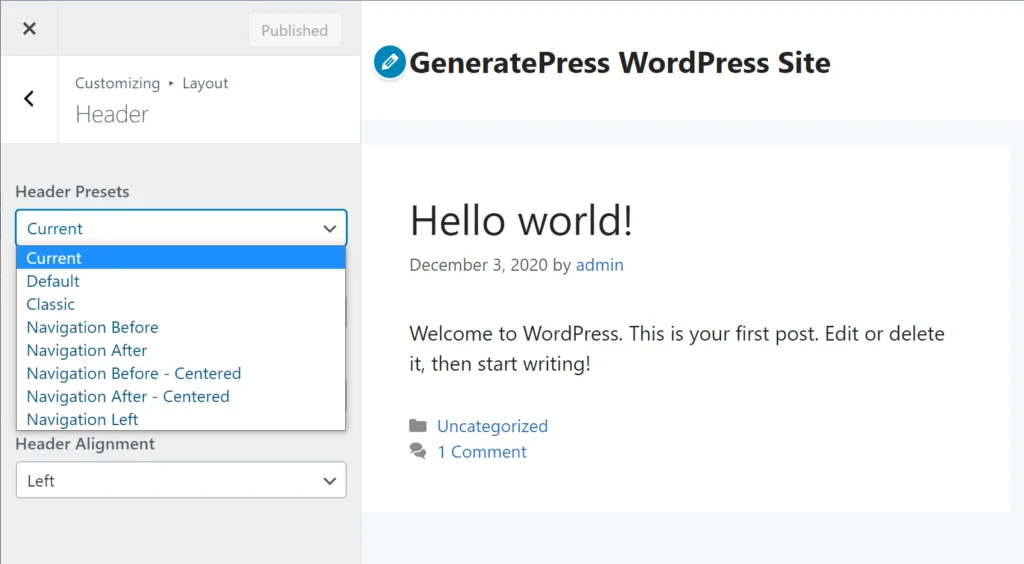
This is a different approach from Astra, as you’ll see in a second.
You’ll also get some additional options when editing individual pieces of content, which we’ll discuss when we get to page builder compatibility.
Overall, GeneratePress’ detailed use of the WordPress Customizer sticks with its lightweight, bloat-free approach.
Astra
Because Astra offers starter sites even with its free version, it has a little more of a structured onboarding process. Still, you’ll also spend most of your time in the WordPress Customizer with Astra.
When you first activate Astra, it will show a prompt to install the companion Starter Templates plugin, which lets you access the importable demo sites:
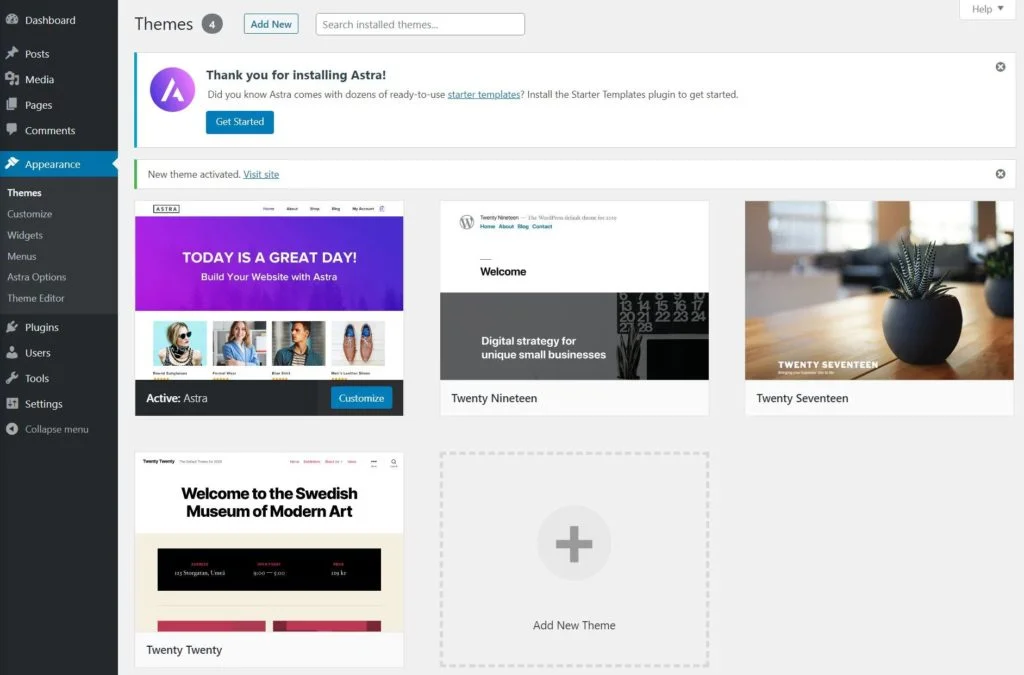
Clicking Get Started will install the demo site plugin, which we’ll cover next.
Beyond that, you’ll do everything else from the native WordPress Customizer, just as you do with GeneratePress:
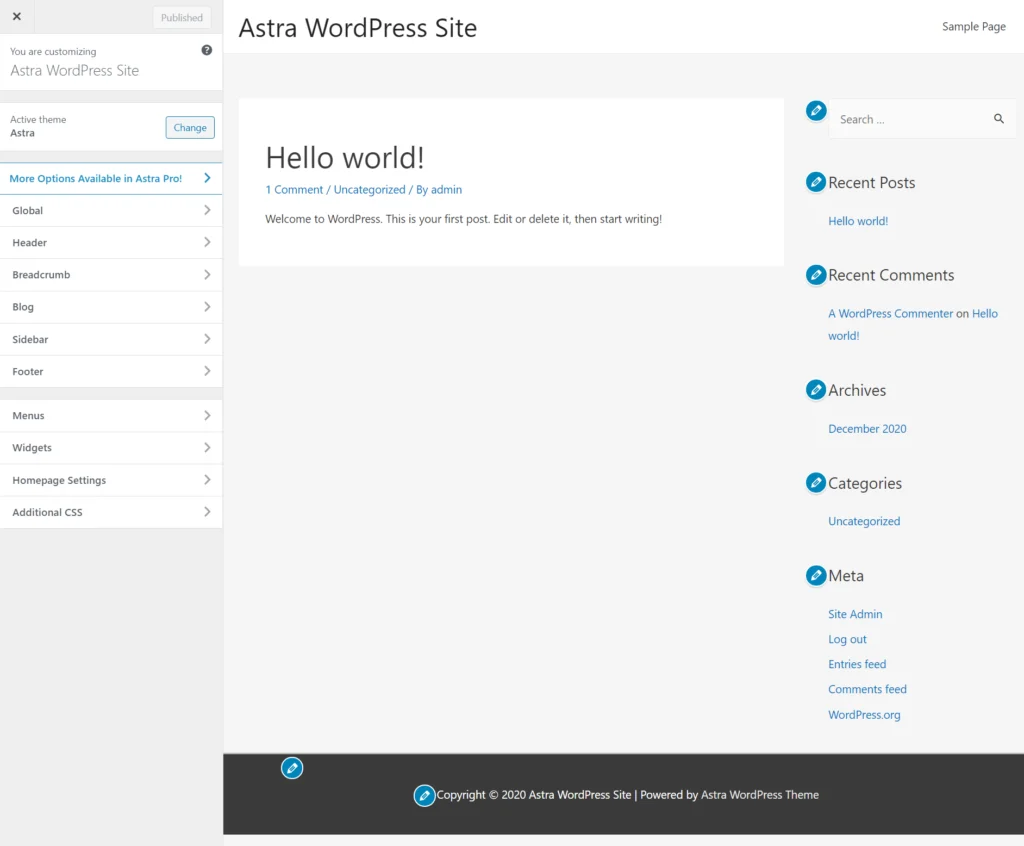
Astra’s Customizer settings areas feel a little more user-friendly and intuitive. For example, when choosing a pre-made header layout, you get a visual representation of the layout rather than just a text list:
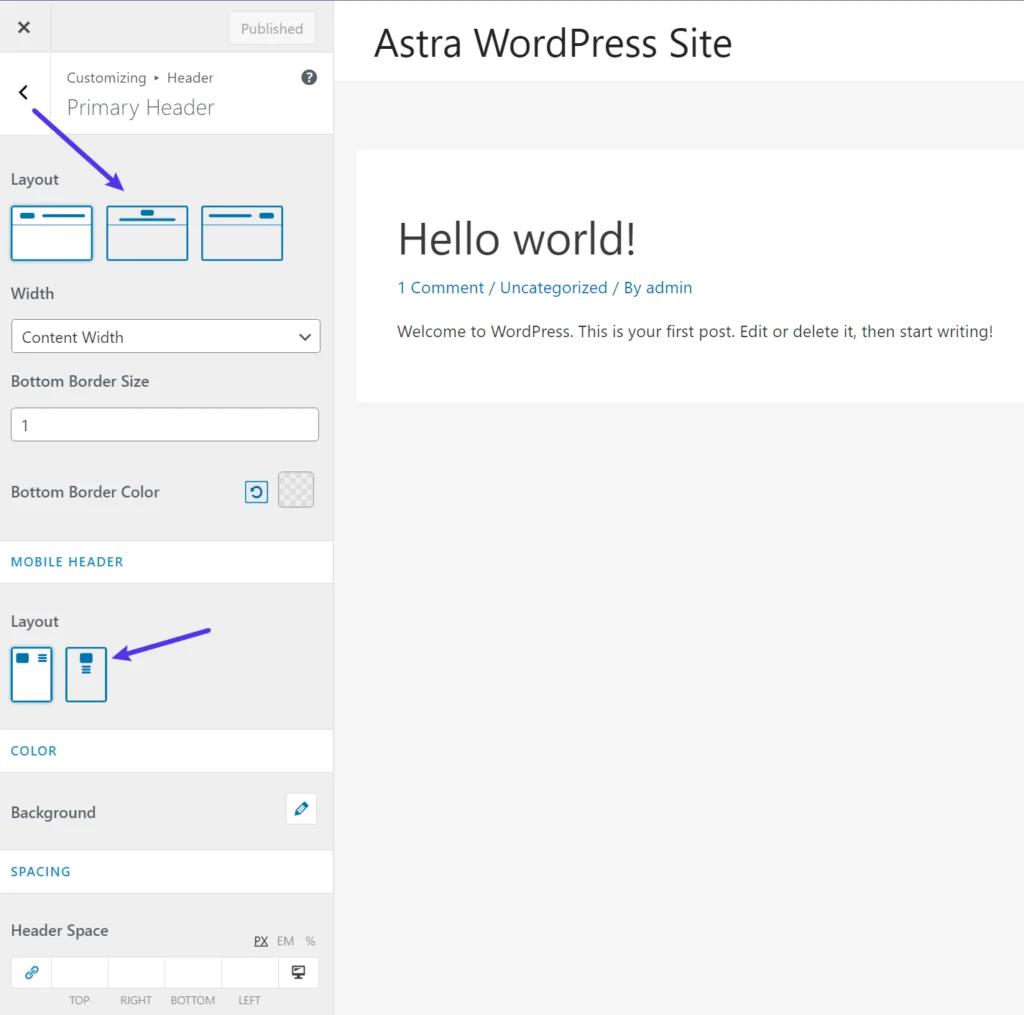
Is it a huge difference? Definitely not. But most people will probably prefer the way that Astra has set things up in terms of beginner-friendliness.
You’ll also get page-level controls, which we’ll cover in the page builder compatibility section.
GeneratePress vs Astra — Starter Sites
In terms of pre-built importable demo sites, Astra has a much larger selection. Additionally, Astra still includes starter sites for its free version, while you only get starter sites if you pay for GeneratePress Premium.
For those reasons, Astra is a bit stronger when it comes to importable starter sites.
GeneratePress
Again, GeneratePress only offers starter sites if you purchase GeneratePress Premium. You do not get any starter sites with the free version, which is important to consider if you don’t want to start from scratch.
With the premium version, GeneratePress offers starter sites that are built with three different content builders:
- Native WordPress editor (blocks) – 44 different sites.
- Elementor – 14 different sites.
- Beaver Builder Pro – 6 different sites.
In total, that gives you 64+ pre-built sites to choose from.
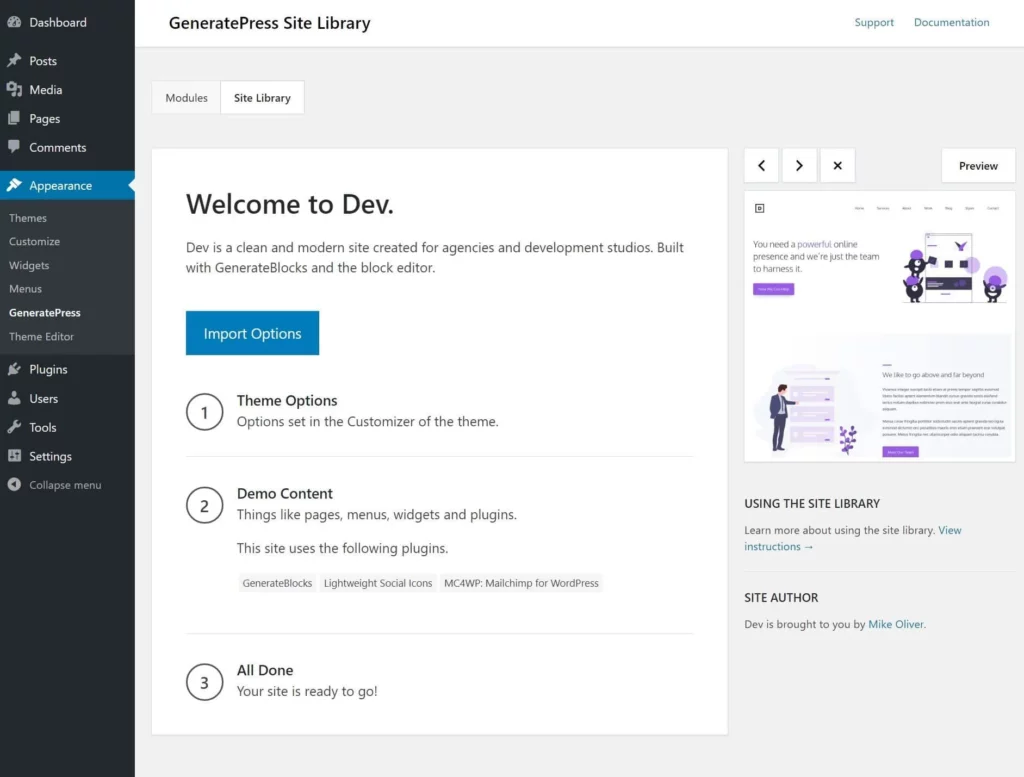
To import GeneratePress’ starter sites, you’ll need to activate the Site Library module in GeneratePress Premium. From there, you’ll be able to browse the demo sites in your WordPress dashboard and import them with a few clicks.
When you import a starter site, you have the option to do a full or partial import. You can import:
- Just the WordPress Customizer settings.
- The Customizer settings and all the demo content.
Astra
Astra offers many free starter sites, as well as lots more starter sites with the premium Agency version.
Astra offers starter sites with four different content editors:
- Native WordPress editor (blocks) – 52 different sites – 52 free sites and 0 premium sites.
- Elementor – 133 different sites – 60 free sites and 73 premium sites.
- Beaver Builder – 106 different sites – 38 free sites and 68 premium sites.
- Brizy – 40 different sites – 17 free sites and 23 premium sites.
Unlike GeneratePress, there’s some overlap in starter sites between different content editors. For example, you can find the exact same starter site built with both the block editor and Elementor.
For that reason, you can’t just add up the total number of templates. But in general, you can see that Astra definitely offers a much broader selection than GeneratePress. Even if you only look at the Elementor demo sites, it still has double the number.
To install Astra’s starter sites, you’ll first need to install the companion Starter Sites plugin from WordPress.org (or the equivalent premium version to access the premium demo sites).
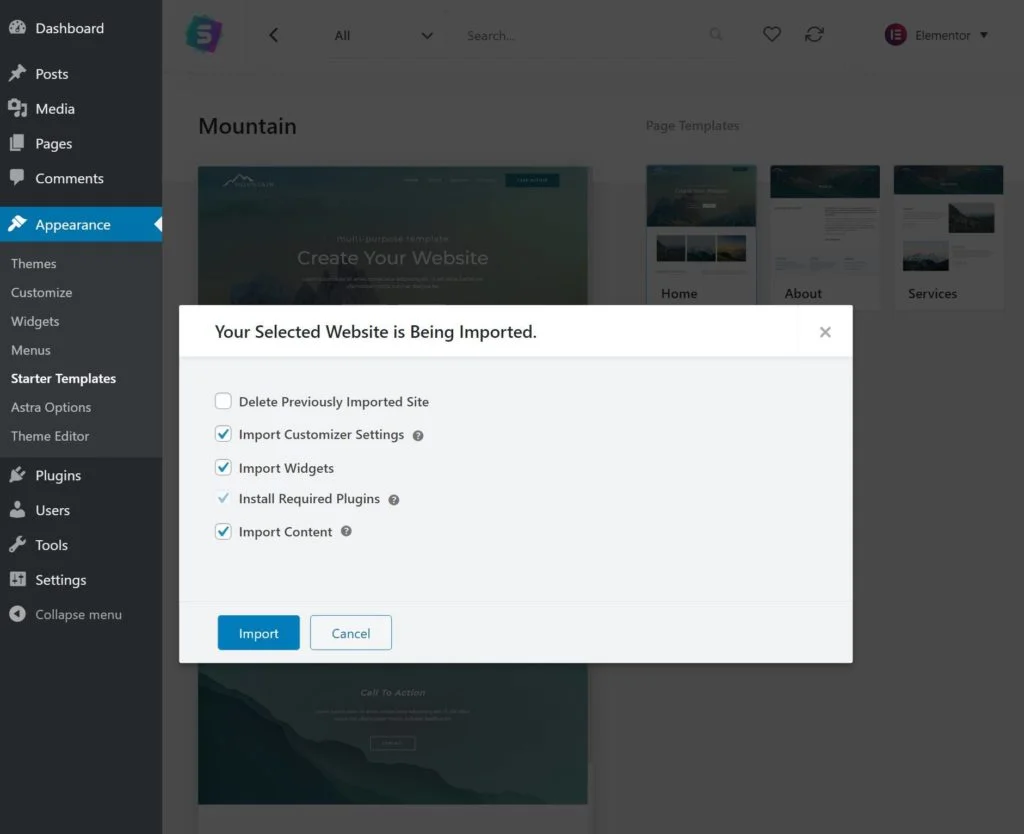
From there, you’ll be able to browse the starter sites from inside your WordPress dashboard. When you import a starter site, you’ll have the option to do a full or partial import. You can import:
- Individual pieces of content from the demo site.
- Just the WordPress Customizer settings (no content)
- Just the content.
GeneratePress vs Astra — Pricing
Both GeneratePress and Astra are free WordPress themes that have free versions available at WordPress.org as well as premium(PAID) versions that unlock additional features.
In terms of premium versions, both have basically identical pricing. The one exception is that Astra requires a more expensive purchase to unlock the premium Agency templates.
GeneratePress
GeneratePress offers two payment options:
- $59 for one year of support/updates. You can renew for a 40% discount after your first year.
- $249 for lifetime support/updates
Both plans allow use on unlimited sites.
Astra
For the premium theme, Astra has three pricing options:
- Astra Pro: $49 for one year of support/updates.
- Essential Bundle: $169/year
- Growth Bundle: $249/year
Both plans allow use on unlimited sites. There is also the “lifetime” pricing option.
However, there are a few differences with GeneratePress. Most notably, if you want access to the premium Agency templates, you’ll need at least the $169 (one year)/$499 (lifetime) Mini Agency Bundle. This bundle also gets you access to some of the developer’s other plugins, such as Ultimate Addons for Elementor/Beaver Builder.
GeneratePress vs Astra — Modules
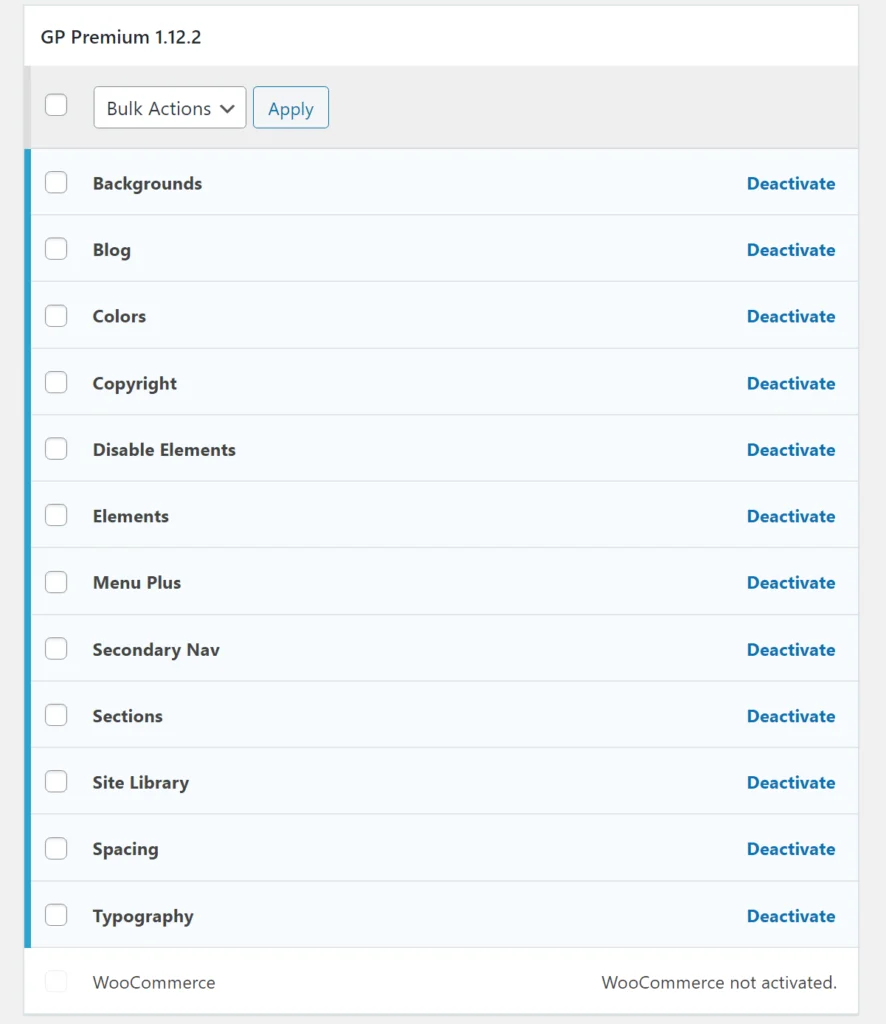
Both GeneratePress and Astra use a modular approach for their premium versions that lets you enable and disable the specific features that you want to use.
In this section, we’ll show you which modules each theme offers. In general, Astra has a longer module list, which makes sense because Astra is generally a little more feature-rich than GeneratePress.
GeneratePress
Astra

GeneratePress vs Astra — Free and Premium Features
As we mentioned above, both are free WordPress themes and have popular free versions at WordPress.org as well as premium versions with more features. The premium version is technically an add-on plugin for the free core theme – you’ll use the exact same theme whether you’re using the free version (just the theme) or the Pro version (the theme plus the premium add-on plugin).
You’ll need the premium version to access all the modules that we showed you in the previous section.
Overall, Astra is a little more generous with its free features and is more flexible as a free theme. For that reason, Astra is probably a better option if you’re planning to stick with just the free version.
GeneratePress vs Astra — Layout and Style Customization
We touched on this a bit when comparing the free vs premium features, but now let’s get more in-depth into the layout and style customization options in both themes.
Overall, Astra and GeneratePress both give you a ton of customization options, which is why they’re both so popular.
However, this is a tough section to compare because there are so many options available (especially if you have the premium version). Digging into every single feature would require a whole ebook of its own!
In general, Astra is a bit ahead in terms of the sheer number of features. But for most situations, both themes will give you all the options that you need. Most users will probably only notice a difference when it comes to some of the more niche features.
For example, they’re both super flexible when it comes to “core” areas such as:
- Typography
- Colors
- Layouts
Additionally, Astra is not ahead in all areas, and GeneratePress is more flexible in some areas. For example, GeneratePress has more preset header layouts, though this will change when Astra launches its new header/footer builder (currently in beta when we’re writing this comparison).
GeneratePress vs Astra — Performance
Both GeneratePress and Astra are more performance-optimized than your average WordPress theme and both can definitely get you a quick-loading website.
Overall, though, GeneratePress is a little bit ahead in terms of performance, though the difference isn’t huge. Still, if you’re a WordPress performance junkie, that’s an advantage of GeneratePress.
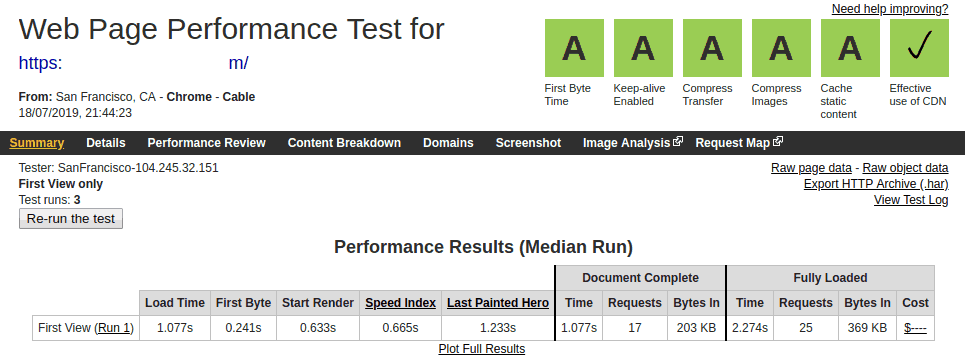
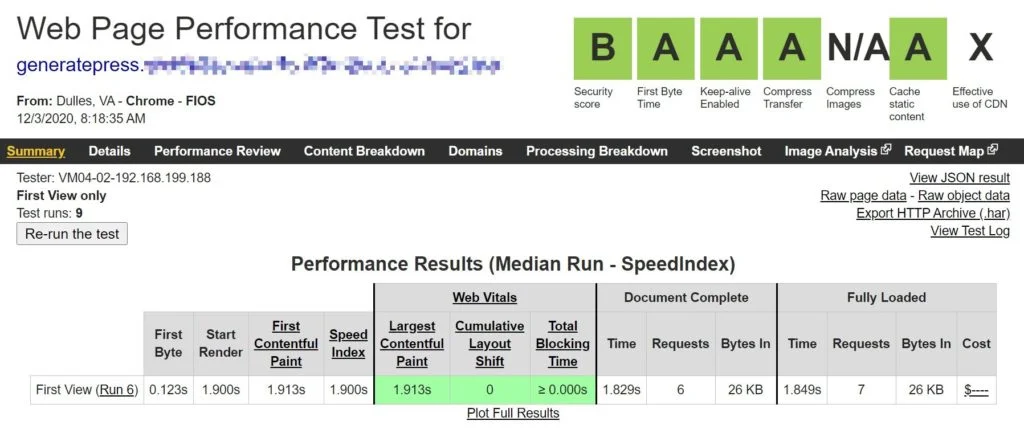
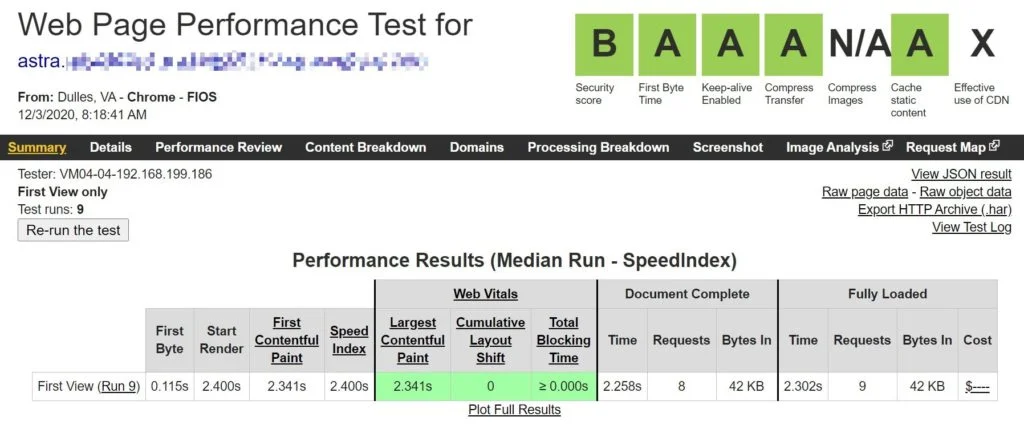
To test performance, we installed each theme on a fresh WordPress install and ran tests with WebPageTest. We did not import a starter site because there are too many variables to compare there. Obviously, your real site will be heavier if you’re using an importable starter site.
GeneratePress
Astra
Comparison
To make it easier for you, here’s the data of the GeneratePress vs Astra comparison on a fresh install:
| GeneratePress | Astra | |
| HTTP Requests | 7 | 9 |
| Page Size | 26 KB | 42 KB |
You can see that, in the default state, GeneratePress is a tiny bit lighter than Astra. However, both are significantly lighter than most other WordPress themes, so it’s tough to quibble about seven vs nine HTTP requests.
GeneratePress vs Astra — Page Builder Compatibility
Both GeneratePress and Astra pair well with popular page builder plugins. More specifically, both offer importable starter sites that are based on page builders as well as page-level controls to easily control the canvas for your page builder designs.
GeneratePress
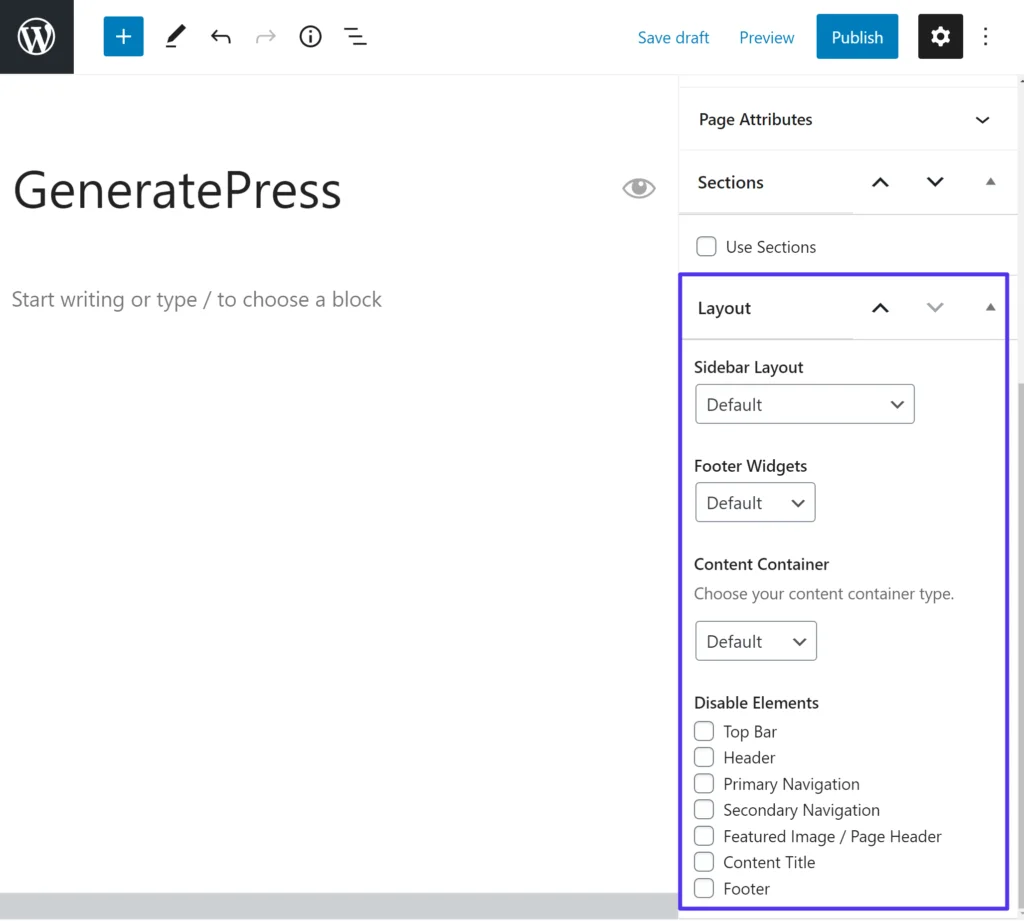
When working on an individual piece of content, GeneratePress lets you adjust the layout and also disable certain elements.
You can adjust the following elements:
- Sidebar Layout – choose from any sidebar layout (disable, switch sides, add an extra sidebar, etc).
- Footer Widgets – change the number of footer widgets anywhere from 0-5.
- Content Container – choose from default, full-width, or contained.
You can also disable the following elements by checking a box:
- Top bar
- Header
- Primary navigation
- Secondary navigation
- Featured image/page header
- Content title
- Footer
Astra
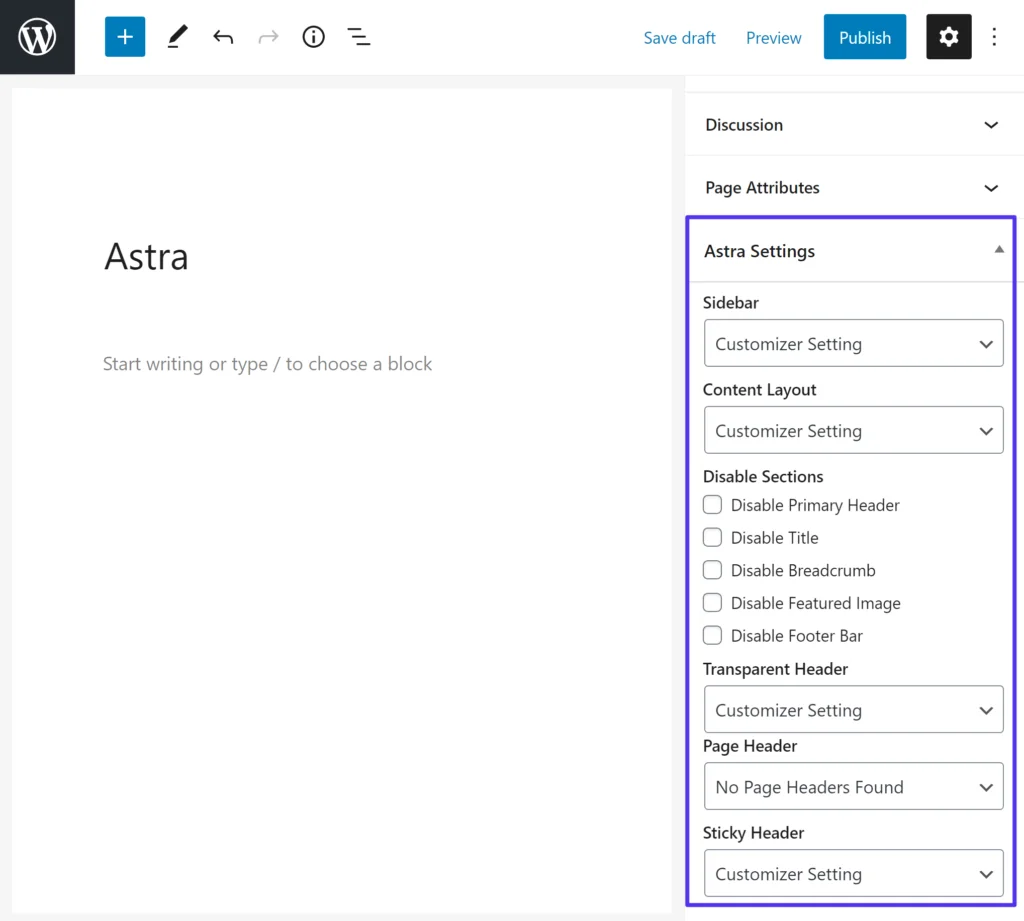
Astra also gives you detailed page-level controls, including some additional options to control header behavior. For example, you can enable a sticky or transparent header on a page-by-page basis.
You can adjust the following settings:
- Sidebar – right, left, or disabled.
- Content Layout – boxed, content boxed, full-width contained, full-width stretched.
- Transparent Header – enabled or disabled.
- Page Header – set a custom page header (more on this feature in the next section).
- Sticky Header – enabled or disabled.
You can also disable the following elements by checking a box:
- Primary header
- Title
- Breadcrumb
- Featured image
- Footer bar
GeneratePress vs Astra — Developer-Friendliness
Both GeneratePress and Astra are quite developer-friendly and each has some useful tools to help you customize your theme.
Overall, GeneratePress might have a slight edge because of its unified approach to customizations, but both are quite strong and give you plenty of options.
GeneratePress
One of GeneratePress’ most useful features for developers is its Elements module (which requires the premium version). GeneratePress Elements acts as an all-in-one place to work with hooks, add custom layout elements, and more.
Once you get the hang of it, it’s super useful to have everything in one place. When you add a new element, you can choose from four different element types:
- Block
- Header
- Hook
- Layout
For example, let’s say you want to add a hook to one of GeneratePress’ many hook locations (visual guide here). You would create a new hook element type. Then, you can add the code you want to execute and choose the hook location:
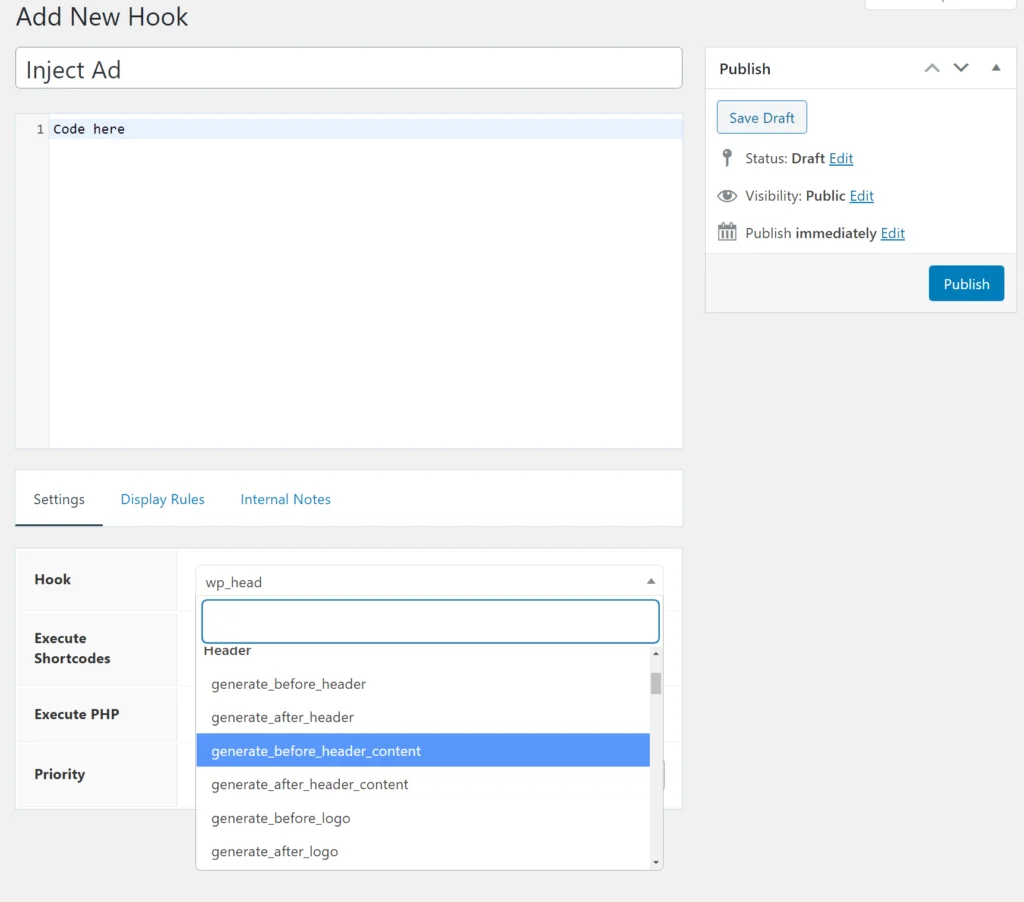
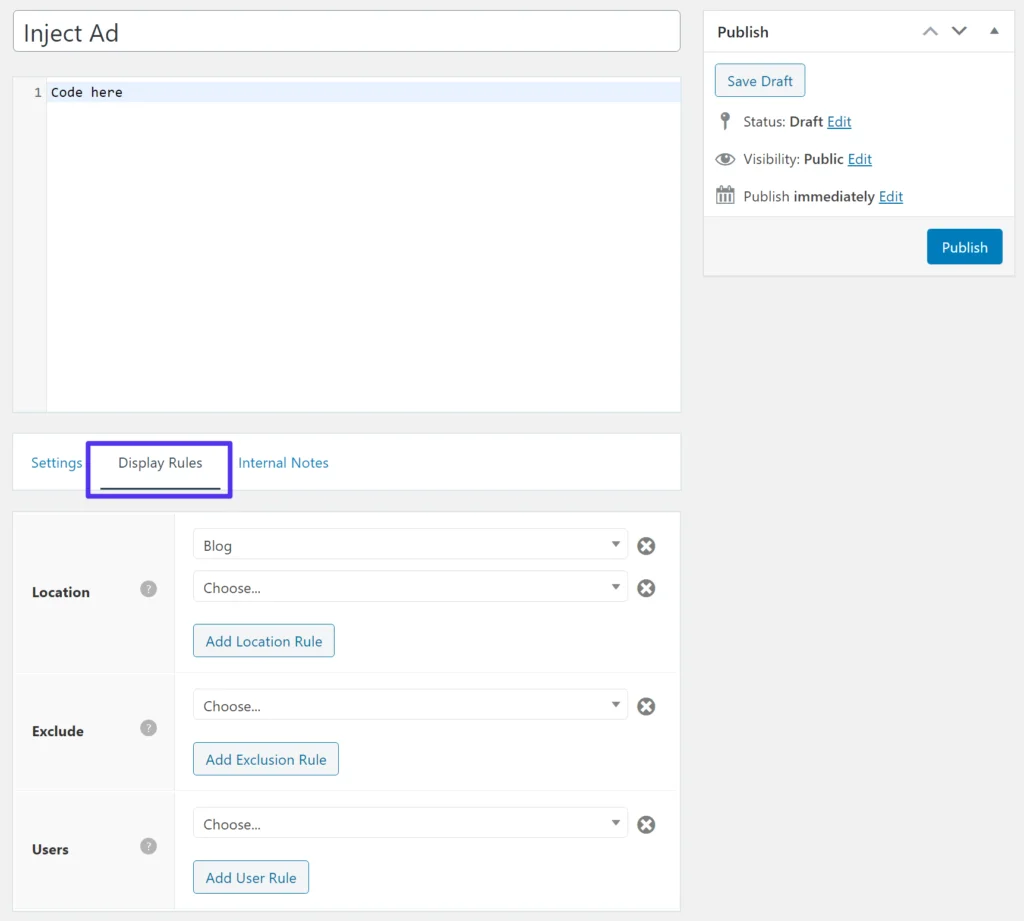
Then, the really neat thing is that you can set up display rules to only run that hook on certain content (without needing to use any code). You can even target user roles or logged-in status.
You can also target specific content in a ton of different ways including post types, categories, tags, custom taxonomies, author, and lots more:
Overall, GeneratePress Elements is very well thought out and a great tool for developers.
Astra
Astra also includes plenty of tools for developers.
First off, if you want to work with Astra’s hooks (visual guide here), you can install the official Astra Hooks plugin to be able to add hooks directly from the WordPress Customizer. The benefit of this approach is that it’s free.
However, Astra’s free hook implementation doesn’t have that easy display rules feature that GeneratePress offers, so you would need to add those conditions directly to the code:
However, if you have Astra Pro, you get access to custom layouts and page headers (which are wrapped into Elements if you’re using GeneratePress).
For these elements, Astra does give you detailed display rules just like GeneratePress. You can add hooks using the custom layout feature, which essentially gets you access to those same display rules:
Astra also has a dedicated white-label feature, which GeneratePress currently doesn’t offer (though there are some workarounds).
GeneratePress vs Astra — Ecommerce Integration
Both GeneratePress and Astra offer WooCommerce compatibility and built-in features for your store. Astra also offers a dedicated Easy Digital Downloads module, while GeneratePress doesn’t offer any special Easy Digital Downloads features.
In general, though, Astra has a stronger WooCommerce integration with more WooCommerce-specific features. For that reason, Astra probably makes a better option for WooCommerce stores, though GeneratePress would still be fine in most situations.
For example, Astra has:
- Dropdown shopping cart
- Off-canvas WooCommerce sidebar
- Built-in product quick view
- Distraction-free checkout or two-step checkout (read our guide on WooCommerce checkout pages)
- An eye-catching indicator for sale products
- Lots of Customizer settings to control your individual products and catalog
GeneratePress does match a few of those features, such as the distraction-free checkout. But in general, Astra is definitely ahead in its WooCommerce integration.
Other Notable Integrations
GeneratePress doesn’t really have many notable integrations beyond its WooCommerce integration, but Astra does have a few extra tricks up its sleeve.
In addition to WooCommerce, Astra also has dedicated modules for:
GeneratePress vs Astra — Support and Documentation
If you purchase the premium versions, both GeneratePress and Astra offer premium support. Both themes also have detailed knowledge bases where you can help yourself.
In general, though, GeneratePress has a slight edge for support for some of the reasons that we’ll talk about below.
GeneratePress
First off, GeneratePress offers detailed documentation for all of the theme’s features. This is always a great place to start if you run into any issues.
If you need one-on-one support beyond that, you can use the public support forum. Anyone can view the forum, but you need to have an active license to post topics. Now, support forums can sometimes get a bad rep, but GeneratePress does it really well and responds very quickly to new topics.
You’ll even still find Tom Usborne, the developer, still responding to queries sometimes (though GeneratePress has grown to a point where most queries are handled by dedicated customer support staff).
Additionally, because the support forum is public, you can also often find the answer to your question just by searching Google to turn up an existing support topic.
For community support, you can also join the official GeneratePress Facebook community, which has over 6,700 members.
Astra
Like GeneratePress, Astra has a detailed knowledge base with hundreds of articles.
If you need help beyond that, you can submit a support ticket. Because Astra uses ticket support, there’s no searchable index of questions like you’d get with forum support.
Summary
GeneratePress and Astra are popular for a good reason: they’re both excellent WordPress themes and you won’t go wrong with either.
Overall, Astra offers slightly “more” than GeneratePress. It has more integrations, more starter sites, more customization options, etc. Does that mean it’s better? Well, not necessarily. If GeneratePress has a starter site that you love, it doesn’t really matter that Astra has more starter sites because you only need that single template.
Similarly, if you’re not using WooCommerce, it doesn’t really matter that Astra has a slightly more detailed WooCommerce integration.
On the other hand, GeneratePress has a slight edge when it comes to performance, which is another important consideration. Again, Astra is also quite good when it comes to performance – it’s just that GeneratePress is a bit better.
In terms of pricing, the premium versions are identical, so there’s no difference there. However, there are two things to note when it comes to pricing:
- The free version of Astra is more functional than the free version of GeneratePress. So if you’re planning to stay with the free version of either theme, you’ll probably be happier with Astra.
- You need one of Astra’s agency bundles to access the premium templates.
You’ll also need to consider the type of website that you’re building. For example, GeneratePress might be the best option for a brochure site or blog, while Astra is probably superior if you’re building a WooCommerce store or online course.
Bottom line: you won’t go wrong with either theme, so you definitely don’t need to worry about making a disastrous decision. Instead, it’s more about just picking the option that best emphasizes and supports what you’re looking for.