Category: WordPress Blogging

This page contains all 100+ posts I’ve ever written (from newest to oldest). You can also see them in list format.

  • How To Start A Blog And Make Money In 2026

    Starting a blog can be both a rewarding and lucrative venture that opens exciting opportunities. Through blogging, you can establish yourself as a credible expert in your field, earn a part-time or full-time income, and connect with like-minded people who share your interests and passions.

    In this article, we’ll explain how to start a blog and make money no matter your experience level.

    What Is a Blog?

    In the early days of the internet, blogging was more akin to journaling. Some of the earliest blogs were used as a way to chronicle someone’s personal viewpoints and experiences.

    Blogging has since evolved to become much more than a form of digital record-keeping. Nowadays, both businesses and individuals alike create blogs to share information and to bring in sales or commissions.

    7 Reasons You Might Want To Start a Blog

    There are several reasons to start a blog. You could be looking to start a blog to try a fun hobby, generate some side income, build a community or for any of the following reasons:

    1. To Document What Happens to You

    The word “blog” is actually a shortened form of “weblog,” a relic from its origins as a way to document what was happening. You may want to create a blog to have a space or a way to save your thoughts and photos in one centralized place.

    2. To Have a Creative Outlet

    Blogging encompasses writing, editing, and to some extent, design. This makes it a very creative pursuit. If you’re looking for a relatively low-cost way to express yourself, blogging is a great option.

    3. To Share Your Thoughts and Experiences

    No one else is you—which means you have thoughts and experiences that are uniquely your own. A blog is a platform through which you can share your thoughts with others, have discussions and build genuine connections while doing so.

    4. To Connect With People

    Blogging is an excellent way to connect with others, whether they be other bloggers, content creators or your intended audience. Blogging opens doors to meet people that you otherwise may not have come into contact with. The blogging community is highly active on sites such as Facebook, Instagram and Reddit.

    5. To Get Better at Writing and Digital Marketing

    Blogging is a craft. If you’re looking to brush up on your writing skills, writing daily or weekly for a blog could be beneficial.

    Similarly, running a blog takes a lot of work behind the scenes. Bloggers are often their own webmasters and social media marketers in addition to content writers. If you want to build skills in those areas, starting your own blog will allow you to gain valuable experience.

    6. To Build Your Brand and Credibility

    Creating a blog can help you build your brand and establish you as a credible expert in your niche or industry. Your blog content can demonstrate how knowledgeable or experienced you are on certain subjects.

    7. To Bring In Sales or an Income

    Blogging can be used to bring in sales—whether that’s for your existing business or an entirely new one. According to Indeed, bloggers bring in an average annual income of $37,073.

    Misconceptions About Blogs

    You don’t need to be famous to start a profitable blog. Anyone can blog, no matter their experience. Here are the most common misconceptions people hold about starting a blog:

    Blogging Is Expensive

    You can start a blog for free, as long as you have an internet connection. Even if you decide to pay for a custom website, domain name or photography, these costs are relatively nominal compared to the amount of money you can potentially generate from your content.

    Blogging Is a Dying Medium

    Blogging is not dead or dying. It is more saturated now than it was a decade ago, but that doesn’t mean you can’t create a successful one. Building a profitable blog nowadays may take more effort and initial investment than it would have if you started earlier but that shouldn’t necessarily dissuade you from starting one.

    Every Blog Post Needs To Be Perfect

    You should publish blog articles that you’re proud of, but don’t let the fear of your content not being “good” enough or “perfect” enough hold you back. Blogs are editable, so if you find you’re not satisfied with something after it’s gone live, you can always go back and change it.

    You Need To Have an Existing Following To Start a Blog

    You don’t need to be a celebrity or existing social media personality to start a blog. In fact, many now-famous bloggers, including Joy Cho, Carly Riordan and Blair Eadie, were not famous until after they started blogging.

    Blogging Is Easy

    Blogging may seem easy in theory: write words, press post, done. But in reality, unless you have a staff or have outsourced the marketing or webmaster aspects of running a blog, you’ll be spending time on more than just writing.

    Depending on your niche or goals, you also might need to spend considerable time researching your topic or creating complementary assets such as photos or videos. Blogging is not necessarily easy, but that doesn’t mean it’s not enjoyable or rewarding.

    Blogging Is a Fast Way To Earn Money

    While it’s true that blogging can be used to earn an income, it’s not something that will help you “get rich quick.” You need to build an audience that wants to purchase items from you before you can start earning any money.

    12 Steps To Start a Blog

    If you’re ready to start a blog but don’t know where to start, these steps will set you up for success, regardless of your ultimate goals.

    1. Define Your Topic or Niche

    Finding a niche can be tough or feel limiting, but will help you build stronger credibility in the long term. You can certainly talk about more than one subject, but make sure your main focus is consistent and specific enough to draw readers in and encourage them to keep reading your work.

    2. Do Competitor Research

    After deciding what you want to write about, do some initial research to understand who the other key players are in your space. Is your niche already fairly crowded? Or are very few people writing about your intended topic?

    No matter the case, doing your research beforehand will help you understand how you can create content that’s better than or different from what’s already out there.

    3. Define Your Audience

    In addition to nailing down your niche, you should also consider your audience. Who are you going to be blogging for?

    Having the answer to this question will help you write articles that are valuable and relevant to your readers. Try to determine the following information about your ideal reader before diving right into writing:

    1. How old are they?
    2. Where do they live?
    3. What do they do for work?
    4. What other forms of media do they already consume?
    5. Do they read any other blogs?
    6. What do they do in their free time?
    7. What issues or problems do they face on a regular basis?
    8. What do they wish they were more of an expert in?

    4. Plan Your First Blog Post

    Once you’ve nailed down your niche and desired audience, you can start planning your first blog article. Again, this may require some research to ensure you’re creating something that your audience will want to read.

    As a starting point, type your desired topic idea into a search engine to see what kinds of articles appear in the results. If you find that the existing results don’t accurately or aptly explain the topic, that’s a great indicator that you’ll be able to write something better.

    5. Name Your Blog

    Every blog needs a name. You’ll want to ensure that your blog’s name makes sense given your niche or brand, is memorable/catchy, and is easy and quick enough to type.

    If you have a name in mind, scour the web and social media to make sure that no one else is already using that name. If your desired name is already taken, you can either create a new one or contact the website owner to see if they are still actively using the name that you want. If you really want to protect your assets, you can even trademark your business name.

    6. Create Branding Elements for Your Blog

    In addition to a name, you’ll need to select a font and color palette for your blog that you’ll incorporate once you’ve built your website. You can do this yourself or outsource it to a graphic designer.

    If you want a custom logo for your blog, you can design one with a free platform such as Canva, or work with a designer.

    7. Claim a Domain Name

    After settling on a name for your blog, you’re ready to select a domain name. You can check to see if a domain is available by typing in your desired domain name in your browser and see if a live website appears. Most domain registrars will also have a tool to help you find available domains.

    When you’ve chosen a domain that’s available, you’ll need to pay for the rights to use it through a domain registrar. Owning and setting up a domain is a separate process from selecting a hosting site and web builder, which you’ll do next.

    8. Choose a Hosting Site

    Choosing a web host is an essential step in creating your blog. Without a host, you won’t be able to build a website; a host is what lets you effectively “rent” a presence on the internet.

    Some platforms will host your blog for free, but in exchange, they’ll tack on their brand name to your web domain, e.g., thefancyblog.squarespace.com or thefancyblog.wordpress.com. In these examples, to remove the “.squarespace” or “.wordpress” from the URL, you would need to pay for web hosting in addition to buying the domain name thefancyblog.com.

    Web hosting can cost anywhere from 50 cents to $10 per month depending on how much speed and storage you want to purchase. There are dozens of different hosting options out there, but we recommend selecting one of the best web host services that fits your budget and needs.

    9. Build Your Website

    You can build your website from scratch or by using a template or theme—it all depends on your budget and desires. A no-code web builder, such as Blogger or WordPress, will allow you to design and build a beautiful website even if you have no prior web development experience. Some templates or themes are free, but others may run you anywhere from $10 to $200.

    Certain web builders allow for more customization and flexibility than others. Be sure to read the specs of each website builder you’re interested in to understand what’s possible when designing your blog.

    10. Upload and Publish Your First Article

    After you’ve built your website and are satisfied with its look and feel, it’s time to upload your first article. You can type and edit your content right from the back end of your website, however, it’s wiser to create all your content in a separate, cloud-based editor such as Google Docs. That way, you’ll have a secure backup of your blog content in case your site experiences any technical issues.

    Before you hit publish, it’s a good idea to preview your blog post to see if it displays exactly how you want it to. You can always go back and edit it later, though, if you want to change or update anything.

    11. Promote Your Blog

    Once you’ve published content to your blog, you can share your links. Social media is a popular and effective way to distribute your blog content. You can share links on your existing social channels, or create new accounts to complement your blog.

    12. Track Your Analytics

    After you’ve published and publicized your blog, it’s important to track metrics such as views, visitors and clicks. Your hosting platform may have a default analytics dashboard built in, but we strongly recommend connecting your blog to Google Analytics. Google Analytics is a free tool that will allow you to track your traffic as well as important demographic and conversion details.

    You’ll need to use your analytics to earn brand sponsorships and/or advertising revenue.

    How To Make Money With a Blog

    Bloggers can make money using a multitude of different strategies. Some require more effort than others. Most blog income streams rely on precarious conditions, such as search engine algorithms and brand budgets. Therefore, it’s highly recommended that you diversify your revenue by choosing multiple methods.

    Brand Partnerships

    Bloggers often team up with brands to create sponsored content. This usually entails having to review a specific product or incorporate a product mention into your regular content.

    Brand partnerships can be one-off deals or turn into long-term relationships based on your content’s performance and mutual interest.

    Advertising Networks

    Advertising networks will pay you to either run ads on your blog or when someone clicks on an ad, or both. Certain networks, such as Mediavine, require you to have a pretty hefty amount of monthly views (50,000) in order to run ads, whereas others, such as Google AdSense, have no minimum view count requirements.

    Affiliate Links or Codes

    Bloggers can join what are known as affiliate networks. Affiliate networks allow you to generate unique links to products that you talk about on your blog to help you earn a commission when someone makes a purchase. Amazon Associates and LTK are two common examples.

    Affiliate codes work similarly to links in that you earn a small commission when someone makes a purchase. Brands may give you a unique code for your readers to enter at checkout when they shop online, and you can promote this code throughout your content to drive sales.

    Digital Products

    If you want to sell products without the logistical hassle of coordinating packing and shipping, digital products might be a better fit. Digital products are a relatively low-effort, inexpensive way to create products that your audience wants to buy. Most digital products can be accessed or downloaded by your customers immediately after purchase.

    Some examples of digital products you can sell include but are not limited to:

    • Printables. These can be anything from calendars and lesson plans to budgeting sheets.
    • Online courses. You can use a platform such as Teachable to create more detailed lessons or tutorials than what your blog provides.
    • E-books. An e-book is usually a self-written, self-published title that comes in PDF form.

    Physical Products

    Your blog can be used to sell physical products, too—whether you already sell things on another channel or want to create entirely new ones.

    You can insert links to any existing products you sell into your blog posts, or you can create merchandise that aligns with your content and audience. For example, if you have a fashion blog, you can sell items such as T-shirts, hats or tote bags with your blog’s logo.

    Premium Content or Memberships

    Blogs are free to read, but you can put exclusive content behind a paywall to create an additional revenue stream. Dedicated readers or fans will then need to pay for access to read it.

    Patreon and Buy Me a Coffee are two examples of platforms that help creators host subscriber-exclusive content. You can also use these platforms to create memberships, where your readers pay a recurring monthly fee to access premium content.

    Consulting or Coaching

    Your blog is a great source of free information, but your readers might be interested in learning more from you. If you start getting requests for specific advice or guidance, that’s a good sign that you’d be able to earn money through one-on-one consulting or coaching sessions.

    Bottom Line

    Starting a blog can be enlightening, fun and a profitable way to connect with others. Maintaining a blog requires wearing a lot of hats, but if you’re up for learning and growing through an ever-changing medium, you’ll likely see fulfillment and success.

  • Improve WordPress Security

    There are some simple tweaks you can do to prevent some popular infections.

    1. Disable PHP execution in /uploads/ and /cache/ folders

    You can easily add a few lines of code into your Apache or Nginx configuration which will prevent PHP usage inside /upload/ and /cache/ folders. In many scenarios, this can render the initial backdoor or dropper useless as it can’t be executed even if arbitrary file upload was successful.

    Nginx:

    # Deny access to PHP files in any /uploads/ or /cache/ directories
     location ~ /uploads/(.+)\.php$ { access_log off; log_not_found off; deny all; }
     location ~ /cache/(.+)\.php$ { access_log off; log_not_found off; deny all; }
    Apache:
    Create a .htaccess file to /upload/ and /cache/ folder and write following inside both of the files:
    # Kill PHP Execution
    <Files ~ "\.ph(?:p[345]?|t|tml)$">
    deny from all
    </Files>

    2. Disable file editing from Admin Panel

    It’s a good idea to disable file editing options directly from the WordPress Admin Panel. You can add the following code into your wp-config.php file:

    ## Disable Editing in Dashboard
     define('DISALLOW_FILE_EDIT', true);

    3. Hide default Admin Panel

    WordPress sites are constantly brute-forced by botnets and hacking scripts. The main reasons for this is the vast amount of sites with known admin panel location /wp-admin/ and the fact that many site owners will use default Admin or Administrator username and a weak password. It’s an easy way to gain access to thousands of WordPress sites and infect them with desired malware, install backdoors, send e-mail spam and redirect traffic.

    It can be tricky to change the /wp-admin/ location manually in a way that it works properly. Use a third party plugin instead, such as WPS Hide login.

    4. Web Application Firewall, Up-time Monitoring, Vulnerabilities

    It’s good to have a managed web application firewall which is always updated with the latest security risks and exploits that follow outdated and vulnerable WordPress plugins, themes and core versions. Firewall today is as essential for websites as anti-virus software for computers and having a full overview of what’s going on on your site is a must-have.

    There are different WordPress plugins like WordFence, iThemes Security and All In One WP Security which allow you to set up hardening options to your site automatically, without having to add scripts to different files manually (as above).

    If you want to have confidence and don’t want to go over the WordPress hardening or even worse, a malware removal process, get us, We offer Free migration from other (WordPress) maintenance services or hosts. No fixed contracts, cancel anytime, starting at $ 20/month.

    5. Use secure hosting and keep software up to date

    Your hosting environment has to be updated (check if PHP 7.4 is supported), well configured and secure. If you save money by choosing a cheap, untrusted hosting provider then it’s a matter of time when issues arise. You can secure your application with highest grade security solutions, but when your host is hacked, none of the implemented security on your application matters.

    Discover our top rated hosting for fast & reliable (WordPress) websites. Sites are hosted on secured servers. Get up to 200% the speed compared with HDD hosting. 100% Uptime Guarantee for your websites or applications. We can help you launch, enhance or migrate your hosting according to your needs. 24x7x365 we monitor your (virtual) server or website. Our advice is straightforward and free, and we can’t wait to help.

    If you have any question or need help, feel free to contact us.

    Stay safe!

  • Improve WordPress backend Speed (wp-admin)

    10 proper ways to mitigate your slow WP-admin backend.

    If you’re frustrated with a slow backend taking forever to click from one page to the next, trust me I hear you. Frontend pages are so much easier to cache but the backend is not.

    Does that mean you’re forever cursed with miserable backend load times, and admin functions that take forever?

    NO!…ok, maybe…but I’ll help you make the best of your options.

    The CAUSE of slow backends

    Backends are slow because they’re completely dynamic.

    And by “dynamic”, I mean that they have to query the database for every page request. The database is called up and every bit of information is requested from scratch as if its never seen it before. There’s zero caching applied.

    It also doesn’t help that the backend sometimes shows more info. What users, what content, what comments, how many sales, etc. It often calculates info that isn’t even being shown. There’s also the heartbeat API running constantly in the background to auto-save your edits.

    Databases can also get slower as they grow in size. Just like how finding things in your house becomes harder when you have more things. Databases take longer when you start looking for very complicated data that’s buried or organized in complex and/or inefficient ways.

    Knowing this…let’s see how we can optimize these dynamic backend requests to speed up your WP-admin experience.

    1. Audit your plugins

    Anytime someone comes to me for help with a slow backend, they are immediately “guilty until proven innocent” to me.

    Check all your plugins and see which ones are contributing to this god awful slow-ass backend load.

    “But how?!”

    Like this…

    1. Deactivate some non-essential ones to see if it runs faster. Then deactivate some more. Keep going until you get to the point of having no plugins activated. I’m sure you’ll have an idea which ones it is by now.
    2. You should also check your theme. With all your usual plugins activated, try switch themes to the default theme for a second. Did it help?

    Hahaha, I’m kidding…ignore those first 2 steps (don’t wreck your live site) and do it like a pro. Install Query Monitor and then surf some pages from frontend while studying the diagnostic panel at the bottom of your browser. There’s only two things you need to check—Slow Queries, and Queries by Component. Those two alone will tell you which themes, plugins, or queries are causing the biggest delays. You should also take note of the memory use (on your top admin bar) and how many queries each plugin makes.

    Once you find out what’s causing it…you ought to replace them!

    • Slow slider plugin? – get a new slider plugin!
    • Slow theme? – get another theme!

    Some of you are going to have attachment pains letting go of your precious plugins…but I promise you this…whatever bullshit crap-code plugin you have lagging your backend, there’s a good chance a higher quality developer-grade one exists and without any the slow query nightmares.

    2. Check for errors

    • Error.log – find it in your public_html directory and look inside. Do you see lots of errors?
    • Console errors – open up developer tools and see if there’s any obvious 404 requests.

    It’s usually not so much the errors that are causing the problem, but the plugins related to those errors that are.

    3. Check for high memory use

    Three things you need to know:

    1. How much memory your entire site uses. (Try WP Server Health Stats)
    2. How much memory your theme and plugins use. (From Query Monitor)
    3. How much memory your autoloads use.

    From here, we have a couple tactics.

    Of course, you can try increasing your site memory limits. Add the following lines below to your wp-config.php file above the line that says “That’s all, stop editing! Happy blogging.”:

    define( 'WP_MEMORY_LIMIT', '256M' );
    define( 'WP_MAX_MEMORY_LIMIT', '256M' );

    The first one increases memory use for the frontend, the second one increases for the backend. For most well-built sites, you don’t need either. You can even raise the 2nd one to 512mb or even higher but here’s the thing…that limit is still restricted by the server’s global PHP memory limit. If you have your own VPS server, you can set as high as you want. If you’re on a crappy shared host, it’s probably very limited and trying to set it higher won’t do anything.

    If it needs to be said, you should get rid of plugins that are eating up so much memory. And please don’t forget to check your autoloads. Quite often, there are many old themes or plugins you don’t have any more that are still eating up your memory! They sit around in the database loading their indexes even when there’s no plugin using them!

    4. Upgrade your web-hosting (or web-server)

    Did you replace all your bloated plugins?!

    • NO?!
    • WHY NO? Because you wanted to save money?

    Well today, you get to spend that money you saved on better hosting. Sorry buddy, you have to pay for a quality experience!

    Ok, let’s be fair…maybe some of you did replace your plugins. Or you saw that your plugins weren’t the problem!

    The answer is the same…the easiest hassle-free way from this point is to get a better webhost or stronger web-server. Keep in mind, I didn’t say go get a MORE EXPENSIVE webhost. No!

    Whatever tier of webhosting you’re in (shared hosting, VPS, etc), I guarantee there’s probably another one that’s better and not that far away in price.

    But be careful..this simple bailout button doesn’t work like you think. The new server you get can’t just be more expensive or bigger, it actually has to give your site more resources! Just because you’re going with a bigger or stronger server doesn’t mean your site automatically gets access to more CPU and MEMORY. I’ve seen many people upgrade and pay double and still not get better performance.

    What should a good server have?

    Hard to say because any specs or stats I give you could be easily lied about through false marketing (just like how you got into your current predicament). The easiest way is to feel if it’s fast or not.

    But if you insist, it’s good to know if they have the latest PHP and MySQL. Fast hard drives with good disk I/O rates. And aggressive settings. Also good to have decent PHP memory limits.

    5. Decrease heartbeat API interval

    This is low-hanging fruit and can get some mild results without much effort. There are some specialized plugins that do this, like Heartbeat Control…but it’s much better if you could use it from your caching plugin (like Swift, Rocket, LiteSpeed).

    My recommendations below:

    • You can (probably) safely disable heartbeat on all pages frontend and backend except for the post editor.
    • Don’t disable it from the post editor because the Heartbeat is used there to do auto-saves.
    • If you have many writers logging in and working at the same time, fine you can lengthen the Heartbeat interval for the post editor, but still do not disable it!
    • Click here to learn more about WordPress Heartbeat API.

    6. Object caching

    I’m sure you’ve heard of buzzwords like “Memcache” and “Redis” before. Redis (being the better and standard one nowadays) is a server module that allows you to cache your database queries. It’s very fast, since it saves that info in memory rather than on the disk (like typical page caching).

    There are many caveats and variables to think about…I’ll leave general recommendations below and you can research the rest if curious:

    • Object caching needs lots of memory. Therefore, it’s usually only allowed with VPS plans and almost never on shared hosting. Even if your shared hosting does allow object caching, it’s probably neutered.
    • A good object cache expiry time is anywhere from 5-60 minutes. Too short and the cache expires before you get to benefit from it. Too long and your dynamic content is outdated until the object cache expires (but maybe that’s ok with you).
    • Object caching acts like page caching but with shorter cache “benefit” times. The first few hits are slow, subsequent hits are fast until the cache expires (and needs to be rebuilt).
    • Object caching helps if you work around in the backend a lot. If you’re only in and out a couple minutes each day, you’re probably faster without object caching.

    It case you’re wondering, it’s called object caching because it caches the database queries (aka “database objects”)…which allows you to retain most of your dynamic functionality but benefitting from faster speeds (since some queries are already built and don’t have to be looked up on each click).

    7. Caching admin-areas and logged-in users.

    Alright, this is flat out desperation mode here. It’s mostly a bad idea but can work in some situations. Here’s when it does and doesn’t help:

    HELPS if…

    • You have many logged-in users.
    • Your logged in users see mostly static content.

    DOESN’T HELP if…

    • You don’t have many logged-in users.
    • All of your backend is completely reliant on live dynamic data.

    If you really think about it, caching only helps you load repeated content faster. If you don’t have any static backend content or enough users to benefit from it, then caching the admin area isn’t gonna be much use IMO. If anything, it’ll make your site even slower! (Slower because your server resources are now wasted for building and purging cache that isn’t even used.)

    HOW to cache the backend?

    Enable the following features in your cache plugin:

    • Cache admin area – should be easy enough.
    • Cache for logged-in users – you may have to decide which areas are public vs private. Public means all users see the same content. Private means all users see different content (like their “Account” pages).
    • ESI cache – can play with this hole-punching technology but I warn you that it’s not for DIY people. You need a developer to do this right. If you use LiteSpeed server and caching, the easiest way to use ESI is if your content is deployed via shortcodes or in a widget.

    8. Check your security plugin

    Do you have Wordfence or Sucuri? Well, you don’t have to get rid of them but do know that they slow down the backend a lot. Since they check every page load for hack executions and what not.

    Sure, you might have seen guides telling you to slow down the scanning…but really, it won’t matter much. It’s because of those security plugins logging every page load, and checking for potentially bad code executions.

    9. Prevent unnecessary plugin load on backend

    Welcome to the “joy” of asset load management. Here, we disable all unnecessary CSS/JS calls from the backend.

    I take back what I said about the previous step. There IS a step even more desperate than the previous. I used to try and optimize to this degree but I realized it’s stupid. Your life is more valuable than wasting time doing this. There is no point whatsoever…this is like cleaning the bottom of your shoes the night before you go mud-running the next day.

    You should have NEVER had to do this.

    • You should had a quality theme.
    • With quality plugins.
    • On a good web server.
    • And with your autoloads cleaned up of any cruft left from old themes/plugins.

    If you’re here trying to time-travel your life away switching CSS/JS assets on and off…it’s because you were being stubborn about a previous step. I urge you to go back and do everything else. You’ll end up doing so much more work here than you would just replacing your themes/plugins. AND you might inadvertently break your site or affect future operations and forget that you disabled something.

    Still want to go forward with this? *Sigh* Ok, you win. Recommendations below:

    • I prefer Asset CleanUp: Page Speed Booster over all the other asset loaders or plugin organizer plugins out there.
    • Perfmatters can be nice as well.
    • WP Gonzalez and Plugin Load Filter are also ok as well.
    • The rest are either 1) too complicated and poor UI to use, or 2) they add their own load which negates the load they’ve removed!
    • Don’t try to remove every single asset from every plugin. Focus on the major bloated plugins!

    The only pro way to remove unnecessary asset loads from plugins:

    Fork the plugin and hack it.

    10. Resist the dumb ideas

    I’ve heard clients scheming up many silly tactics from time to time. They’ll read random words on the internet and think it applies. Happy to dispel them for you below:

    • Getting better cache plugin – sorry, no. Cache plugins are generally designed for frontend use.
    • Installing performance plugins – I’ve seen all the dumb booster plugins for WooCommerce, pagebuilders, and what not. At best, they just hog up more memory via autoloads making their intended plugin run faster while the rest of your site slows down.
    • Increasing memory limits – this only allows your slow site to run instead of erroring out. It doesn’t make your site reduce it’s [wasteful] memory use.
    • Cloudflare caching your admin – DUMB! NO! *slaps your hand away*
    • Static site – no, static sites are only for frontend.
    • Load balancing, or cluster setup – if your site is too bloated to load on one server, adding another proxy isn’t gonna help or redistribute the load in any way. It’s like trying to bake a cake using 2 kitchens instead of one. Load balancing is for high traffic load, not slow code load.
    • Remote database – lol, no! Your slow database runs even slower now since it’s not in the same server.
    • Asset organization (step #7 above) – because even if you chop out the assets, you’re still not chopping out the queries. And keep in mind that asset management mostly only helps frontend users as backend users don’t even use those assets to load.
    • Tuning MySQL configurations – I highly doubt this is your issue.

    Some speed optimization really isn’t for non-developers to do. Even if you don’t break your site, you might only improve your slow speed by 10% (if not make it worse). I recommend you hire a developer if you’ve gotten this far.

  • Clean up wp_options table (autoloaded data)

    My favorite commands for cleaning up autoloaded data from your wp_options table.

    Why should you remove autoloaded data? It’s because this type of data is loaded on every page load and often contains data that is no longer used (left behind by already deleted themes/plugins) or left behind because WP-cron wasn’t working and some plugins didn’t clean up after themselves.

    Get into your phpmyadmin tool from webhosting control panel (cPanel, Plesk, etc) and follow the commands below!

    How much difference can autoloads make?

    HUGE! Freaken huge! I’ve seen awful bloated sites with many MB of autoloaded data. Cleared it all and the whole site felt so much lighter, both on frontend and backend. Keep in mind y’all, the backend can’t be cached. Cleaning autoloads definitely has a measureable impact on massively bloated sites and one of the advanced tasks that separates pros from non-pros.

    NOTES:

    • Backup your database before trying any of these optimizations.
    • If your database has a prefix (e.g. “wp_123abc_” instead of only “wp_”), then retype SQL commands below using the prefix “wp_123abc_options” instead of “wp_option”.

    1. Check autoloaded data size

    SELECT SUM(LENGTH(option_value)) as autoload_size FROM wp_options WHERE autoload='yes';

    This one shows you how big the autoloaded table is. Anything above 1MB really badly needs to be cleaned up; I’ve seen sites with even 40MB (no wonder they crashed!). I try to stay below 500kb if possible (although even 1MB is considered OK). If you have 500kb or less, you can stop here!

    2. List top autoloaded data entries

    SELECT option_name, length(option_value) AS option_value_length FROM wp_options WHERE autoload='yes' ORDER BY option_value_length DESC LIMIT 200;

    This will list the top 30 autoloaded data entries in the table. Delete the ones you know aren’t being used anymore. You can also increase the DESC LIMIT 200 to a higher number like 300 or 500 if you want to see more items. Usually the first 10-50 items make up the bulk of your autoloaded data anyway. And it’s usually only a few plugins that are creating most of the bloat. (Although some really old sites may have tons of stuff left over from deleted themes and plugins.)

    3. Find specific autoloaded data

    SELECT * 
    FROM `wp_options` 
    WHERE `autoload` = 'yes'
    AND `option_name` LIKE '%jetpack%'

    This command is useful for targeting specific plugins that you KNOW for certain you aren’t using any longer. This is great for cleaning up remnants left from old themes and plugins. Simply replace the string “jetpack” with anything else you like. You’ll also notice that many plugins don’t use their full name. For example, items related to “Full Velocity Minify” plugin might be listed with the string “fvm” in the database.

    4. Tracking down mystery autoloads

    Did you see some giant autoloads but you’re not sure whether or not you can delete it? Don’t you worry, I have a few handy tricks up my sleeve:

    • Click on edit and look at the data inside. Sometimes they give you a clue what it’s used for.
    • Search the option name in Google in quotations. It might also help if you type the word “WordPress” or “plugin” or “theme” before it.
    • You can also try using step #3 above, but search only the first prefix of the option name. For example, if the full name is “wds_service_results” then you can do step #3 but replace “jetpack” with “wds_”. Sometimes, you’ll find the other option names with more helpful data to track down which plugin it is.
    • Last but not least, you can simply change the autoload value to “no”. (Then change it back if anything breaks, or delete after a month if all is well.)

    Johnny’s personal autoload removal list

    A list of the biggest autoload offenders that I often run into. If you see any autoloads you aren’t familiar with. Google around to see what they might be related to. Perhaps an old theme or plugin you haven’t used in a while. (Obviously, you should not delete any autoloads for active plugins!)

    Plugins with high autoloads

    • BackupBuddy
    • Mobi by Phpbits
    • Revolution Slider (of course!)
    • Thrive Architect/Leads
    • cherry_customiser_fonts_google – probably came from some Google fonts plugin
    • transients – some people don’t realize they have 40mb of transients sitting there! (YIKES!)
    • SchemaPro
    • BeRocket
    • Jetpack
    • WPMU DEV (and their many plugins)
    • Pegasus Accelerator WP
    • Redirect plugins
    • Redux framework (any theme using this)
    • Security Ninja

    There’s hundreds more plugins with awful autoload…find them all! (Feel free to report in the comments and I’ll add them here.)

    Themes with high autoloads

    • Martify
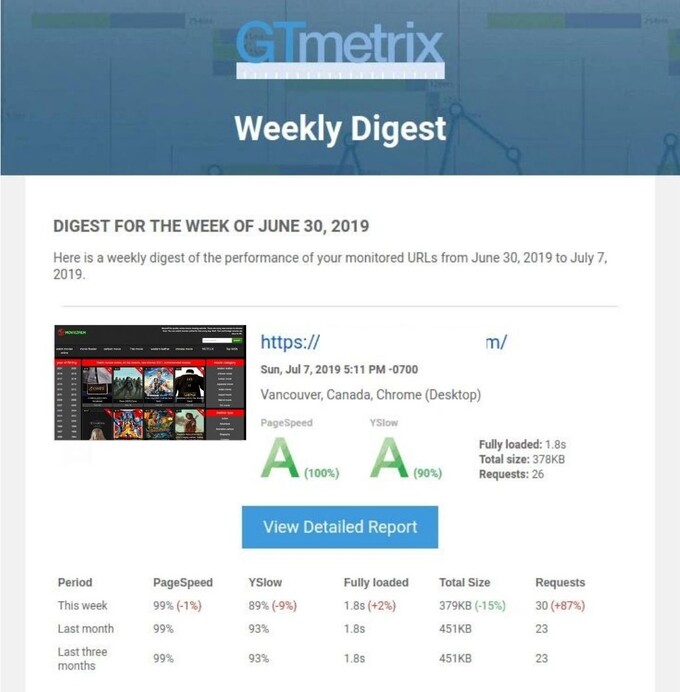
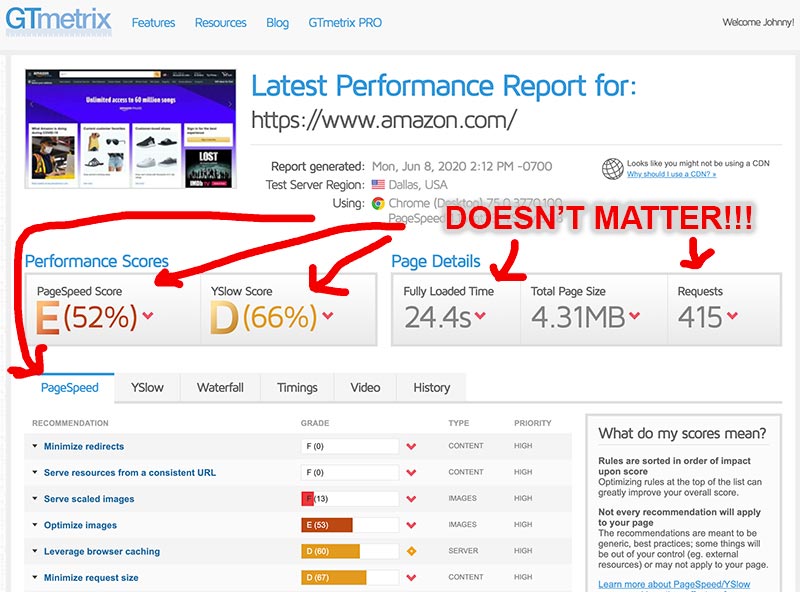
  • Why Google Pagespeed, Pingdom, and GTmetrix scores don’t matter

    PSA for all future clients!

    Stop listening to those silly page speed scores and tests (if you don’t know what you’re doing)!!!

    I wrote this guide to avoid reiterating myself over and over with naive clients. Hopefully, it also helps other developers/admins arguing with newbie clients over speed optimization. (It’s akin to people arguing with their doctor because of something they read on WebMD.)

    Here is the definitive explanation why you need to stop being paranoid because of page scores. (And also stop arguing with developers and sys-admins who know more than you!

    page scores don’t matter!
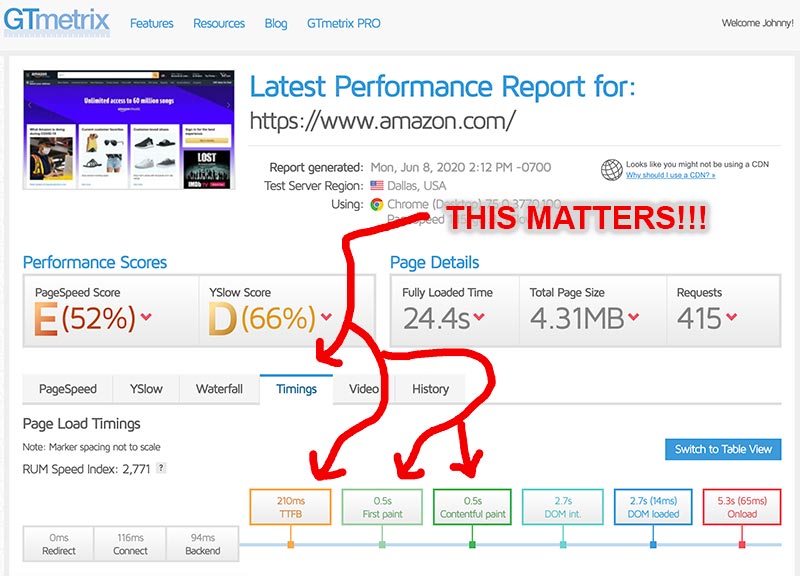
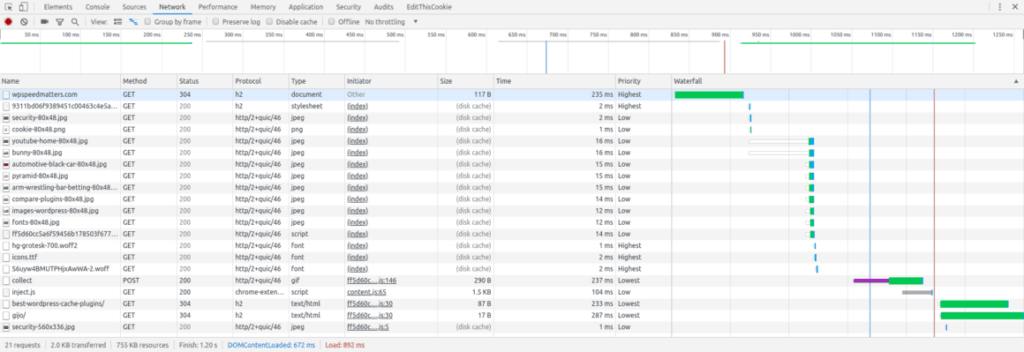
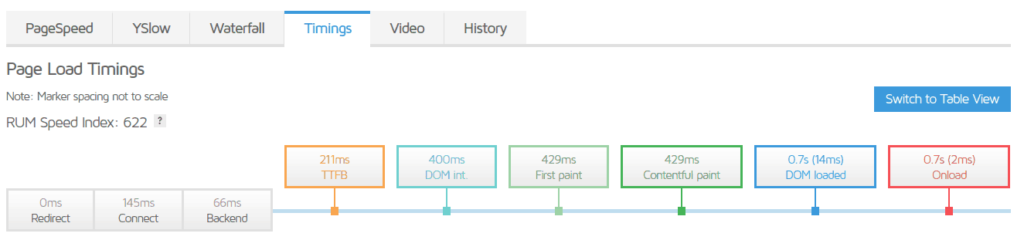
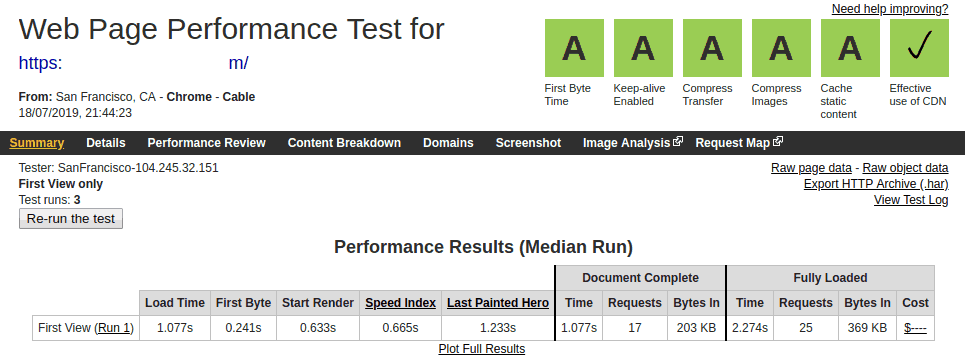
    page timings are most important! (TTFB & PAINT TIMES)
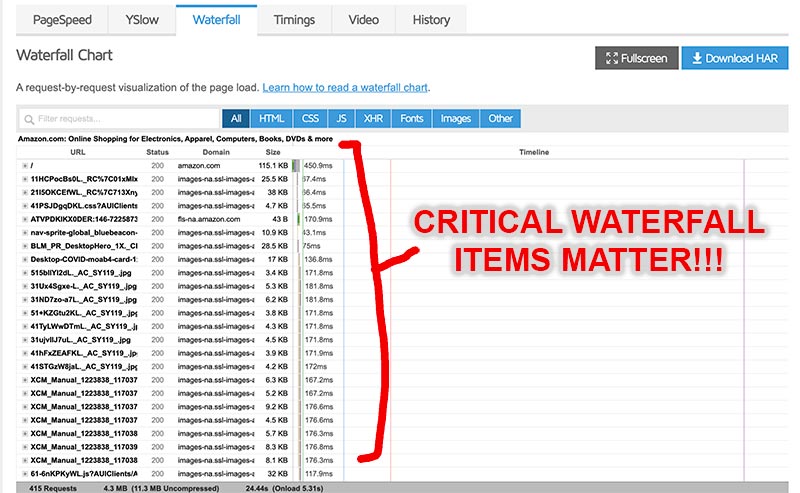
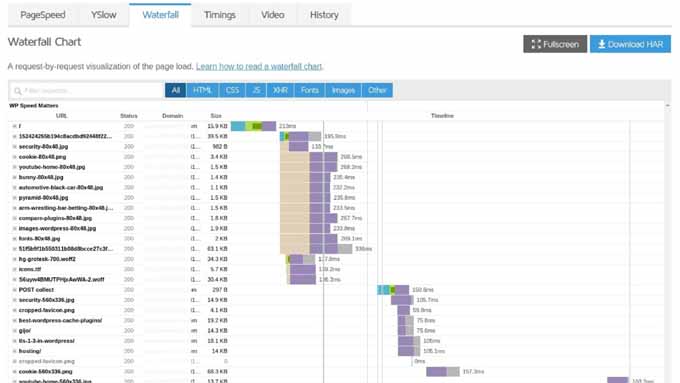
    critical items at front of waterfall matter!
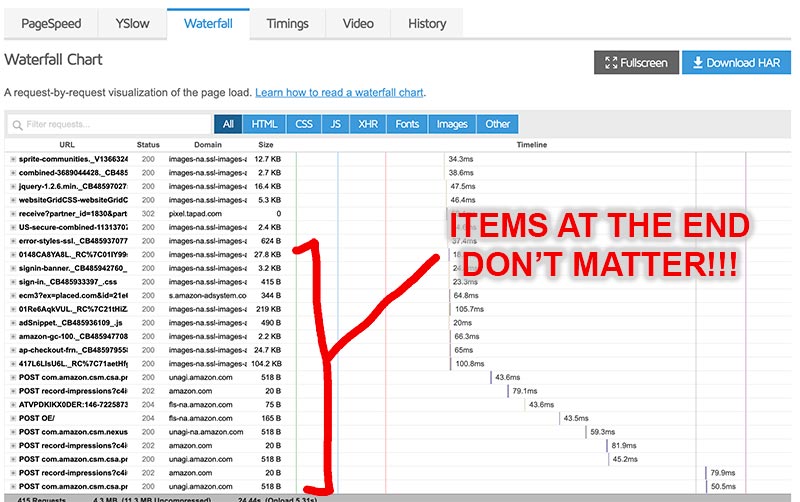
    3rd-party items at end of waterfall don’t matter!

    1. You don’t know how to read a speed test.

    I’m willing to bet most people freaking out about speed scores aren’t even professional web-developers or programmers. There’s a reason why expensive tools and instruments in hospitals are only intended to be used by certified doctors. It’s because they know what they’re doing. They know which metrics to pay attention to and which ones to ignore. Why don’t they let some random person look at it? Because that random person wouldn’t know anything about how it works, what it’s measuring, and whether each result is bad or good. They’d simply panic and over-react to every visual/audio cue given out by the instrument!

    Simple questions to know if you’re qualified to read a speed test:

    • Do you know what TTFB is?
    • Do you know what first paint is?
    • Do you know which items are most important on the waterfall?
    • How can you tell if CDN is helping or hurting your asset loads?
    • What is HTTP/2, and what is its benefit?
    • What determines if your images are compressed enough?
    • Why should you ignore 3rd-party requests?
    • How far should the speed test server be from your web server?

    If you don’t understand any of this, you my friend are absolutely NOT qualified to read a speed test…and definitely not qualified to argue with your developer or speed consultant on which things should be optimized.

    2. Speed tests encourage OPTIMIZING FOR SPEED SCORES rather than for USERS.

    The #1 death trap of speed tests.

    It’s that you end up optimizing your site for speed tests rather than for actual users. What a terrible choice to make! It’s the equivalent of writing content for SEO rather than writing content for humans. You would imagine it’s logically harmonious to appease both but it isn’t always the case in reality. Same goes for speed tests and user experience. What is “fast and useful” for a speed test crawler may not particularly be “fast and useful” for an actual human visitor.

    This comes down to the simple fact that optimizing for users means delivering an INTENDED USER EXPERIENCE in the fastest load time possible. Whereas optimizing for speed tests means delivering as FEW ASSETS AS POSSIBLE in the fastest load time possible. This is why it gets so tricky. Creating a specific user experience requires loading many specific assets and in a specific load order. But the automated speed tests don’t know this, so they just simply recommend for you to chop out as many bytes and as many requests as possible. They don’t know (or can’t account for) the ones that you really need, or the ones that directly affect your user experience.

    This is why speed consultants reiterate time and time again that you should be OPTIMIZING FOR USERS, and not for speed scores!

    Simple question to know whether you value speed scores too highly: 

    • Which do you prefer? Fast page-load and terrible page score OR slow page-load but great page score?
    • Does it bother you if your competitor’s website loads slower than yours but has a higher page score?
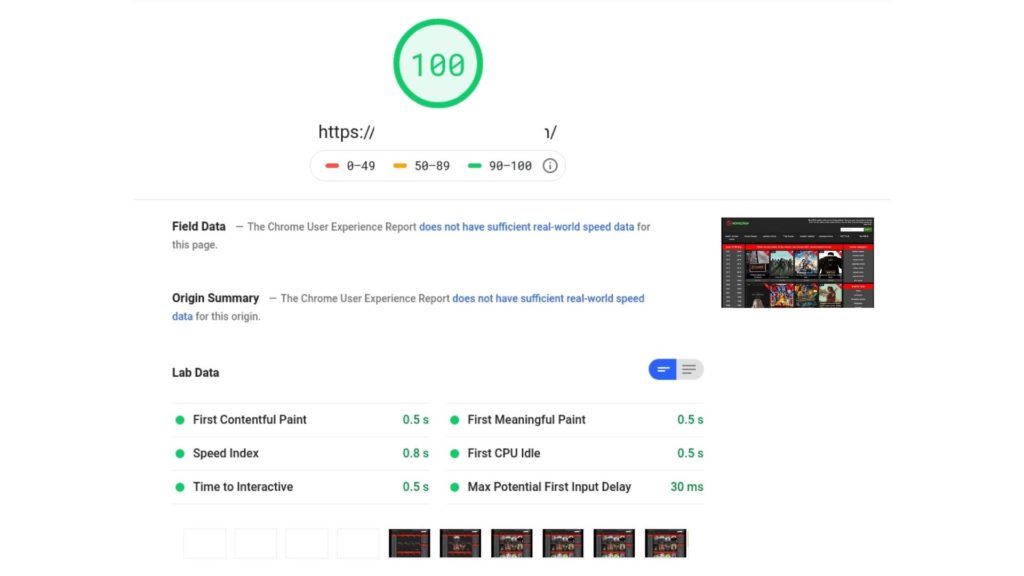
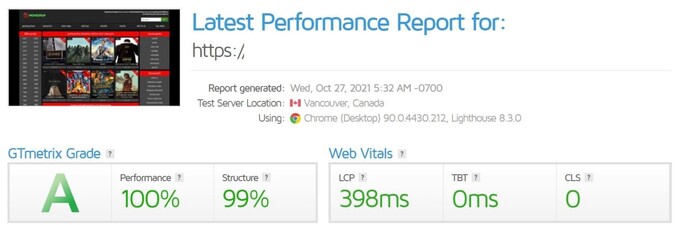
    • Do you really think it’s important to have 100/100 A+ page score?
    • Do you really think having a high page score means your site is fast?

    Believe it or not, there is very little correlation between high page score and page load time. Feel free to look up many popular websites out there and see for yourself.

    3. Speed tests don’t account for specific website NEEDS.

    Every site is different from another

    Let’s say one car leaves the house carrying 50lbs of gear and another car leaves the house carrying 500lbs of gear. Is the second car really carrying too much weight? We don’t know! What if the first car was only going to the neighbors house and the second car is going camping? You see what I mean?

    What if the test says your site images are too heavy compared to another site? Is that good or bad? Well, it depends! If your site is an ecommerce store or photography portfolio, you probably want bigger and higher-quality images! If your site is a simple text blog, then perhaps you’ll want smaller images.

    You can’t have some silly automated tool judging these things when it doesn’t have any perspective on what your site is doing and how it’s different from other sites. It judges all sites to some (arbitrary) standard without accounting for each one’s specific needs. The idea is this…what may be “bad” for one site may actually be “good” or “intended” for another.

    Examples of common speed test suggestions (and why they’re flawed):

    • Combine CSS/JS to reduce requests – might actually slow down your page load and/or break your website design/function!
    • Compress images more to save space – reduces your image quality and not recommended for sites that need high quality images!
    • Lazy load images to speed up page load – can hurt ecommerce UX by hindering your visitor’s ability to fast-scroll! It needs to be said that DELAYED LOAD is slower than NORMAL LOAD!
    • Slow total load time – that shouldn’t matter as users don’t need everything to load immediately, they only need the critical items or items near the top of the page!

    4. Speed tests can’t tell you what affects your speed the most.

    Speed tests often make a big deal out of things that don’t affect speed.

    They simply give you a giant (and seemingly) comprehensive list of checklists and TO-DO’s. But they don’t tell you why those things matter. Many of the things being measured don’t actually affect your speed. They’re just random optimizations that may (or may not) improve user experience…how confusing!

    Why are speed tests unable to tell you what’s important?

    It’s because they’re completely automated and can’t judge things the way a human can (at least not yet). They don’t weigh metrics depending on the site. They don’t understand that image-related optimizations should have more weight on image-heavy sites. And that CSS-related optimizations should have more weight on CSS-heavy sites. They can’t account for this, so they weigh those metrics the same for every site.

    • CSS being 500KB overweight vs images being 5KB overweight still minuses the same amount of points.
    • 10 images being 1KB overweight each lowers your score more than your CSS having 30KB of empty spaces.

    See what I mean? The tests are flawed! I haven’t explained every possible scenario where it does this and I’m not going to. I hope you save us both the time (and just trust me).

    Speed tests don’t account for when (general) rules should be broken

    For example, the stupid complaint about items not being browser-cached or having too short of an expiry times. YES! Some of those items are SUPPOSED to be like that. Some items are SUPPOSED to be uncacheable and have short expiry times to keep certain content always updated.

    Render-blocking CSS – I’m gonna flip a car next time I see this complaint. CSS SHOULD be render-blocking. Do you guys know what happens when you don’t render-block with CSS?…you get FOUT/FOUC issues! Trust me. It’s on purpose!

    5. Speed tests are flawed.

    Yes, they are flawed and many users don’t even know! They make newbie users feel bad about things they can’t or shouldn’t change. I’ll list some examples below:

    Outdated recommendations

    Speed tests are still not properly accounting for modern day web-server technologies. I still see many recommendations that were faster with older web-server technology but actually slower with today’s web-server technology. Things like recommending GZIP when Brotli is being used (FYI: brotli is better than gzip), or recommending to reduce HTTP requests when HTTP/2 protocol allows for parallel requests!

    Penalizing for 3rd-party requests

    I absolutely hate when speed tests point out the slow load time, lack of cache expiry, or encoding for some externally-loaded request. These items are loaded from ANOTHER SERVER, from which you have no control. It ain’t your fault and speed tests should have a way of letting you know this. And just FYI, some externally loaded requests are not cached or otherwise “optimized” for a reason!

    6. Almost all speed tests fail THE EYE TEST!

    What is the eye test? It’s basically testing the site for yourself with your own eyes. If the site visually loads fast, you are fine! No need to worry about the “total load time” because those things loading in the background aren’t actually affecting your user experience. BOOM! Drop the mic!

    The EYE TEST should be the very first page speed test you ever run. And then the next one should be using your browser’s developer tools function to see how fast everything loads in your actual browser. This is as close to real world times as you can get!

    Tell me which site would you prefer to have…one that fully loads in 3 seconds…or one that fully loads in 6 seconds? (answer this before moving on)

    • What if I told you the 3-second site is completely blank and doesn’t render until the 2.8sec mark, whereas the 6-second site appears instantly and then silently loads the less important stuff in the background?
    • In case it isn’t obvious, I would pick the 6-second site every day of the week. And so too would all the big Fortune 500 companies…in fact, many of them take several seconds to fully load (despite visually-appearing almost immediately)!

    This is the kind of shit I’m talking about. Many speed tests don’t account for this. And even when they do list important metrics like initial rendering times, naive users don’t know to look at that! All they care about is that stupid TOTAL LOAD TIME number (sometimes accompanied by some scary warning message).

    7. Addressing common myths and rebuttals.

    As always the case, clients come up with logical assumptions and questions:

    “Having a fast loading site or high speed score is important for SEO.”

    Not really. Unless your site is super duper slow, that saying is pretty much false; it’s not even a myth. You can verify it for yourself by researching the top 10 results for random keywords. It’s not uncommon to find top results taking 3-5 seconds to load (according to page speed tests).

    With that said, having a fast website can improve user engagement and conversions and I do believe that helps SEO rankings somewhat. Regardless, speed is great for conversions!

    “You cannot have a good/fast site without scoring an A on page scores!”

    Says who? Try looking up many of the most popular sites you know and see what they score for yourself. Heck, try even Google’s web pages against their own GPI tool.

    “If speed scores don’t matter, why do they exist?”

    They exist as a helpful checklist for those that know how to read them. Some things matter, and some things don’t.

    “Why is my competitor’s website faster and scores higher than mine?”

    That could be due to many reasons. Many they have a faster webserver, or more efficient coding, or fewer plugins, or fewer assets loading, or fewer 3rd-party assets loading. Just because you installed a cache plugin or hired a speed optimization expert doesn’t guarantee your site will be better than your competitors.

    “But the other day, I installed some other plugin or worked with another person who improved my site score to 100/100.”

    Suit yourself. Yes, it’s possible to get 100/100 if you don’t care about anything other than the score, but you might inadvertently slow your page load or hinder your user experience in doing so. At the end of the day, those page score recommendations are simply RECOMMENDATIONS…they are not empiric instructions to follow for every scenario.

    “I DON’T CARE WHAT YOU SAY! Make my site fast and with A+ 100/100 score!”

    Sure. Just delete all your plugins, use a simple theme. Don’t have more than 10 images. Don’t use Google Analytics or Google webfonts.

    “But those speed tests are so scary! How do I know which things to fix and how to fix them?”

    It might help to take your time reading and learning how each one works. Maybe work as a web developer for a few years. Or you could hire someone with more experience than you.

    Still want to optimize all by yourself?

  • How to optimize for Google Pagespeed, Pingdom, and GTmetrix

    Learn how to optimize your website for the popular page speed tests!

    • Do you want the fastest site possible?
    • Do you want the best website functionality and SEO?
    • Are you overwhelmed and don’t know what you’re doing?

    Read on as I go over the most common speed test recommendations and tell you which ones to optimize and how to do it!

    Want to skip ahead?

    The truth about speed scores

    In all honesty…

    There’s nothing wrong with using speed tests. They work fine and are helpful…to professionals. They’re made for professionals and use terminology that professionals understand. It’s when you have naive users/clients trying to make sense of them that all of the sudden they become a problem. The tools measure so many different things and yet don’t fully explain every little thing and why this or why that. It just gives a little warning message and over-simplified suggestion to correct.

    But generally, I disagree with many of their recommendations and the way the results are laid out. They’re helpful if you know what you’re doing but completely misleading and confusing if you’re a noob. There’s a reason why TONS of experts tell you to ignore page scores!

    I wrote my own guide as well:

    And don’t take my word for it…read from other respected experts:

    Are you educated yet? If so, you may continue.

    Common Google Pagespeed Insights optimizations (and how to read them)

    By far, my least favorite of all the page speed test tools out there. I list it first because it’s the most common and most annoying one that naive clients reference. They think this tool matters the most because it’s made by Google, which also runs the #1 search engine in the world.

    But the reality is, there’s very little correlation between scoring well on this tool and ranking high on Google search engine. Don’t believe me? Try it for yourself…search Google for any random keyword and check then run the Google Pagespeed Insights test for the top 10 results. I randomly searched “speed addiction” just now and got the score for the top result….hahaha, it was 21 out of 100! SEE?! The test is absolute bullsh*t!

    Just so I don’t mince my words: I NEVER use GPI! It’s crap. Doesn’t give me any helpful details or recommendations to look at. And even the information it does give me is either completely unhelpful, or wildly off the mark. You might also notice that GPI doesn’t even let you pick a server location to test from, which means it actually isn’t even measuring concrete times at all. It’s just kinda blind-guessing at what how your website loads and how long it takes. Let me say it again…GPI is at totally useless at best, or confusing/misleading at its worst. Just ignore it!!!

    First contentful paint:

    • Inaccurate! Just ignore and use the eye test.
    • In theory: first contentful paint around 500ms is great, around 1 second is ok, and longer should be optimized.
    • The problem with GPI is that it often way overstates your FCP times as being 5 seconds when browsing it yourself takes more like 1 to 2 seconds.

    Speed Index, Time to Interfactive, First Meaningful Paint, First CPU Idle, Max Potential First Input Delay:

    • Ignore all this crap. They often overstates your actual times.

    Properly size images:

    • Some of the recommendations here are legit and you actually have images that should be optimized better via proper sizing or compression.
    • But some of the images may be intentionally left at higher quality (for better clarify), or larger size (for retina-compatibility).
    • And some of the images don’t even have much to optimize. Should they really be hassling you about a 3KB optimization on a 1MB image? C’mon!

    Defer offscreen images:

    • NO! And I hate that the tool is so opinionated about this. As mentioned before, I HATE LAZY LOADING. Read my guide before you argue with me.
    • I do not recommend lazy loading images for many sites. Why? Because it hurts user experience, delaying content load just so you can get “faster times”. And I will forever hate tools that keep telling me to lazy load.

    Serve images in next-gen formats:

    • Can be a valid point in regards to improve your image compression. But can also be ignored if you know why you’re using specific image formats.
    • I also hate that they’re too eagerly pushing the WebP format which really isn’t that widely adopted yet in all devices, browsers, and image software.

    Eliminate render-blocking resources:

    • I do appreciate the tool trying to point out items that delay rendering, but do you even know WHY some resources SHOULD be render-blocking? It’s so you don’t get FOUT/FOUC issues, which is where your content loads before the CSS stylesheet and so things look ugly before the CSS loads, which then re-renders the page again. Some CSS absolutely should be render-blocking.
    • Render-blocking JS also exists for a reason as well. Some JS is absolutely needed to render visual parts of your site and without loading that JS first, the content spills in an unwanted manner. I’ll put it this way…imagine trying to bring your friend a glass of wine by carrying over the wine first (in your hands) and then the glass. You see, the glass is absolutely needed to control the way the content is delivered. We cannot have content spilling out randomly without its intended rendering effect.

    Efficiently encode images:

    • More image-related optimization suggestions…annoying! Don’t worry about this if your images are properly-sized and compressed!

    Remove unused CSS:

    • HAHAHAHA! Sorry, guys. This isn’t possible for most of you. This is because you use many plugins that have overlapping CSS styles. Perhaps your theme styled buttons a certain way, then you added a shopping plugin which styled buttons differently, and then later added a custom CSS plugin with its own styling that overwrote the previous two. In this case, the button style from the theme and shopping plugin would be considered “unused CSS”.
    • Only 2 ways to get rid of unused CSS. The easier way for most folks is to somehow dequeue unnecessary CSS from themes/plugins. The best (but most technical) way is to custom-code your site so that you have only the exact code needed and no unused stuff. This is why I love having everything hardcoded. Our sites are always super clean and lean with no fluff.

    Reduce server response times (TTFB):

    • Generally, anything around 200ms (0.2sec) is good. I’ve seen GPI complaining about 0.15s TTFB before I’m just gonna ignore it as being stupidly inaccurate.

    Ensure text remains visible during webfont load:

    • No, that’s a stupid idea. That’s exactly how FOUT issues happen. And your text looks ugly for a split second before the font loads and then the page quick re-renders and gives a jarring user experience. NO NO NO!

    Avoid enormous network payloads:

    • Somewhat valid warning suggesting your site should be more lightweight. I halfway agree with GPI’s suggestion here but overall don’t take them seriously whatsoever.
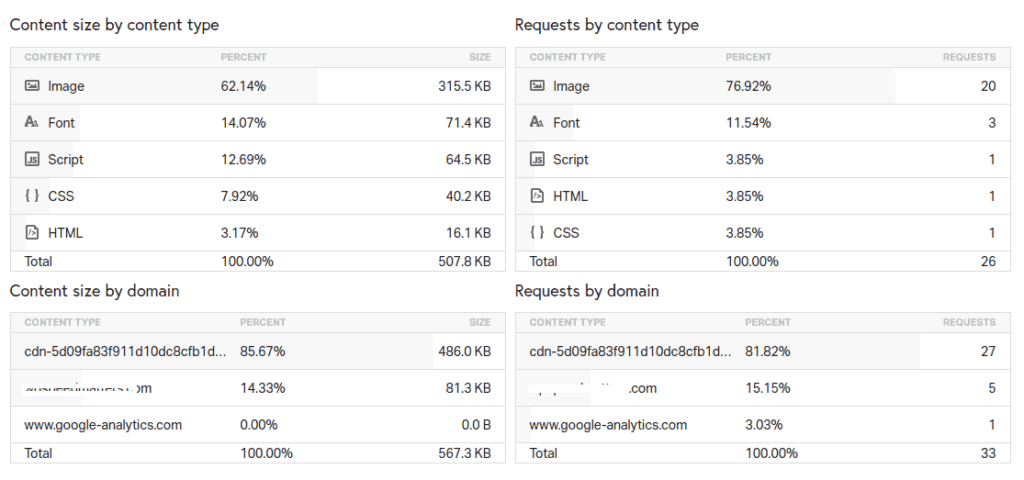
    • It doesn’t really matter how big your pagesize is. I’ve seen some sites with 8MB of data load faster than other sites with only 1MB of data. So while yes, I do agree that sites should always be as light as possible, I don’t agree that their total size correlates well with load times. Why? Because it has to do with processing time and render-weight.
    • Code takes longer to process and render than simple static assets. For this reason, a 2MB site (with 500KB html, 500kb CSS, 500kb JS, and 500kb images) will load slower than a 5MB site (with only 100KB html, 100kb CSS, 100kb JS, and 4.7mb images). But does GPI account for this? Of course not. It simply throws out an automated warning when your site goes above a certain pagesize.
    • The bottom line? Yes, you should try to load only the items you really need but overall, you don’t even need to worry about this if your site is loading fast enough!

    Minimize main-thread work:

    • Ooooh, seemingly helpful metrics about JS rendering times. All these are theoretically important and yes, you should try to load as little JS as possible. Only two ways to do this…either remove some of your bloated plugins or pick ones with lighter code, or recode your JS better (probably not the issue for legit developers).
    • My gripe about GPI’s metric here is that it’s inaccurate. It’s saying one of my client sites takes 14 seconds when in reality, the entire page loads in a few seconds. Sure, there might be some background JS still lingering but they don’t affect page load or function! ARGH!

    Serve static assets with an efficient cache policy:

    • Another one of those canned recommendations that I absolutely hate. YES, static assets (which don’t change often) should generally be cached for a long time.
    • HOWEVER, not all static assets should be cached. Some are related to your site design and functions and shouldn’t be cached so that your users can see the latest version of your site when you make changes!!!
    • Also, some static assets are loading from a 3rd-party server (like Google Analytics, or API scripts, or webfonts) and because they aren’t loading from your site, you have no control over how they are loaded! Do you really think 3rd-party services wouldn’t have cached these assets and reduce their server loads if they didn’t have a reason to leave them uncached???

    Reduce javascript execution time:

    • Really handy JS-diagnostic tool to tell you how long each JS takes to load. The issue is that it overstates the execution times IMO, and also doesn’t tell newbies how to resolve the issue.
    • If you didn’t code these JS yourself, then you only have one choice to optimize this: get rid of them. Yes, this might mean you lose whatever function that it serves. If you still want to have that same function, you either load another theme/plugin that is coded more efficiently or custom-code it yourself.

    Avoid excessive DOM size:

    • Valid metric here.
    • You can either have fewer things on the page or have better coded theme/plugins, or recode the page to be lighter on the DOM.

    Minimize Critical Requests Depth:

    • This basically means your theme and/or plugins are too bloated. And that you have too many things loading and too many things loading other extra things.
    • Pick leaner themes and plugins, and/or custom-code some things yourself. Or just get rid of non-essential visual elements and functions.

    Keep request counts low and transfer sizes small:

    • Honestly, this doesn’t matter as long as you made your site as lightweight as possible. It really doesn’t matter if you have 100-200 requests and some of the file sizes are large.
    • What matters is that your site loads quickly. And if your site isn’t loading quickly, then you can look at this list to see which types of resources you have loading.

    Common GTmetrix recommendations (and how to read them)

    GTmetrix is by far my performance testing tool. It measures a ton of little things, actually gives concrete numbers and nice visual charts, also many tabs and sub-tabs chock full of helpful details for developers to optimize their sites.

    Signing up for a free account allows you to choose from many test locations, and also save 30 days of your past tests for easy comparison over time. If you only have time for one speed tool, use THIS one!

    Serve scaled images:

    • Valid metric. Make sure your images are properly cropped and sized to the dimensions of which they’re displayed. With that said, having an image slightly bigger than the space it’s given is not so bad!
    • However, there are some exceptions where you want over-sized images for retina-compatibility purposes.
    • You can fix this by resizing the images better or having a theme/plugin that correctly resizes the displayed images for you.
    • My issue with this metric is that it too often shows an alarming “F” score when it’s not that big of a deal at all. It many cases, it doesn’t noticeably affect your page load time.

    Serve resources from a consistent URL:

    • Valid metric. Your site should definitely show all resources from the same domain and also in the context of HTTP or HTTPS, with-WWW or without-WWW.
    • EXCEPT this recommendation doesn’t apply when you’re using CDN. Obviously since CDN needs to load from its own URL.

    Leverage browser caching:

    • Another one of those canned recommendations that I absolutely hate. YES, static assets (which don’t change often) should generally be cached for a long time.
    • HOWEVER, not all static assets should be cached. Some are related to your site design and functions and shouldn’t be cached so that your users can see the latest version of your site when you make changes!!!
    • Also, some static assets are loading from a 3rd-party server (like Google Analytics, or API scripts, or webfonts) and because they aren’t loading from your site, you have no control over how they are loaded! Do you really think 3rd-party services wouldn’t have cached these assets and reduce their server loads if they didn’t have a reason to leave them uncached???

    Defer parsing of Javascript:

    • Render-blocking JS exists for a reason. Some JS is absolutely needed to render visual parts of your site and without loading that JS first (aka “critical JS”), the content spills in an unwanted manner. I’ll put it this way…imagine trying to bring your friend a glass of wine by carrying over the wine first (in your hands) and then the glass. You see, the glass is absolutely needed to control the way the content is delivered. We cannot have content spilling out randomly without its intended rendering effect.
    • You can and should optimize this but it’s up to you to know which JS should be deferred and which should not. You should also be careful to know how to defer it so that it doesn’t your page design or function.
    • Most likely, the easiest optimization for most of you is to avoid as many nonessential design effects, features, and plugins as possible.
    • I also hate that this tool doesn’t know which JS is critical and should be render-blocking and so it naturally recommends to defer all of it. HELL NO! Do you want the JS mobile menu to show up last for mobile-visitors? Do you want your ATF slider to render last? I think not!

    Combine images using CSS sprites:

    • This is a silly cumbersome tactic popular back in the days like 10-20 years ago.
    • While it can be sometimes useful now, it doesn’t have much effect in this current time of HTTP/2 protocol. It’s also really tedious to build CSS sprites.

    Minimize redirects:

    • This metric is sometimes valid but other times point to things you have no control over.
    • Any redirect chains caused by your site should absolutely be fixed. For example: all URLS in your site should use a consistent domain (HTTP or HTTPS, with-WWW or without-WWW). Sometimes, the issue is simply because you type the HTTP version of your domain into the test instead of HTTPS.
    • Any redirect chains caused by 3rd-party assets (loaded from 3rd-party servers) cannot be fixed or controlled by you. You have to ignore them, or stop using whatever plugin/service that’s making those redirected requests.

    Specify a cache validator:

    • Technical metric that isn’t meant to be read by non-developers. Most of the time, they’re referencing 3rd-party assets you have no control over. Just ignore!

    Avoid CSS @import:

    • Valid metric pointing out something that does affect your page render times. Unfortunately, CSS @import is often used by themes by some themes and plugins for various reason. I’d like to say it’s out of laziness. At this point, I recommend you either avoid using those themes/plugins or find other ways to include those CSS yourself.
    • Want to manually optimize and include the CSS attachment yourself? Try this guide (Gift of Speed) or this guide (Varvy).

    Optimize Images:

    • Useful metric to let you know which images can be optimized more.
    • Here’s my thing. Smaller or less important images should be optimized as much as possible.
    • But for important images that need pristine quality (products, photography, etc), you may want to use higher quality than what this test recommends. This is why it’s important to know what fits best for your site instead of listening to some automated tool.

    Specify Image Dimensions:

    • I don’t think this is really necessary and I’m too lazy to explain why.
    • Ok fine, I’ll try a short version. Basically, it might be more storage-efficient to reuse certain images in different places of your site even when they don’t match the dimension perfectly. I also think not setting the dimension only marginally affects initial paint rendering but not the end result.

    Minify Javascript:

    • I hate how much of a big deal test scores make out of this. A lot of times, saving 50% of some JS file is only saving 1KB. Most of the time, minifying Javascript doesn’t even make that big of a deal…and if did, then your issue is that you have too much JS in the first place!
    • Btw, if you really want to minify your Javascript, you can just do it from Cloudflare at the DNS level instead of wasting processing power on some PHP plugin.

    Inline Small Javascript:

    • Yes, it’s true. Inlining some small external JS is probably more efficient than making a separate HTTP request for it.
    • Thing is it’s usually called as an external request for a reason! And if you’re not a coder, you won’t know whether or not it should be inlined or not. Why go through this hassle for such a tiny gain?

    Optimize the order of styles and scripts:

    • Somewhat pointless metric. It’s not that your script load order doesn’t matter, but that the only way they were loaded in this un-optimal manner was due to your use of bloated themes and plugins.
    • So again…either get rid of some features and functions, or manually hard-code yourself.
    • And even then, the impact is not always as big of a deal as this warning makes it out to be. In some cases, the seemingly un-optimal load order was intended!

    Minify HTML:

    • Not really that big of a deal, IMO. Sure, it makes your site a tiny bit more lightweight but at what cost?
    • Minifying your site for free at the DNS level with Cloudflare is my favorite option. Do it at the server level on-the-fly upon each initial page load request?…I think that’s absolutely silly.
    • This is one of those recommendations that impact more when your site is bloated, and IF your site is bloated, then we know what you should really be focusing on is reducing the bloat and not wasting more server processing to minify stuff!

    Minify CSS:

    • Same explanation as above.

    Specify a character set early:

    • Not that big of a deal and not much impact. I will say that if you’re seeing this metric, your theme probably dropped the ball on that!
    • You can manually specify a character set following this guide.

    Enable gzip compression:

    • Totally valid metric but somewhat annoying in its lack of explaining alternate scenarios.
    • FIRST OFF: you should totally be using GZIP compression as it greatly reduces the size of your site assets, making them quicker to transfer and load. HOWEVER, you can totally ignore GZIP and also this recommendation if you’re already using BROTLI compression on your server which is even better than GZIP!
    • SECONDLY: you should also ignore this recommendation if it’s referencing assets being loaded off 3rd-party servers (since you have no control over them!)

    Specify a Vary: Accept-Encoding header:

    • Not a big deal in my opinion. But again, here’s my repeated pet peeve…it often references 3rd-party assets which you have no control over.
    • More info on fixing this issue in this guide.

    Avoid bad requests:

    • Totally legit metric. You shouldn’t make any calls to assets that don’t exist. Maybe you’re referencing non-existent things, or maybe you’ve mis-spelled some links and image names. Fix them!

    Avoid landing page redirects:

    • Legitimate recommendation!
    • But also could be maybe you typed the wrong version of your domain? Or maybe you’re intending a redirect?

    Enable Keep-Alive:

    • This recommendation is generally a good thing in the page load performance world.
    • But in the server world, there are varying opinions. Some say to enable it, but set a proper time limit. Others say you might be better off disabling it. You can decide which is best by factoring in your website, traffic, and server capacity.
    • This is one of those things where you have to be a server person to know if you should have it on or off, or to even enable it yourself.

    Inline small CSS:

    • Sure, you can do it if you know how and if you know whether or not it’s more efficient-loaded this way. How small is small? And does it really have to be inlined if those static assets are already cached? Does it really have to be inlined if it’s not even used for critical rendering? Ehhh, probably too much manual coding skill required and lots of little nuances to consider for something that probably won’t impact you much anyway!

    Minimize request size:

    • Highly ideal! Try to keep it small so your page load feels snappier!

    Put CSS in the document head:

    • Yes, it’s a valid general recommendation. But doesn’t have to be followed to a tee if you know what you’re doing.

    Prefer asynchronous resources:

    • Yes, this is generally recommended.

    Avoid a character set in the meta-tag:

    Avoid empty src or href:

    • I think these issues are relatively negligible but can have some effect on your server if you have tons of them and/or tons of traffic. I hate that the tool won’t even tell you where the empty src or href are.

    Put JavaScript at bottom:

    • The conventional logic behind this suggestion makes total sense. HTML is the content, CSS is the visual styling, and JS is very often related to functions. So generally we think HTML and CSS should load first and JS should be loaded last. The only problem with this logic is that nowadays, JS is very often used for design purposes. It’s often used to load sliders, or theme elements, or many other visual elements. Delay that JS, and you would be delaying your page load.
    • So my point is…the suggestion isn’t always relevant and definitely not for every JS. So it’s up to you to know which JS can be safely deferred and which JS should be left to load as quickly as possible. And once you know that, you can just ignore this suggestion completely.

    Common Pingdom Speed Test suggestions (and how to read them)

    Pingdom used to be one of my favorite speed tools (mostly because of their cute/friendly UI), but has since become a bit annoying to use. It’s STILL somewhat useful and relevant, as it does give helpful info and is also used by many clients and developers alike. I also think part of its popularity is because it records the fastest times compared to GPI and GTmetrix. This is because Pingdom doesn’t record things like favicon load time which often drags out the load time for GTmetrix.

    The reason why I don’t like it now like I did before is because of all the limitations. Pingdom improved their UI but got stingy with their free service. The test doesn’t let you run multiple tests as once; it seems like you can only test a domain once every 5 minutes or so. If you try to run it again too soon, you either get a warning message or a “cached” repeat score that you already saw before. There are also times when it won’t run the test from the server location you choose…VERY ANNOYING! I do like that the Pingdom test score URL’s seem to save for a lot longer. I feel like you could open the test score URL’s several months later and still see the results, whereas GTmetrix only saves for 30 days. GPI doesn’t allow you to save them at all, I believe.

    Reduce DNS lookups:

    • This suggestion makes little sense to me. It’s obvious that you shouldn’t have many different domain lookups for the same domain. But when you have resources loading from several different domains, as is the case with many sites nowadays, this suggestion no longer fits the bill. Even an “average” website nowadays will load from the origin domain, then webfont, then marketing tracker script, then chat script, and also some others.
    • My point is, there isn’t much you can do about this suggestion. As long as you’re not calling resources from different versions of the same domain, you’re fine. It would be NICE if this tool would at least let you know all the hostnames (and their variants) being requested.
    • Some more info on this suggestion if you want to “optimize” it.

    Make fewer HTTP requests:

    • I’ve got mixed feelings here. The obvious response is DUH!!! Fewer requests is better than more requests.
    • But the question lies in HOW you reduce your requests. If you’re doing it by actually removing requests, that’s fantastic. But if you’re doing it only by combining CSS and JS, that’s not exactly helping it. Sure, we can debate all day about whether or not

    Compress components with gzip:

    • Totally valid metric but somewhat annoying in its lack of explaining alternate scenarios.
    • FIRST OFF: you should totally be using GZIP compression as it greatly reduces the size of your site assets, making them quicker to transfer and load. HOWEVER, you can totally ignore GZIP and also this recommendation if you’re already using BROTLI compression on your server which is even better than GZIP!
    • SECONDLY: you should also ignore this recommendation if it’s referencing assets being loaded off 3rd-party servers (since you have no control over them!)

    Use cookie-free domains:

    • A terribly-unexplained “junk” suggestion to me. The suggestion basically complains if you’re using cookies but doesn’t tell which cookies you’re using or even explain why your site might be using cookies.
    • In case you don’t know, there are many reasons for using cookies. They’re used for managing user sessions (logged-in users), remembering previous user choices (GDPR, newsletter pop-ups), or tracking purposes.
    • Are you absolutely sure you don’t need or shouldn’t have cookies? Try following this guide or this one.

    Add Expires headers:

    • Useful suggestion of telling users’ browsers to cache static assets that don’t change often. The only problem is that this suggestion/score is often complaining about 3rd-party assets loading off external servers that you have no control over.

    Avoid URL redirects:

    • This one is a no-brainer. Ideally, you should not be redirecting your domain to another. The reason why some people are seeing this is because they’re entering the wrong domain, or maybe the reference is to some 3rd party links redirecting themselves.

    Configure entity tags (ETags):

    • ETags help browsers save time by letting them know whether resources can be loaded from local cache rather than re-downloading from the origin server. With that said, they aren’t always the best option depending on your scenario. Either way, this metric isn’t a huge deal IMO since most visits are first-time visits anyway.
    • Learn more about ETags here.
  • Should you use Critical CSS?

    What is critical CSS? How does it work and when should you use it?

    • Even better…when should critical CSS not be used?

    Here goes another cut-the-crap WordPress performance guide by yours truly.

    Innocent question from one of my webhosting clients:

    Hey man, quick question: have you ever dealt with critical CSS? I’m trying to experiment with it but often plugins that promise it aren’t very good.
    Site’s already crazy fast but if it can be faster then why not? XD

    I was so impatient, I responded right away…”It’s not for you. It’s an old ass tactic now coming back in popularity cuz of bloated pagebuilders. You don’t have that problem.”

    And not long after I broke down the reasons why, I felt the need to share them on my blog…

    How does “Critical CSS” work?

    Critical CSS is when your site initially loads only the CSS used for ATF (above-the-fold) content at the top of your site, instead of loading the entire CSS for the whole page. The idea is that by loading only this “critical CSS”, your page would appear to render faster for users while the rest of the page (below the fold) took a little longer to load but wouldn’t be noticed.

    This tactic is especially useful when you have so much CSS (let’s say anything above 60KB) that it takes half a second or even longer to process. Remember how internet videos used to work? You couldn’t watch the video until the entire thing loaded! But now with streaming media formats, you could start watching as soon as the first few seconds loaded. Critical CSS works similarly, the page can start rendering once the initial CSS had processed.

    Caveats to “critical CSS”

    As with everything, there are at least a dozen caveats to this tactic. I’ll list the notable ones:

    • WHO determines which is “critical CSS”? – a human coder? Or automated script generator? I prefer hand-coders as they would know precisely which elements are actually above the fold whereas the automated script would only be guessing based on preconceived algorithms. Will that annoying GDPR pop-up be included or not? Will shop icons be included or not? Will all the items in the not-yet-expanded mobile menu be included or not? See what I mean?…too many elements to decide. The worst case scenario is when critical CSS is generated improperly and breaks your site styling/function.
    • Critical CSS might hurt your load time for subsequent visits if you have browser cache. Think about it…with browser cache enabled, static assets like images and CSS/JS are cached on users’ browsers and loaded locally (producing the fastest load time). By locking away your critical CSS inline in the HTML document, you are requiring DNS time for that critical CSS on every request. In the case of browser cache, I think critical CSS only helps for that initial visit.
    • Your total CSS is so small that splitting it into more parts slows down your site (adding extra HTTP requests) without actually producing perceived faster render times.
    • You have so much critical CSS that the added complexity doesn’t give you any noticeable speed increases.

    CSS should be render-blocking!

    I’m sick of newbies trying to deploy CSS optimization tactics.

    Let’s get this straight -> CSS by nature is supposed to be “render-blocking”.

    It has to be so that you don’t get FOUT/FOUC issues. (Flash-of-unstyled-text or flash-of-unstyled-content is when your content loads before your styling and looks ugly/plain for a split second.)

    The only matter now is to reduce the render-blocking impact as much as possible. I hate that it’s even described this way. If it were up to me, I would just call it “CSS processing”. Anyway…

    Back in the days, CSS wasn’t used so bloated. A few kilobytes was all you needed to style your entire site. This was easily done because your site was probably designed all at once, by one person, and with the whole picture in mind. Nowadays, websites are built in a very modular way. The theme is designed or chosen in 2016, further customized in 2017. There’s maybe 15-30 plugins; each one designed by different developers, that also come with their own separate CSS.

    Guess what all this code spaghetti means? It means because all these little parts are coded at different times and by different developers, they add their own CSS and with many overlapping CSS. For example, your theme comes with button-styling which then gets over-ridden by the pagebuilder button styling and then again later over-ridden by the newsletter pop-up styling. Had you written the code from scratch, all this could have been like 3 simple lines…instead of 9 lines, 6 of them of them over-riding each other.

    So moving on!…

    Regardless of how you end up with too much CSS (again, l define “too much CSS” as being 60kb or higher), the idea is to reduce its processing time (or in pagespeed terminology: “render-blocking” time).

    Methods to reduce unnecessary CSS

    1. If your CSS is already minimal (below 60kb, preferably below 30kb), then you don’t have to do anything as it isn’t blocking anything.
    2. If your CSS is huge, then try removing as many unnecessary plugins as possible.
    3. If you have to keep all that CSS, then rewrite your theme from scratch or refactor the code (basically re-writing your code to be cleaner and more concise). Yes, I’m fully aware most of you non-coders can’t do this yourself.
    4. Most realistic option for newbies/non-coders – chop up the CSS into smaller files so your site can load quicker instead of waiting for entire CSS to download. This already happens naturally except for when people do silly things like COMBINE CSS (ugh! another annoying tactic used to trick pagespeed tools). Can I just say that the best way to reduce HTTP request is TO ACTUALLY REMOVE THE REQUESTS (instead of doing script combinations—ARGH!) Combining scripts is the equivalent of 5 customers at McDonalds combining their order into one giant order and further holding up the line.
    5. Or deploy the “critical CSS” tactic. Can be useful if you have so much CSS. But then again, it’s better if you just removed all that crud.

    Arguments for (and against) critical CSS?

    In favor of critical CSS:

    • When you have a ton of CSS and most of it isn’t needed above the fold.

    Against critical CSS:

    • When you have browser cache enabled. Browser cache already saves static assets (like CSS, JS, images) to the user’s browser so it won’t need to be re-downloaded again. If you use critical CSS and have it inlined in the HTML document, users would have to keep re-downloading this critical CSS on every request. So basically…critical CSS only helps you for the first visit (but slows down all subsequent visits).
    • When you don’t have much CSS.
    • When you don’t have much content. There’s point in splitting up your requests even further when you don’t have much HTML content or load requests to begin with. Suppose you have only 12 requests and 1kb worth of HTML content, it makes zero sense to add another HTTP request and hurt your overall load time.
    • When most of your CSS is needed to render ATF content. If your critical CSS is already 45kb out of 50kb total, why bother splitting that into 2 requests?
    • When you have so many pages that it isn’t worth the server processing to generate critical CSS for all of them.
    • When you don’t know how generate proper critical CSS for your site.
    • When it creates rendering problems.

    Frequently Asked Questions (about critical CSS)

    What if I do have a pagebuilder? Can I enable it then?

    • Having a pagebuilder doesn’t necessarily make you a perfect candidate for critical CSS. What matters most is that you load tons of CSS and most of it is not required for page-rendering. But here’s where it gets tricky. Most pagebuilders DO use all that massive CSS that they load. Or the other angle is that you have a pagebuilder but don’t really use all the crazy options and don’t load much CSS. In both of those scenarios, critical CSS is still not recommended for you.

    Can’t I just try it anyway? I’m [desperate] to play with random settings in hope of speeding up my site.

    • Yes, you can do anything you want. No need to have my permission. Heck, you can read around and find all the validation you need on a hundred other sites.

    But Google says I have “render-blocking CSS”…

    • CSS by nature is supposed to be render-blocking (to avoid FOUT/FOUC issues, remember?). I think what Google intended to say is that your CSS is taking too long to load.
    • You can’t stop 3rd party CSS from render-blocking. They aren’t loaded from your server. Ain’t nothing you can do about it except to avoid or defer that request.
  • Why You Should (almost) NEVER Use Lazy Load

    I hate hate hate lazy load. Why? Because it hurts UX (user experience) at the benefit of maybe tricking page speed tests. It’s basically a cheap way of trying to speed up your page speed score by loading fewer items in the beginning. Problem is to the human eye, it makes things load slower!

    Sure…there’s the logic that items farther down on the site shouldn’t be loaded if the user hasn’t scroll there. True…but do you really have control over which items are lazyloaded and are you so sure their delayed load won’t affect user experience?

    Let me go deeper into the subject of when you should (and shouldn’t) use lazy load.

    When you SHOULDN’T use lazy load:

    • You have images above the fold. (it delays your header/banner load)
    • You have a store. (shoppers can’t fast-scroll as quickly through your site)
    • Doing it only to fool pagespeed scores. (while hurting UX for actual human users)
    • You’ve got a CDN. (their servers do the work, and not yours)
    • Have only a few images on each page. (static assets are easily cached and load quickly anyways)
    • You have a fast-loading website and strong server. (no point in delayed asset loads if your current site and server handle them well)

    The point of your website is to serve users first and robots/search-engines second. Why should you have an image that loads later rather than sooner? The point of the improving page loads is to load things FASTER, not slower. Letting your site load images right away makes your site appear to load faster for users. (Are you forgetting the word LAZY in “lazy load”? It means things load slower!)

    Don’t know how to load things faster? That’s a fair place to be, you can improve it in a wide variety of ways! My site can help you with that.

    When you SHOULD use lazy load:

    • Most of your images are below the fold, at least a few scroll-clicks from the top of the site. (makes sense not to load images/items that users might not even scroll to)
    • You’ve got huge images, and no CDN. (saves server resources/bandwidth)
    • You’ve got many images, and no CDN. (saves server resources/bandwidth)
    • Images aren’t integral to your user experience. (users come only for your text)
    • Using it for SCRIPTS, not images. (perfect for speeding up page load)
    • Your web-server is really weak. (lazy load will save server processing)
    • You care about page scores. (and believe in their supposed benefits, even though I don’t)

    So there you go, a few instances where I would recommend lazy load. But other than these few scenarios, it’s best to get a CDN and let all your image assets load naturally!

    The last say on lazy load

    Ultimately, lazyload should only be used to speed up page load or decrease server use. And NOT to compensate for poor web coding or underpowered web server. When used correctly, lazy load should have no visual impact on your web pages. Used incorrectly, lazy load affects user experience.

  • Disable WordPress default LAZY LOAD

    How to disable the native WordPress lazy load function.

    Paste the snippet below into your theme functions.php file:

    /**
    *  Disable WordPress default image lazy load
    **/
    add_filter( 'wp_lazy_loading_enabled', '__return_false' );

    For those wondering why I think most sites should disable image lazy load, read this:

  • What is WordPress (and why you should use it)

    WordPress is the most popular website software!

    It currently powers 1/3rd of all websites (33.6% market share in 2019 and STILL GROWING) and is used by all kinds of sites for all kinds of industries. Small obscure blogs use it. Big name brands use it.

    If you need to make a website, there’s a good chance WordPress is probably the best option for you. Here’s why…

    1. WordPress is free

    Free to use, free to try, and free to get started. Free is a great foundation to build something because it lets you experiment with little investment. You can try it yourself, then try it for a friend, and use it for a temporary project. Or start off a small project with it and then grow into paid solutions if needed. The cost of free is especially convenient for beginners who don’t know what they’re doing and don’t know what they want.

    The other benefit of free is that because it’s free (and open-source), many people use it and contribute to it. Many users and support forums and free guides and tips are everywhere. Free themes and plugins. It’s a thriving community full of endless add-ons. Paid software on the other hand can feel less fun and free, with fewer options, and every little feature seems locked behind a paywall.

    2. WordPress is popular

    Again…using popular software has the advantage that it’s well-maintained, regularly updated, and improved, lots of community contributions to it to make it better. Tons of extensions (free and paid) and support (free and paid) are available. Things are easier when you’re using what many other people use. Easier to find compatible solutions for it. Easier to get help for it. An absolutely overwhelming abundance of solutions and options to do just about anything you can think of.

    Basically, all benefits below are ultimately a side-effect of the 1st two points.

    3. WordPress is flexible

    Now onto the first real reason why WordPress even got popular in the first place. WordPress can be as simple or as complicated as you needed it to be. If you’ve been around the internet since over 10 years ago when the battle was between WordPress, Joomla, and Drupal…you would know exactly why WordPress got so popular. It’s because it was clean and simple.

    But now, WordPress is more than just simple…it’s flexible! It can be a simple little blog if that’s all you want. But it can also be a megastore with thousands of products, a super-sexy agency portfolio page, a community membership portal, or an events calendar/ticketing system. It can quickly take on any role you can think of. Simplicity WITH OPTIONS for more features is simplicity at its finest!

    Hundreds of thousands of plugins are available for you to create any kind of site you want. Many themes are available as well! There’s so much you can do with it. It never ends!

    4. WordPress is easy-to-use

    While I do think the UI could still be improved, I would say WordPress was definitely the first content management system that could be easy enough to use for non-technical users. If you’ve ever messed with Dreamweaver, Joomla or those free webhosting website-builders, then you know exactly what I mean!

    Before WordPress, content management systems (CMS) suffered from overwhelming UI and someone ambiguously labeled things to non-technical users. Thankfully, everyday UI in front-end web development has come a long way since then.

    Want to explore new themes? Want to mess with plugins? Want to change where and how your posts show and mess with the menu? Want to edit content? Mess with text and images? WordPress lets you do it all and with full freedom. You never feel like important features are locked behind some paywall or some limitation (like with Wix or Weebly). WordPress can do it all!

    5. WordPress is still evolving

    I think this is the most beautiful aspect of WordPress. Its unparalleled agility continues to adapt well to the times. New tools are constantly coming out that change how we use and interact with the web. All the latest trends and 3rd-party integrations out there are forced to play nicely with the WordPress ecosystem. And likewise, WordPress has always stayed compatible through the constant evolution of web technology. Web servers, SEO, social media integrations, marketing and ads, eCommerce, and other 3rd-party API.

    6. There are few exact alternatives to WordPress

    Sure, WordPress isn’t the only incredible website system out there…but it’s hard to find one more powerful and more flexible, and better supported. But we’ll try anyway.

    • Large CMS (Joomla, Drupal, Magento) – can feel like overkill. Too technical and overwhelming, especially for smaller/simpler sites. Can also be too resource-heavy for cheap hosting.
    • Other smaller CMS (Typo3, Concrete5, etc) – are either too simple or too technical. Not free. Limited in features if you’re trying to do anything too custom. Less 3rd party options (themes/plugins) to choose from. Smaller community base. Fewer developers/contractors are available to help you with it.
    • Hosted free model (Wix, Weebly) – very attractive for non-technical users who don’t know anything about making websites or webhosting. Their platforms will host your site and allow you simple free options to start with and then you can pay if you want more options and support. Nice to start but can feel very limiting if you want truly custom designs or functions.
    • Hosted premium-model (Squarespace) – excellent platform and popular, but costs money. Limited in options but very polished design and functions…which is both a pro and con. Can feel limiting if you want truly custom solutions. In terms of function, it’s easy to get up and running with a professional-looking website. But in terms of cost, it feels too expensive if you’re trying to put up some simple personal (or non-commercial) sites.
    • Hosted e-commerce (Shopify, BigCommerce, BigCartel, etc) – these locked-in platforms are great for specific use cases, like eCommerce! You’ll have solid hosting, great themes to choose from, and many eCommerce-specific extensions. When it comes to eCommerce (and where you actually make money), it can be so much easier to use a platform that’s ready to go and doesn’t have to be “built”, also no concerns about security and upgrades. It’s also perfect if you run an actual store in the real world. The only drawback about these is that they can be overkill if you only need to sell 2-3 products and don’t actually need a full-blown eCommerce website.
  • WordPress vs STATIC CMS

    Should you still use WordPress when there are all those other cool “static CMS” or “headless CMS” sites?

    • Are static CMS better than WordPress?
    • Should you be jumping on the next trend?
    • Is WordPress forever doomed to its pending issues?

    I’ll be frank. WordPress is STILL the #1 CMS for you.

    What is STATIC CMS?

    As you know, CMS is typically “dynamic” by nature. So a static CMS (aka “headless CMS)) is a really interesting concept because it’s an oxymoron. The logic of how they work in reality is very simple. They use a dynamic interface to build the website and edit content but then output a static version of the site that is then ready to be loaded quickly to website visitors.

    The idea is because the pages are already built statically, they load super fast and also don’t have security issues that a dynamic site might represent. In theory…it sounds great!

    But in reality, I think they are a poor alternative to WordPress and other popular CMS.

    Here’s why…

    You should just stick to WordPress

    1. WordPress is easier to USE

    WordPress has so many more users and documentation available. It’s been around for 10 years and many people already instinctively know how to use it. Its ubiquitousness allows you to more easily work with it, and find developers who can help you with it. Sure, these new CMS sell you on the “ease” but part of this ease is that it can’t do much.

    2. WordPress is easier to CUSTOMIZE

    The moment you want to do something custom, you’ll realize that those STATIC CMS or even many other CMS won’t be able to do it. They don’t have as many free options and plugin options. Fewer developers know how to work with it.

    3. WordPress is LOWER COST

    WordPress has tons of free options and free help already. If you need to hire a developer, there are many developers all over the world. If you use a static CMS, fewer options are available and fewer developers can work with it.

    4. WordPress is really NOT that slow or insecure

    Don’t want a slow/insecure WordPress site? Then use high-quality themes and plugins from respected development teams. Don’t weigh down your site with cheap junk that isn’t coded.

    5. WordPress can be JUST AS FAST as static CMS

    Not literally, but I mean WordPress can perceivably load just as fast. Cache plugins pretty much work in the same manner as static CMS (prebuilding content so it loads faster when requested).

    THE BOTTOM LINE – WordPress can do so much more!

    In regards to security and speed or any comparison that you might think WordPress loses, it’s simply not a fair comparison because WordPress can do so much more than other CMS. To argue that static CMS is more secure than WordPress is like arguing that a wall is more secure than a door. A door is less secure because it can open up and allow things to go in and out. So yes, bad and good things can travel through it. But if designed well, the door can be secure enough while providing you with tons of functionality that a plain wall wouldn’t. It’s the same logic as how we wouldn’t argue that a bike is safer than a plane. Or that staying in your house for the rest of your life is safer than not ever going outside.

    Static CMS is cool…IF you’re a developer

    Don’t get me wrong. Static CMS is still really cool and really fun to use and play around with. But only if you know how to work with it yourself and plan to manage the site by yourself forever. If you’re the kind of person who needs lots of help or documentation, or you plan to have some custom functionality, WordPress is a much better fit for you.

  • Is WordPress insecure? (no, it isn’t!)

    I think it’s a silly question and often misinterpreted by newbies/non-coders for all the wrong reasons. If you even had to ask this question, I would say WordPress is more than secure enough for you!

    But first off, what IS “security” anyway?

    The word “secure” means different things to different people.

    • To an average person – “secure” means that it’s hack-proof and your sensitive data is safe from thieves/bad guys, also very low instances of ever getting hacked.
    • To an experienced developer – “secure” means that it’s coded to best practices, commonly used, and updated often.

    If you go by the average person’s definition of “security”, nothing is secure and the best website is one that nobody knows about, has very few features, and is therefore not as often a target for hackers.

    But if you go by the experienced developer’s definition of “security”, then WordPress is incredibly secure because everybody uses it and therefore it’s well-maintained by not only the core organization but also the community.

    “Security” is about the function

    The only reason why any software could ever be a hacking target is that it can do many things and store all kinds of information. To suggest WordPress is insecure is about the same as suggesting that doors are “insecure because they let bad guys in”. Well…doors serve the function of letting personnel in and out of your place. So in a way, WordPress has many areas to protect because it can do so many incredible things…blog, company site, store, etc.

    Why on earth would you use something “more secure” if it doesn’t allow you the functionality you need?

    “Security” is relative

    Back to the door analogy. Doors are only insecure if 1) you don’t need them, and 2) you can build a better door. Most of you can’t. And likewise, with WordPress, most of you cannot build a better CMS and maintain it properly over time than the WordPress community can.

    If you (or your developer) are not skilled enough or do not have the resources to build a better CMS, then WordPress would clearly be the most functional and secure option for you.

    “Why are people getting hacked if WordPress is so secure?”

    People get hacked when they run outdated or poorly coded themes and plugins. They can also get hacked when they have an insecure server. They can also get hacked when they choose weak passwords that are easy for robots to guess. Keep your software updated and regularly vetted for code quality, or hire someone to worry about that stuff for you.

    “Can you still get hacked even if you always update your WordPress core and extensions?”

    Absolutely. Even banks and the government get hacked. The idea though is that you lock your stuff enough that the energy and time they spend to get in isn’t worth it.

    “What about WordPress security plugins?”

    That’s a whole other can of worms. Some of them are more useful than others. Some features are more useful than others. Your developer would know best.

  • How to Start a WordPress Website in 30 Minutes

    Setting up your own WordPress is easy! Follow these steps:

    1. Get webhosting – best wordpress hosting
    2. Set up WordPress – easy cPanel method (automatic), or the 5-minute method (manual)
    3. Choose a WordPress theme – best WP themes, how to choose WP themes
    4. Install WordPress plugins – best WordPress plugins, or search the repository
    5. Put up content – check out my blogging guides


    Ready for the next step? (more guides coming soon)

    • Customize your themes
    • Choose a backup plugin
    • Speed up your website using Swift cache plugin
    • monetizing your site (ads, affiliates, info products, tangible products, memberships, classes, sell your site)
    • building traffic (SEO, social media, ads)
  • WooCommerce (WordPress) vs Shopify – Ecommerce Store Comparison (2026)

    Honest advice from an experienced user in both WooCommerce (with WordPress) and Shopify platform. They’re both fantastic eCommerce platforms with incredible designs and features. Both are popular for all users, beginners, experts, and even large corporations.

    It used to be that Shopify was considered the “expensive/paid/pro” option and WordPress/WooCommerce was the “cheap/free/open-source/DIY” option… but a lot has changed. Both platforms have matured and grown a lot over the years and now it’s no longer as clear cut. Both can do similar things with overlaps in many areas. Both have unique advantages and disadvantages.

    Choosing the right eCommerce platform for you depends on these areas:

    1. SITE PURPOSE – Store or Blog?

    Is your site just a store? Or is it a full website that also has a store? Are your website visitors only there to buy or also to read/share your content?

    WordPress is unbeatable blogging – tons of blog features, blog-related extensions, and better SEO. Shopify doesn’t even come close. If you need to have a nice blog, WordPress all the way! If your site is about a niche subject with many pages and posts about this subject and then with a store attached, WP/WC is probably better for you.

    Shopify is great for stores – it’s built as a store CMS first. If your main function is a store with some pages and a blog built-in, Shopify is the right pick. Yes, Shopify can have a blog as well but it isn’t designed to be a truly engaging blog. It’s more like a corporate blog with some info for people to read, and nowhere near as many options as WordPress.

    Both are ok for store and pages – if all you need is a store and some other information pages, both can do the same task.

    2. Budget – HIGH or LOW?

    Both options can cater to high and low budgets, but how they do it is different.

    WordPress/WooCommerce (LOW) – both WordPress & WooCommerce are free and so are the many plugins they come with. But can you truly stick with only free themes and free plugins? You can but at some point, you’ll probably have to pay for certain premium features. At the very least, you’ll have to pay for webhosting which is $5-12/month for the cheapest plan. Throw in a payment for any theme or plugin, or hire someone to do basic customization and you’re getting close to Shopify’s basic plan ($29/month). Paid themes can be around $50-100 (totally worth it, btw). Theme customization can be as low as $500-1000.

    WordPress/WooCommerce (HIGH) – WooCommerce can also be very costly and fancy. There are many paid themes and paid extensions. Professional development can take up to $5-10k or more if you want a really fancy design and many custom features. The platform matures rapidly and allows many features that even Shopify doesn’t have. Anything you can think of, you can do it in WP/WC…but it does cost money.

    Shopify (LOW) – Shopify’s starting cost is $29/month. It comes with a website, free themes, and even free extensions. For 98% of stores out there, you can do it all without buying anything else. That’s an incredible deal. And then when you consider that Shopify’s plan comes with a powerful server that loads your site quickly, it’s hard to beat that. With WordPress, you have to pay for your own hosting but at least your hosting will let you host many other sites whereas Shopify’s hosting plan only covers your site. Paid themes can be around $100-200 (totally worth it, btw). Theme customization can be as low as $500-1000.

    Shopify (HIGH) – Shopify’s development cost can be high or low. Low if you find people on Upwork and high if you choose to go with one of the certified/approved Shopify partners. The code is closed source and also hard to work with on your own so you’ll likely have to hire for help a lot. If you pay for premium themes or extensions, many of them come with free support. Shopify development can also cost up to $5-10k or more.

    3. User Skill – NEWBIES, DIY, or PRO?

    Who is managing the site and who is making changes? Is it you or someone you’re hiring?

    Shopify is easier for newbies – if you plan to manage the site yourself and not hire out as much for 3rd party help. Go with Shopify, many helpful guides and great support out there. It is paid service, after all. Many basic things like setting up products and handling payments are easy to do on your own. Where Shopify really stands out is the maintenance. You never have to deal with maintaining your website plugins or server upgrades. That’s not ever an issue and everything just works!!! No plugin/theme issues ever!

    WordPress/WooCommerce is easier for developers – it’s not that WP/WC is easier for developers (great developers exist on both). It’s that WP/WC is easier to find good developers and find people who can work on the platform and hack every part of it. Just beware that WP/WC needs regular maintenance. Theme or plugin updates (coming out every few months) can break your site and require an expert to fix it.

    Both are ok for power users – if you’re skilled enough, you can manage either on your own. Whether it’s hacking Shopify or reading DIY guides to resolve issues on WordPress.

    4. Features – STANDARD or CUSTOM

    This area can get really complicated. WooCommerce (WordPress) has far more features and extensions but also more code conflicts. Shopify has fewer but they work easily. Those needing customizations should research the available extensions on both platforms.

    Shopify is great for standard stores – if you need only standard store features? Basic product, some images, a price, simple shipping option…Shopify is the easy winner! Want it to collect some text fields or put in a couple? Perfect! Stick with Shopify and your life will be so much easier. Shopify is probably best for 98% of stores out there.

    Shopify is costly for customized stores – want to change the way images are shown? Want to combine multiple coupons? Want some uncommon features…this is where Shopify can be really expensive (since you have to develop it yourself) and sometimes, not even possible! Shopify has a great number of extensions but is nowhere near WordPress.

    WooCommerce is easy for small stores – have only a few products? WooCommerce is really easy and simplistic to set up by yourself. But if you have hundreds of products and many kinds, it can be quite tricky (learning curve) for a beginner to set that up. You might even feel like the cost savings, if any, weren’t worth it.

    WooCommerce is really flexible for customized stores – this is WooCommerce/WordPress’ strength. An incredible amount of 3rd party extensions to do anything you can ever dream of. Your imagination is the limit. You can do everything in WooCommerce! (For a price, of course.)

    5. Business Mindset – SHOPKEEPER or WEB ENTREPRENEUR?

    A big part of deciding what is best for you depend on your day-to-day activities. Are you organizing your store, manufacturing, packaging, shipping products, and filling orders? Or are you tinkering around on your website, writing posts, and editing your site?

    Shopify is for selling products – serious retail businesses or product management businesses should stick with Shopify and not spend any more of their time on the website than they have to.

    WooCommerce is for online businesses – if your business activities are 90% online, WC/WP is for you. Better panel for your cyber workspace. Easier for you to do many things that aren’t related to just your store. Blogging, marketing, and sharing…all things that internet marketers are busy with.

    QUICK DECISION MAKER

    A few defining points for you to finalize your decision!

    • SIMPLICITY (tool vs business) – Shopify is all about simplicity. WooCommerce/WordPress is all about options. Is your website only a tool for running your business, or it IS your entire business? Busy people who need to get a shop run and running quickly will prefer Shopify.
    • DIY cost vs HIRED cost – WC has a lower DIY cost, but that depends on your skill. The less tech-savvy you are, the more WC costs and the more likely you belong on Shopify. WC is cheaper if you’re willing to hire developers to work on your site regularly. Shopify paid costs are cheaper if their paid extensions can do everything you need instead of requiring custom coding.
    • Product COUNT & CUSTOMIZATION– Shopify is easier if you have many standard products (with few variations). WooCommerce is easier if you have a few products (with simple customization). Both can do it all but this is where their strengths lie for me out of the box.

    Choose SHOPIFY if you…

    • You’re a non-techy person doing everything yourself and want to keep costs down.
    • You’re an established business with a big development budget and want to keep your time focused on shop-related matters.
    • Want to start selling as fast as possible.

    Choose WOOCOMMERCE if you…

    • Love WordPress or need it to run other business functions.
    • Tech-savvy and understanding many basic things about maintaining your website. Or at least have an expert/coder you can hire regularly.
    • Need extremely customized store functions.
    • Need not only a store but also a powerful site with blogging and many other functions not related to the store. (Membership area, forums, etc.)

    And btw, you can choose BOTH (WC & Shopify) if you need to have both!

  • WordPress and Scalability: A Brief Guide

    WordPress and Scalability: A Brief Guide

    From a niche blogging network to the biggest content management system powering almost one-third of all websites, WordPress’s success is a textbook case of how a tech platform can capitalize on its strengths and gradually shed its weaknesses. Among WordPress’s many strengths that have become its USPs over the years, WordPress’s scalability functions are undoubtedly worth mentioning.

    If you have noticed, both small and large businesses use WordPress to build their website. Whether it is a mom-and-pop roadside shop or an international e-commerce store, both these enterprises with entirely different business requirements and approaches will opt for WordPress and its same set of themes and templates.

    This trend alone suggests that WordPress offers virtually limitless scalability through which a website with a couple of dozens or hundreds of monthly views can scale up for above-million monthly views without needing any drastic changes and overhauls.

    If you have a WP website and think that you may have to scale it up in the future, continue reading this article. Here, we will discuss all that you need to know about — web traffic, WordPress scalability, and how you can scale up your WP website in due time.

    An Understanding of High Web Traffic
    Many businesses that are new to the digital medium don’t fully grasp the idea of internet traffic. They consider building and launching a website as a one-time task. Many of them are under the false impression that a website can cater to their growing/future business needs in its existing state for the rest of their lives once it goes online.

    However, that’s not how websites work. Just like a brick-and-mortar establishment needs continuous improvements and timely expansions, a website also needs regular overhauls and scaling-up. The primary reason a business needs to scale up its WP website is the increased amount of online traffic. Let’s try to understand how increased web traffic affects site performance and forces you to scale it up with a real-life example.

    Suppose there is a small roadside department store that can easily manage all the daily consumer foot traffic. As time passes by, the store owner’s good sales and marketing strategy start paying off, which translates into an uptick in consumer foot traffic.

    Eventually, the consumer foot traffic increases to a point where it becomes difficult for the store to accommodate all of them at once. While it is a good problem to have, if the store owner doesn’t address it, this will lead to customer dissatisfaction and many of them will start heading to competitor stores.

    To make sure the store doesn’t experience customer attrition and continues to uphold its brand value, the owner has to expand the square footage/ size of the store.

    The same scenario can play out in the digital world. If the web traffic of an online business keeps growing, its existing website will be overloaded. This will result in slow response time and frequent crashes of the site on the user end. Just as consumers don’t like to wait outside the store or become a part of long queues, online users hate to sit through slow-loading and repetitive site crashes.

    While the owner of a roadside store needs to increase its size, a WP web owner has to scale up its website to make sure its digital platform continues to accommodate the high traffic.

    What Is WordPress Scaling?
    A platform that boasts good scalability allows you to scale up or down your website. WordPress offers impressive scalability functions that can come in quite useful when you need to expand your virtual business capacity, like the scenario mentioned above. Before we explain web scaling, it is important to dispel some misconceptions about it.

    When someone says they will scale up their WP website, it doesn’t mean they will add more pages or increase its layout features. Scaling up a website entails improving its capacity to accommodate more workload without undergoing a performance drop. For a WP website, the workload is the amount of online traffic it entertains. Usually, a website is scaled up by increasing its network bandwidth. You can also use a range of other measures and methods to scale up a WP website that we will discuss later in the article.

    WordPress Web Scalability: Not Every Website Might be Scalable
    Until now, you must have understood what high web traffic is and what is meant by scaling up a website. However, it is also essential to understand the concept of web scalability. Again we have to use the roadside department store example used above to elucidate our point.

    After the store owner concludes that they have to expand their shop, they realize that there is no room for expansion. Other establishments already surround the existing store location. The only scaling option the owner has is to move to some other location that boasts bigger square footage. In terms of scalability, we will say that the store owner doesn’t have a scalable store and has to move to another place. However, if there had an empty backside space, we would say that the store is scalable.

    The same is the case with websites. Some websites are built on platforms where you don’t have too many scalability options. When a web owner has to scale up their website, they have to move to another location with a new URL. On the other hand, a scalable website (e.g., any WP website) can grow in line with the business requirement and growth at the same location with no URL, layout, and back-end changes.

    However, scaling up a WordPress website doesn’t mean having a button you can press to scale up your web platform. There is a list of measures that you need to consider for scaling up your WP website. In the next section, we will discuss those WordPress web scaling up tips and tricks.

    6 Measures to Scale up Your WP Website
    Let’s look at six things you need to do to scale up your WP website. Before we start outlining them, it is important to mention here that measure #1 is a complete solution in itself. If you opt for this measure, you may not need to rely on the rest of the measures discussed in the article.

    1. Sign Up for a Hosting Plan that Offers both Horizontal and Vertical Scaling
      This one measure enables you to set your online WP expansion plan in the right direction. If you have just set up a WP website or are about to set up one, you need to make sure that the hosting plan you opt for offers both horizontal and vertical scaling facilities. Since horizontal and vertical scaling has different meanings in different areas, we will try to explain it in the context of a WP website.

    Vertical scaling defines the conventional improvement of bandwidth, storage, and visitor quantity limits of your website. WP hosting platforms usually provide this in a tiered form where you can level up your website as its traffic grows. Vertical scaling is primarily provided by increasing the server resources of the given website.

    On the other hand, horizontal scaling entails assigning more servers to a website for handling its increased traffic. This is different from how vertical scaling works, where only a single server is assigned to a website. Usually, vertical scaling involves setting up separate servers for the front-end and back-end (proxy, database servers, etc.) of your WP website. This branched-out scaling enables the web host to ensure that a website can scale for the ongoing back-end requirements.

    Vertical scaling is usually best suited for websites that experience regular high traffic and occasional overwhelming traffic peaks. Most managed WP hosting services offer vertical scaling by default. However, horizontal scaling is only offered by seasoned full-managed WP hosting providers because it involves working on a service-oriented architecture.

    You must have understood why we advocate signing up with someone that offers both vertical and horizontal scaling. By taking a hosting partner that offers both scaling options onboard, you can easily scale up your website with your business growth for a long time without too much hassle and back and forth.

    If you are not working with a seasoned managed WP hosting provider, focus on these measures to scale up your website.

    1. Put a Cap on SQL Requests
      An overwhelming number of SQL queries characterize the back end of a website experiencing high traffic. If you want to make sure that your WP website can serve more users from the existing back-end structure, you need to put a cap on auto-loading SQL queries. Depending on your bandwidth, a limit set between 100 and 200 will protect your website from going down amid bouts of higher traffic.
    2. Leverage Caching Plugins
      Another way to scale up your website without increasing its bandwidth is by improving its cache performance. An improved cache performance can come in quite handy when your website boasts a significant number of repeat users. Caching plugins like Hummingbird and WP Fastest Cache can help you cut down the overall HTTPS server requests by returning all the repeated content from the users’ cache memory.
    3. Use CDN Servers
      Content Delivery Networks (CDNs) are server arrangements spread through a certain geographical area. One of the main advantages of using CDN servers is that they improve the response time of your website in the geographically-distant regions. A single server operating from one location often struggles to maintain its response time when experiencing more traffic from different distant locations.

    For instance, a website operated from Sydney will start taking longer to load in London after experiencing an uptick in its total traffic. A CDN server setup helps you get around this issue. If your WP website enjoys a worldwide audience, you need to move it to a CDN to scale it up for increased traffic.

    1. Benefit from Lazy Loading
      Lazy loading entails the concept where a webpage loads as you scroll down the page rather than fully loaded on the first click. Lazy loading can manage your database’s load if your WP site features long pages with too many images. The lazy loading will ensure that all the bouncing customers who are not scrolling down the entire page don’t inadvertently hurt your site’s bandwidth. There are WP plugins that you can use to implement lazy loading on your web pages without tweaking the CSS/PHP coding of the pages.
    2. Optimize Visual Content
      Lazy loading can only protect your bandwidth to an extent. If your site experiences high traffic where most users scroll down the visited pages, lazy loading plugins won’t help. In such cases, you will need something that can unconditionally optimize your visual content. Again, WP plugins will come to your rescue. A plugin like Smush will resize and compress the site’s images without sacrificing their quality to shed some load off the bandwidth and server.

    Final Words
    We hope that the above discussion has helped you understand WordPress scalability, the need to scale up a WP website, and how to do it. In the last section of the article, it becomes quite clear that you may not necessarily need to increase your network bandwidth and branch out your servers to scale up your website. The smart use of WP plugins can also help you prepare your website for increased traffic.

    However, the first measure we have discussed in the last section also makes a strong case for getting a good managed WP hosting provider onboard. If your budget allows you to work with a hosting service that provides vertical and horizontal scaling, you should opt for this option. Having this holistic expertise at your disposal will let you deal with all sorts of WP scalability challenges in the near and distant future.

  • Why you should Self-Host Google Fonts?

    Why you should Self-Host Google Fonts?

    Web and browsers are evolving fast!

    Many optimizations we did a few years are ago now outdated or not recommended.

    Delivering Google Fonts to get maximum performance has also changed recently as browsers implemented new features. This post is specifically on why you should self-host Google Fonts.

    Outdated Performance Arguments

    Argument: Browsers will already have Google Fonts cached

    When you embed a Google Font, it first downloads a CSS file from “fonts.googleapis.com” and then downloads font files mentioned in that CSS file from “fonts.gstatic.com”.

    Only font files downloaded from “fonts.gstatic.com” has a cache period of 1 year. The main CSS file only has 24 hours of cache lifespan.

    “Browsers will already have Google Fonts cached”, yes, but to serve that cached font, the browser needs to download a CSS file every 24 hours, that too is render-blocking in most websites!

    If that didn’t convince you enough, here is one more 😉.

    New “Cache Partitioning” in browsers for privacy

    Chrome and Safari have implemented something called “Cache Partitioning” or “double key caching”.

    In simple words, files cached by website A will not be available for website B. When website A downloads a resource from “example.com/script.js”, cache it, and another website B tries to download the same file, it will have to download it again.

    So a Google Font downloaded by a website will not be available for another website in the browser cache.

    Under the hood, the browser uses a key to cache files. Usually, the cache key is the URL of the file. But with cache partitioning, the URL of the website which requested the file is also included in the cache key.

    You can read more about cache partitioning in Chrome here: Gaining security and privacy by partitioning the cache.

    Browser implementation of Cache Partitioning

    ✅ Chrome: since v86 (October 2020)
    ✅ Safari: since 2013
    🚫 Firefox: from v85 (January 2021)

    Browsers like Edge, Opera, Brave uses Chromium engine, so expect this feature in other browsers soon.

    Also, note that Chrome and Safari alone has a market share of ~80% in browsers.

    Argument: Google Fonts delivers optimized fonts based on device/browser

    Yes, Google delivers different fonts based on the user-agent.

    But as long as you deliver self-hosted Google Font in “woff2” format, you’re targeting ~96% of the browsers.

    Only Internet Explorer and Opera Mini don’t support “woff2”. In that case, you can add “eot” as a fallback and still get all advantages of self-hosting.

    Here is the sample code:

    @font-face {
      font-family: 'Poppins';
      font-style: normal;
      font-weight: 400;
      src: url('../fonts/poppins-v15-latin-regular.eot?#iefix') format('embedded-opentype'), /* IE6-IE8 */
           url('../fonts/poppins-v15-latin-regular.woff2') format('woff2'), /* Super Modern Browsers */
    }

    Argument: Google CDN is faster

    If your website is on good hosting or has CDN and has enabled HTTP/2, self-hosting will outperform Google CDN. Because the browser doesn’t have to make extra DNS lookups, SSL handshakes etc and reuse existing HTTP/2 connections.

    When you self-host and inline Google Fonts, the browser can immediately start to download the font after receiving the first HTML. You can also leverage preload functionality.

    Sia Karamalegos has written a great post on comparing the difference: Making Google Fonts Faster⚡.


    Without Self-Hosting
    With Self-Hosting

    “Yes. The open-source fonts in the Google Fonts catalogue are published under licenses that allow you to use them on any website, whether it’s commercial or personal.”

    Google Fonts – FAQ

    In fact, Google itself recommends self-hosting Google Fonts for complete control like preloading. It’s mentioned in one of their YouTube videos:

    How to Self-Host Google Fonts in WordPress

    OMGF plugin can self-host Google Fonts. But I found it hard to use. We’ve to search the fonts or auto-detect by opening pages manually.

    If you’re using Wp-Rocket, turn on “Optimize Google Fonts”. It will take care of self-hosting, combining and everything for you!

  • 14 Tools We Use to Audit Performance of a WordPress site

    14 Tools We Use to Audit Performance of a WordPress site

    Performance is not just about “my site loads under x seconds”. There are several other factors you need to look into.

    Here is a list of tools and services I use to audit or test the performance of a WordPress site. Not just WordPress, these can be used for any site.

    1. Your Eyes – The Eye Test

    Don’t get me wrong.

    Let’s take an example,  Wp-Rocket WordPress plugin. It helps to prefetch inner pages in the background and loads pages instantly on user navigation. This gives a much better user experience.

    I haven’t seen any tools who can measure these.

    Whether your tools give you the perfect score or loads in a few hundred milliseconds, always test your site through naked eyes.

    2. Chrome Developer Tools

    Google Chrome Developer Tools comes with several handy tools to audit a website. Open developer tools by Ctrl+Shift+I or Ctrl+Opt+J.

    2.1 Network Monitor

    Network monitor gives a detailed view of what all requests are made by the browser, its response, timings etc.

    • Status – Easy to figure out if any resource is not available
    • Protocol – Checks HTTP1.1, HTTP2, Quic etc
    • Type – File type returned, easy to figure out WebP is working
    • Size – Amount of data transferred, with and without Gzip. ‘Disk Cache’ or ‘Memory Cache’ indicates browser caching is working
    • Priority – Priority of each file which browser requests. CSS, JS, Fonts have high priority, images – Low, SendBeacon (Google Analytics), prefetch (Wp-Rocket) have the lowest.
    • Waterfall – A waterfall of the data requested and received. Also, provide in-depth data of DNS lookup, TCP connection, SSL, TTFB, etc. Easy to debug lazy loading too

    2.2 Audits

    Test your site for performance, PWA, best practices, accessibility and SEO. You can also choose device and throttle network speed and CPU.

    You can use the ‘Lighthouse’ tool which I mentioned below to get the same results.

    2.3 Security


    How does security relate to performance?

    The version of TLS can dramatically affect the TTFB. The latest version is TLS 1.3.

    3. Google PageSpeed Insights

    Google PageSpeed Insights is one my favourite tool among all. What I like about it is, instead of just focussing on ‘load time’, it measures user experience up to a point.

    Some people complain that it doesn’t show fully loaded time. I believe Google doesn’t show it because it’s not a good way to measure a site.

    Google PSI is one of the best tools to analyze:

    • TTFB – Time to First Byte (server response time)
    • FCP – First Contentful Paint
    • FMP – First Meaningful Paint
    • TTI – Time to Interactive

    and more

    4. GTmetrix Analyzer

    GTmetrix will analyze your site and can recommend what all things are needed to be fixed. Also, give you some scores and fully loaded time. You can also choose the region for test, device, browser etc.

    GTmetrix provides a Waterfall of all the requests made from the website, which I found very useful.

    Most of the time people look into scores and fully loaded time. The factors that I mainly look into are in the ‘Timings’ tab.

    5. GTmetrix Monitor

    GTmetrix also comes with a monitor that will periodically check your site and send you a weekly digest. I no longer have to analyze my site again and again if I update something in my site.

    Their free plan (Basic plan) provides 3 URLs to monitor.

    6. Pingdom Speed Test

    Pingdom Speed Test is a free tool provided by the SolarWinds. It’s is very similar to GTmetrix, provide you with a report with scores and load time.

    But what I like about this tool is that it shows a breakdown of size and no. of requests per domain, file type etc. This gives a quick view of where to optimize.

    7. Pingdom Monitoring

    What if your server is going down occasionally or your site is inaccessible to some users on heavy traffic?

    Pingdom is a ‘Website Performance and Availability Monitoring’ company. Pingdom monitor will continuously monitor (say every 5 mins or 30 secs) and will alert you if something goes wrong.

    There is no free plan. Paid plan starts at $14.95/month.

    8. WebPageTest

    WebPageTest is one of the oldest and reliable tools. Test your website multiple times from the same device. It’s very useful to see how effectively “browser caching” is working. Also provide some key metrics like TTFB, keep-alive, compression, browser caching, cdn etc.

    I’m not a big fan of their UI 😉 so I don’t use it that often.

    9. KeyCDN Performance Test

    Most of the tools I listed above will test TTFB (time to first byte or server response time) from a single location. KeyCDN Performance Test will analyze your site from 14 locations with just a button click and provide a report of DNS lookup time, connection, TLS and TTFB.

    10. Uptime Robot

    Similar to Pingdom Monitoring, Uptime Robot monitors your site for the downtime and will alert you.

    The free plan allows 5 mins of monitoring intervals.

    It’s highly recommended to monitor your hosting/server, especially if you’re on a shared hosting

    11. Google Analytics Site Speed

    Google Analytics uses HTML5 Navigation Timing API to collect performance metrics from 1% of your users (configurable). You can view it under Behaviour -> Site Speed.

    What’s so special about GA Site Speed is that data is collected from real-world usage. All other tools use the high-performance network or an emulated network to do the test, which might be different from real users. What if most of your users are still on 3G?

    12. Loader.io

    What if one of your blog posts went viral? Are you sure that your server/hosting provider could handle it? You might be losing a good amount of users and affecting SEO badly without your knowledge.

    Don’t assume and believe in “unlimited” traffic. Better do a load test and figure out how many visitors you can handle.

    Loader.io makes it easy to send 10k requests/second to your site and see how it performs.

    13. dotcom-tools

    dotcom-tools tests your site from 25 locations, both first and repeat first. I also use this tool to prebuild cache of CDN after a purge.

    14. Lighthouse

    Lighthouse is another tool provided by Google. It’s built inside Google Chrome.

    Lighthouse tests Performance, Accessibility, Best Practices and SEO. The ‘Performance’ report will be the same as in Google PageSPeed Insights. But in a single tool, you can test all of them.

    You can test it directly from your Chrome Browser’s ‘Audits’ tab in developers tools or go to https://web.dev/measure